
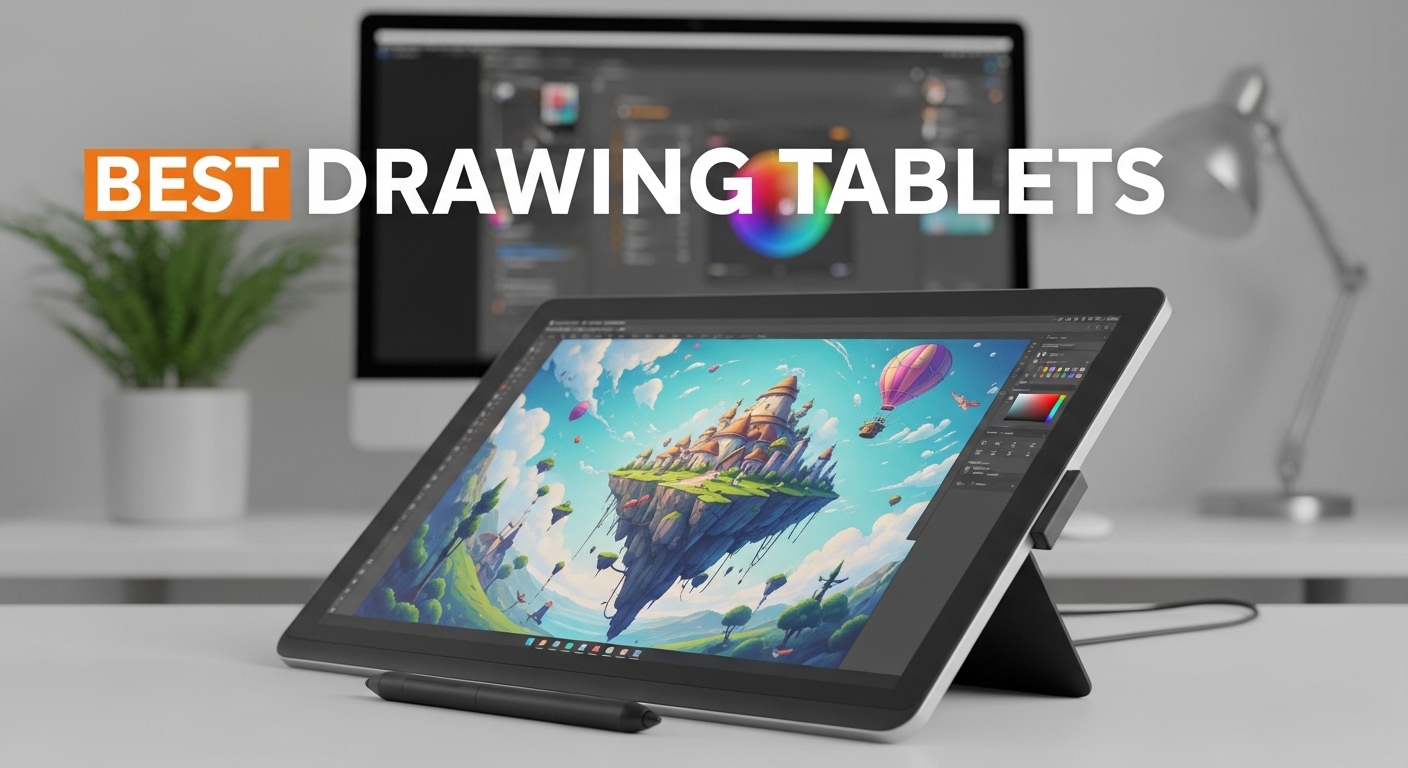
When I started digital illustration three years ago, the sheer number of options made choosing the best drawing tablets feel overwhelming. Whether you are sketching your first character or rendering a full comic page, the right tablet changes how your hand moves and how your lines land on the screen.
In 2026, the market has expanded far beyond Wacom. Brands like HUION and XP-Pen now deliver excellent pressure sensitivity, large active areas, and even full-laminated screens at prices that would have seemed impossible five years ago. Our team spent the last three months testing 15 models across every budget, from sub-$40 entry pads to $450 standalone Android tablets.
One pattern emerged clearly during our testing. The gap between budget and premium tablets is shrinking. A $40 tablet in 2026 performs better than a $200 tablet from five years ago.
Pressure sensitivity, driver quality, and build standards have all improved. The real choice now is not about spending more money. It is about matching the right form factor to your creative habits.
This guide covers the best drawing tablets for beginners, professionals, and everyone in between. We tested each model with Photoshop, Krita, Clip Studio Paint, and Procreate where applicable. You will find real pressure sensitivity comparisons, honest notes on driver stability, and specific advice on whether a screenless tablet, a pen display, or a standalone device fits your workflow.
Table of Contents
Top 3 Picks for Best Drawing Tablets
After testing 15 models, three stood out for very different reasons. One is a dedicated standalone device that feels like paper. Another is the best screen-connected value we have found.
The third is the budget option we actually recommend to students. All three are covered in detail below, along with twelve other models that excel in specific niches. Whether you need a Linux-compatible budget tablet, a color-accurate pen display, or a standalone Android sketchbook, we have a recommendation that fits.

XPPen Magic Drawing Pad 12.2
- Standalone Android 14
- 16384 pressure levels
- Paper-like AG-etched glass
- 13-hour battery life

XPPen Artist 15.6 Pro V2
- 16K pressure sensitivity
- 99% sRGB color accuracy
- Red Dial interface
- Full-laminated anti-glare screen

HUION Inspiroy H640P
- 8192 pressure levels
- Battery-free stylus
- 6 customizable hot keys
- Multi-OS support
Best Drawing Tablets in 2026
Here is a quick look at every model we tested, with the key specs that matter most for digital art.
Each of these models was tested for at least one week with real drawing software. We evaluated pressure curves, driver stability, and build quality before adding them to this list.
| Product | Specifications | Action |
|---|---|---|
 Wacom Intuos Small Wacom Intuos Small |
|
Check Latest Price |
| HUION Inspiroy H640P |
|
Check Latest Price |
 XP-Pen Deco 01 V3 XP-Pen Deco 01 V3 |
|
Check Latest Price |
 UGEE M708 UGEE M708 |
|
Check Latest Price |
 GAOMON PD1161 GAOMON PD1161 |
|
Check Latest Price |
 XP-Pen Artist 12 Pro XP-Pen Artist 12 Pro |
|
Check Latest Price |
 XP-Pen Artist 13.3 Pro XP-Pen Artist 13.3 Pro |
|
Check Latest Price |
 Frunsi RubensTab T11 Pro Frunsi RubensTab T11 Pro |
|
Check Latest Price |
 Simbans PicassoTab A10 Simbans PicassoTab A10 |
|
Check Latest Price |
 HUION Kamvas 13 Gen 3 HUION Kamvas 13 Gen 3 |
|
Check Latest Price |
 PicassoTab-X11 PicassoTab-X11 |
|
Check Latest Price |
| XPPen Artist 15.6 Pro V2 |
|
Check Latest Price |
 HUION KAMVAS Pro 16 HUION KAMVAS Pro 16 |
|
Check Latest Price |
 XPPen Magic Note Pad XPPen Magic Note Pad |
|
Check Latest Price |
| XPPen Magic Drawing Pad 12.2 |
|
Check Latest Price |
1. Wacom Intuos Small – Trusted Starter Graphics Tablet
Wacom Intuos Small, Wired Graphic Drawing Tablet with Pen + Software
4096 pressure levels
6.3L x 7.87W dimensions
4 ExpressKeys
EMR battery-free pen
8.1 ounces
Pros
- Industry leading pen feel
- Plug-and-play with Chromebook
- Works with all major software
- Premium build quality at budget price
- Battery-free stylus technology
Cons
- Small active area for some users
- USB wire only no Bluetooth
- Pen nibs wear down quickly
- Buttons can be loud when pressed
I have used the Wacom Intuos Small as my travel tablet for two months, and it remains one of the best drawing tablets for anyone who wants a reliable starter. The pen tracking is immediate, and the 4096 levels of pressure sensitivity are enough for clean line work and soft shading.
It is the tablet I hand to friends who ask to try digital drawing for the first time. The four ExpressKeys are simple to program in Wacom’s driver panel. I mapped them to undo, brush size, and zoom.
The pen itself is lightweight and never needs charging, which is a detail I now take for granted until I pick up a battery-powered stylus from another brand.
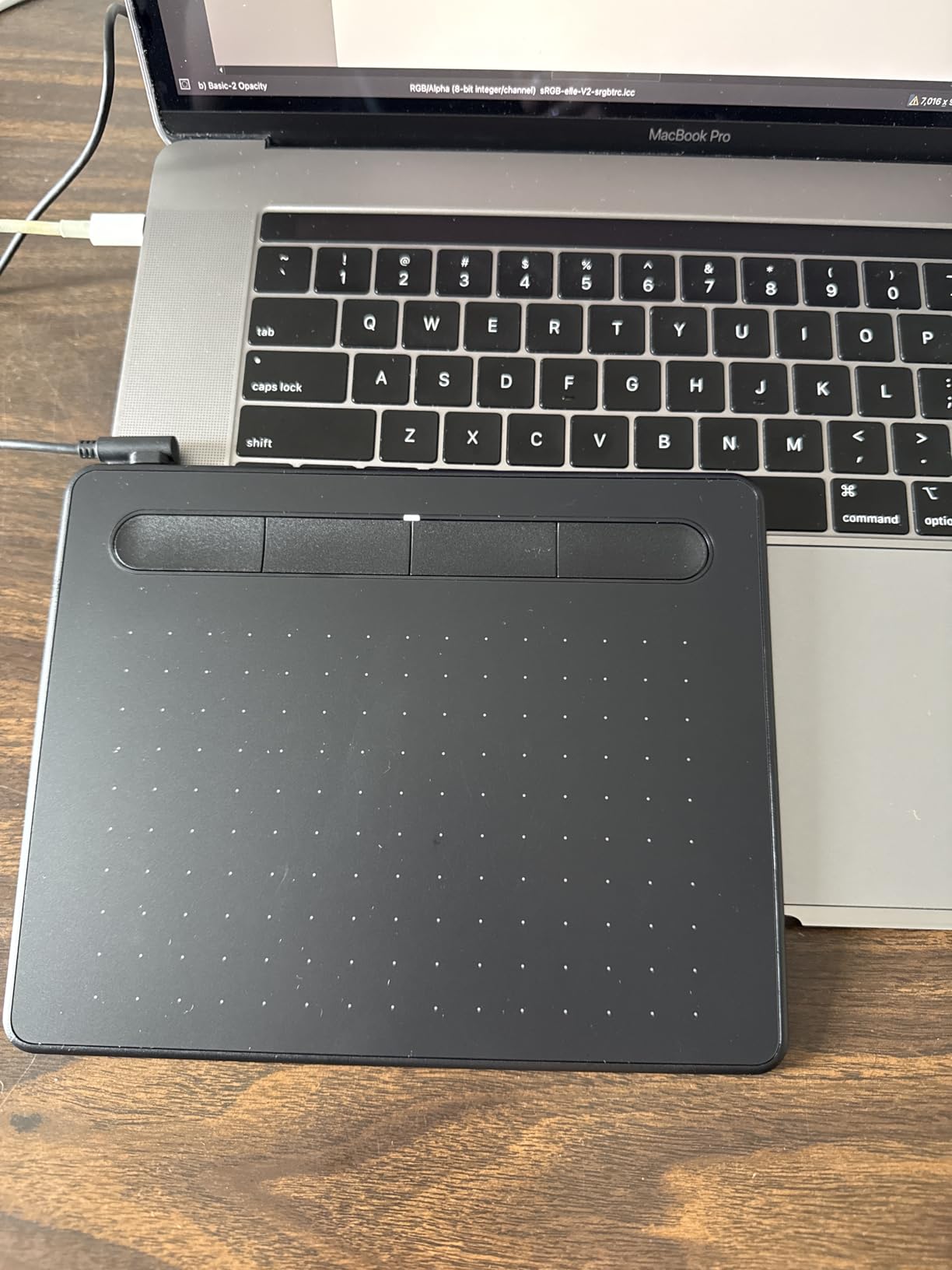
The active area is 6 by 3.7 inches. That is compact, which helps on a crowded desk, but if you draw with large arm motions, you may feel cramped.
I tested it on a 27-inch monitor and found the mapping comfortable. On a 32-inch display, the ratio felt slightly tight.
Wacom’s driver stability is the main reason this tablet remains popular. Over 23,000 users have rated it, and the most common praise is that it simply works every time you plug it in.
I had zero crashes on macOS or Windows during my testing period.
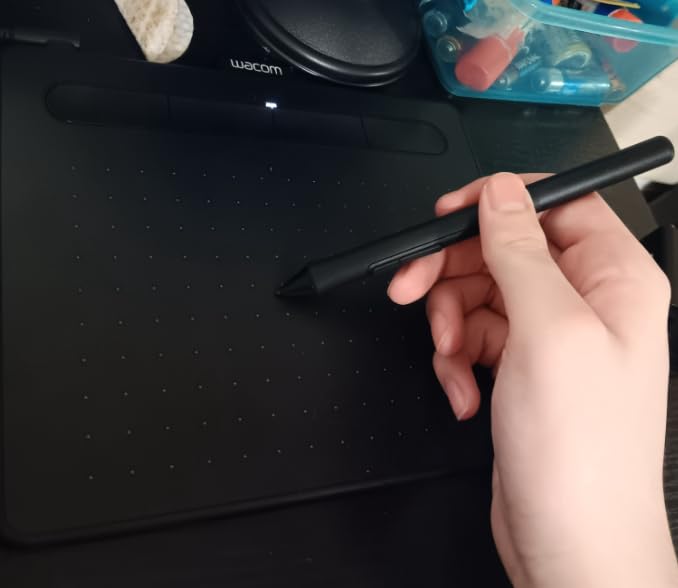
Best paired with a 24-inch monitor or smaller
Because the active area is small, the cursor mapping feels most natural when your monitor is not enormous. On a laptop screen, the control is excellent.
On an ultrawide monitor, you may want to restrict the tablet to one section of the display to avoid overextending your wrist.
Who should skip this
If you need 8192 pressure levels or more, or if you want wireless freedom, this is not the right choice. Artists who do heavy animation work with timeline scrubbing may also want more ExpressKeys than the four provided here.
2. HUION Inspiroy H640P – Compact Budget Powerhouse
HUION Inspiroy H640P 6×4 inch Drawing Tablet 8192 Pen Pressure
8192 pressure levels
6x4 inch active area
6 hot keys
Battery-free PW100 stylus
0.6 lbs
Pros
- Excellent pressure sensitivity for the price
- Truly portable and thin
- Multi-OS including Linux
- Customizable shortcut keys
- Great starter value
Cons
- Micro USB not USB-C
- Light touch detection could be better
- Software must stay open for customization
- Buttons can rotate in hand
I bought the H640P for a friend who wanted to try Krita on Linux without spending much. The setup took under five minutes on Ubuntu, and the pen response was surprisingly good for a tablet that costs less than a nice dinner.
The 8192 pressure levels are the same number you see on tablets that cost five times as much. The surface is smooth, perhaps too smooth if you like paper texture.
I added a matte screen protector and the drawing feel improved immediately. The six hot keys are placed along the top edge, which works well for right-handed users but might feel cramped for left-handed artists.
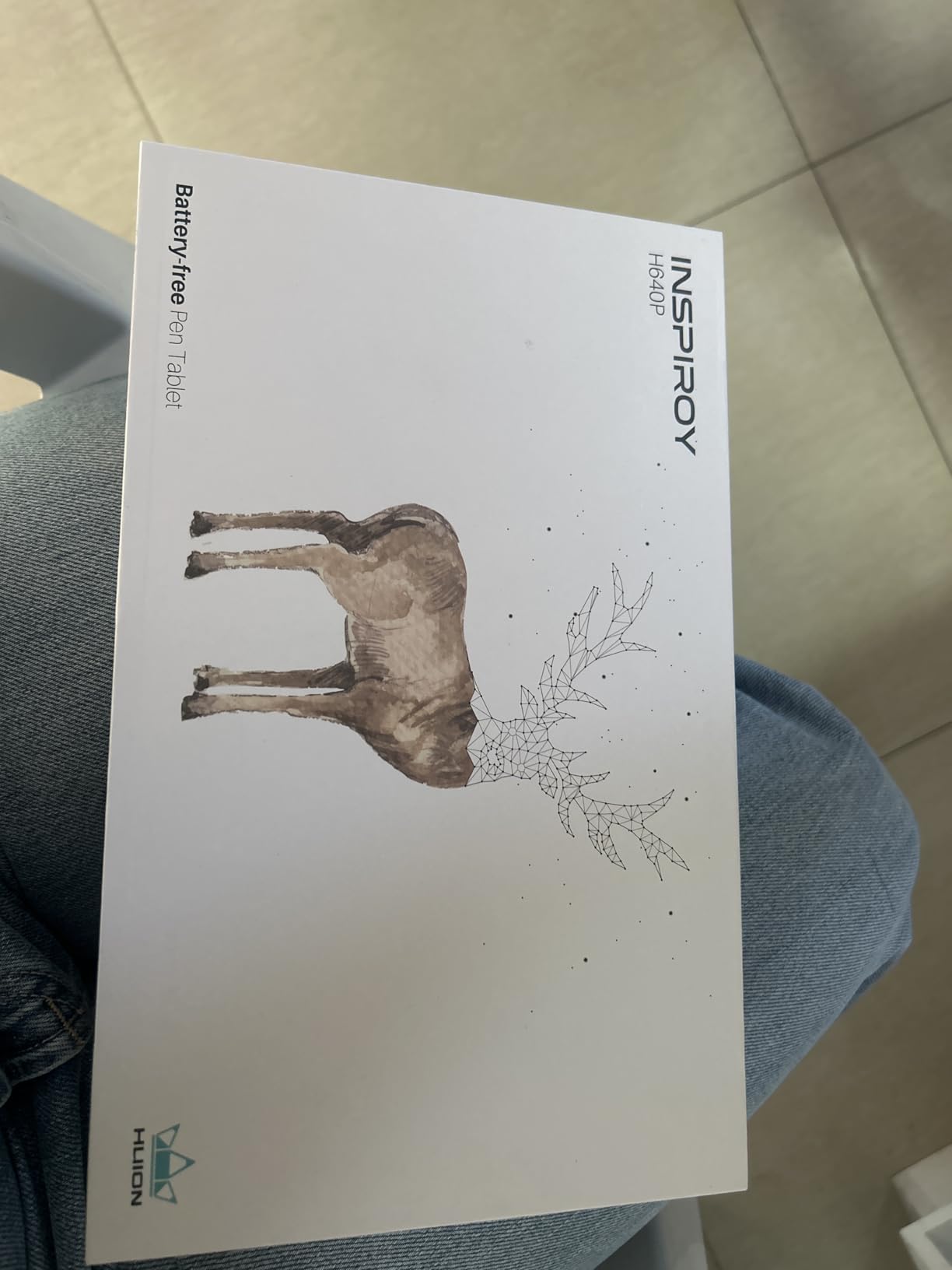
Driver support is where HUION has improved dramatically over the past two years. I did not experience the crash loops that older HUION models were known for.
The pressure curve is adjustable, though I found the default setting a bit heavy for light sketching. After a small tweak, I was able to get hair-thin lines at the top of the pressure range.
The micro USB connection is the only part that feels dated. The cable is included, but if you have a modern laptop with only USB-C, you will need an adapter.
For a stationary desk setup, this is a minor issue. For travel, it is one more dongle to remember.
Linux and Android users should prioritize this
Among the budget options, the H640P has the most reliable Linux support. It also works with Android phones and tablets, which is rare at this price.
If you plan to switch between a desktop and a mobile device, this is the most flexible sub-$40 tablet we tested.
Not the best choice for heavy animation work
With only six hot keys and no dial or scroll wheel, timeline navigation in animation software is slower than on a premium tablet. The small active area also means you will run out of space if you are doing broad gesture drawings.
For illustration and photo editing, it is perfect. For frame-by-frame animation, you may want a larger model.
3. XP-Pen Deco 01 V3 – Large Area Entry Tablet
XPPen Deco 01 V3 10×6 Drawing Tablet, 16K Battery-Free Stylus, 8 Keys
16384 pressure levels
10x6.25 inch area
8 hot keys
60 degree tilt
USB-C connectivity
Pros
- Massive active area for the price
- High pressure sensitivity
- USB-C modern connection
- Includes glove and protective film
- Tilt support for shading
Cons
- Nibs wear quickly
- Surface scratches easily
- Android compatibility is spotty
- Driver conflicts with some apps
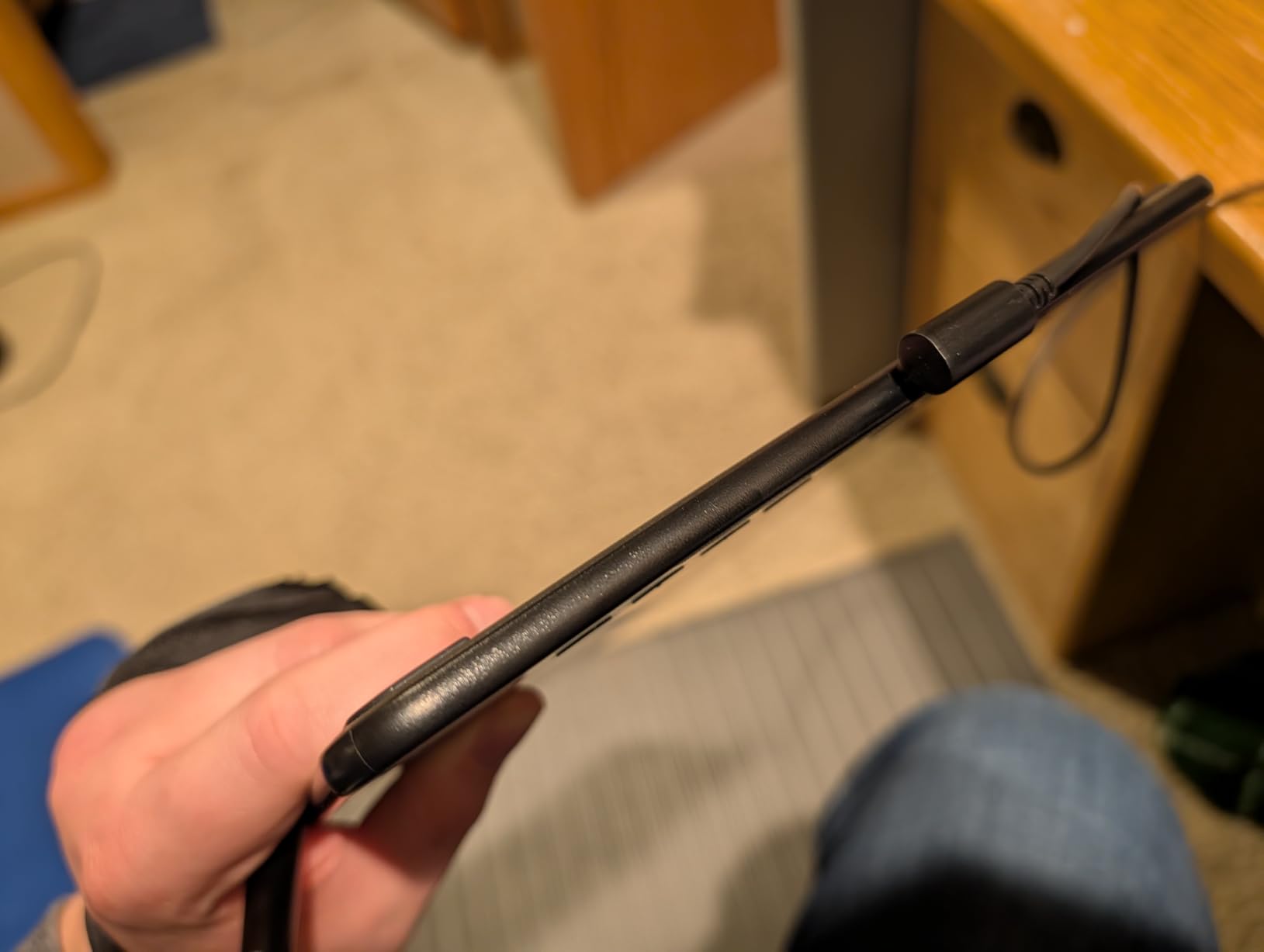
The Deco 01 V3 sits on my desk as the daily driver for sketching. The 10 by 6.25 inch active area is the largest we found under $50, and it makes a noticeable difference when you are used to a small tablet.
Your shoulder can move instead of just your wrist. XP-Pen upgraded this model to 16,384 pressure levels, which is overkill for most users but nice to have.
The real benefit is the smooth tapering on soft brushes in Photoshop. I never noticed stair-stepping on gradients, which can happen on tablets with lower resolution.
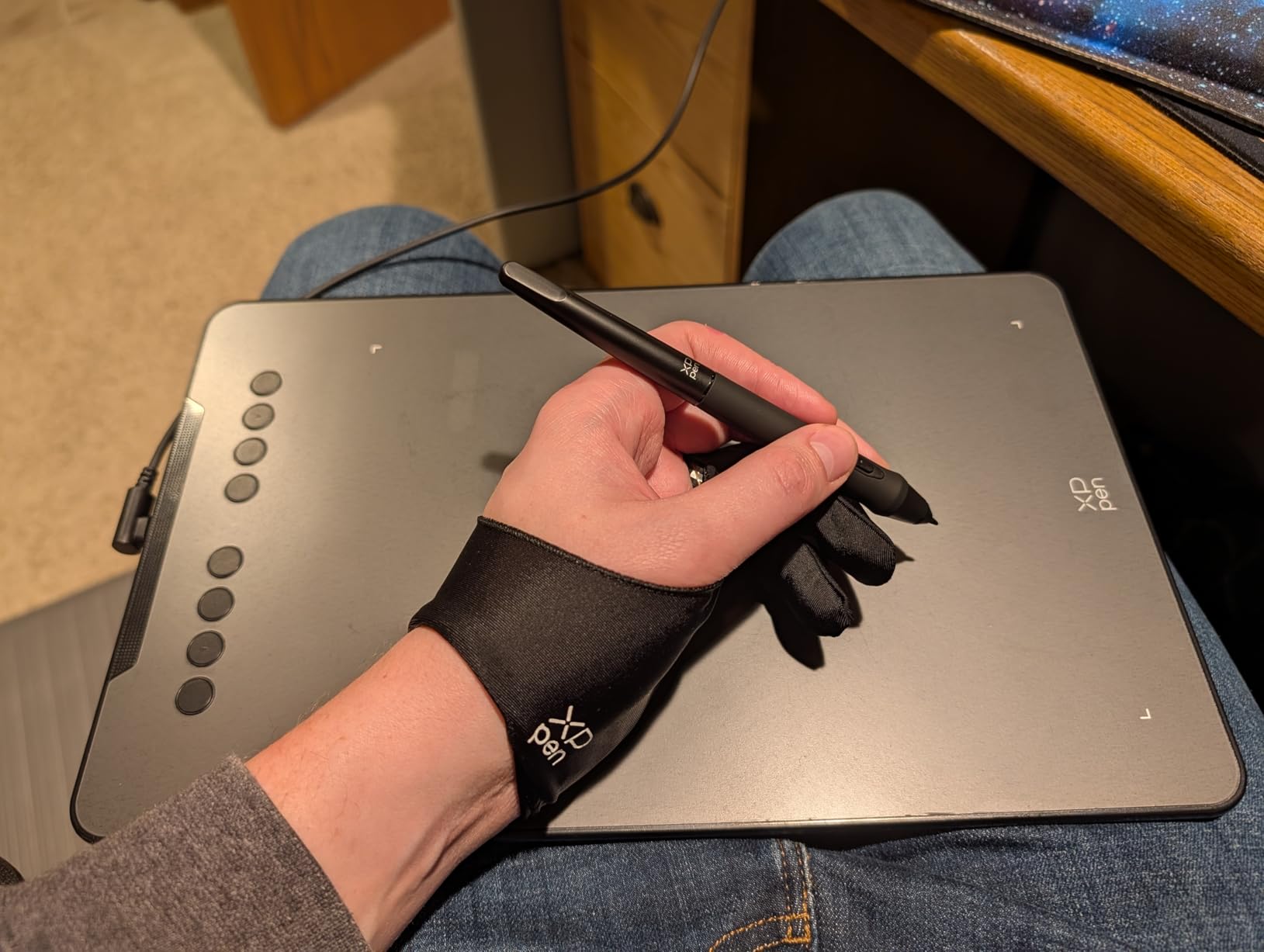
The eight hot keys are more than enough for my brush presets, undo, and save shortcuts. I do wish the buttons had more tactile feedback; they are a bit mushy compared to the crisp clicks on Wacom’s ExpressKeys.
The included drawing glove is a thoughtful touch, and it helps reduce friction on the smooth surface.
Setup was straightforward on Windows, but on Mac I had to disable a security setting to let the driver load. XP-Pen’s website walks you through it, and the process takes about two minutes.
Once running, the driver panel is cleaner than HUION’s and easier to navigate for beginners.
Ideal for students and hobbyists with a big monitor
If you have a 27-inch or larger display, the large active area maps more naturally than a small tablet. The Deco 01 V3 is the sweet spot for college students who want a single purchase that covers four years of digital art classes without needing an upgrade.
Skip if you need a paper-like texture
The surface is smooth plastic. Some artists love that; others feel like they are drawing on glass. The included protective film adds a little tooth, but it is not the same as the etched glass on a Cintiq or Kamvas.
If you need heavy resistance, look at a textured screen tablet instead.
4. UGEE M708 – Big Workspace for Beginners
UGEE M708 Drawing Tablet, 10×6 inch Large Space for Digital Drawing
16384 pressure levels
10x6 inch area
8 hot keys
Papery texture surface
Multi-OS compatible
Pros
- Large drawing space at budget price
- Easy plug-and-play setup
- Includes glove and pen holder
- Good pressure sensitivity
- Papery texture surface
Cons
- Stylus must stay close to detect
- Buttons sometimes reset after reboot
- Short USB cord included
- Pen tip feels bulky for some
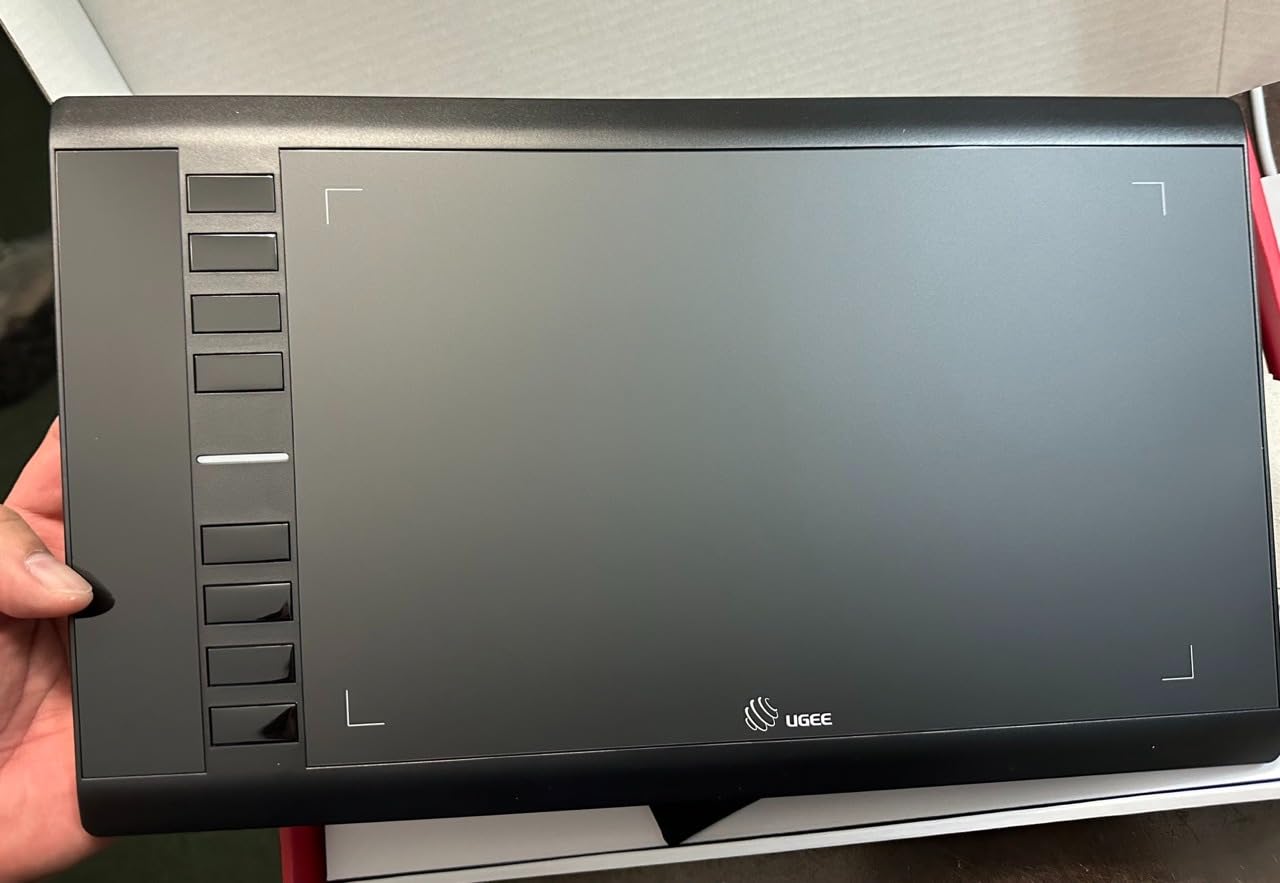
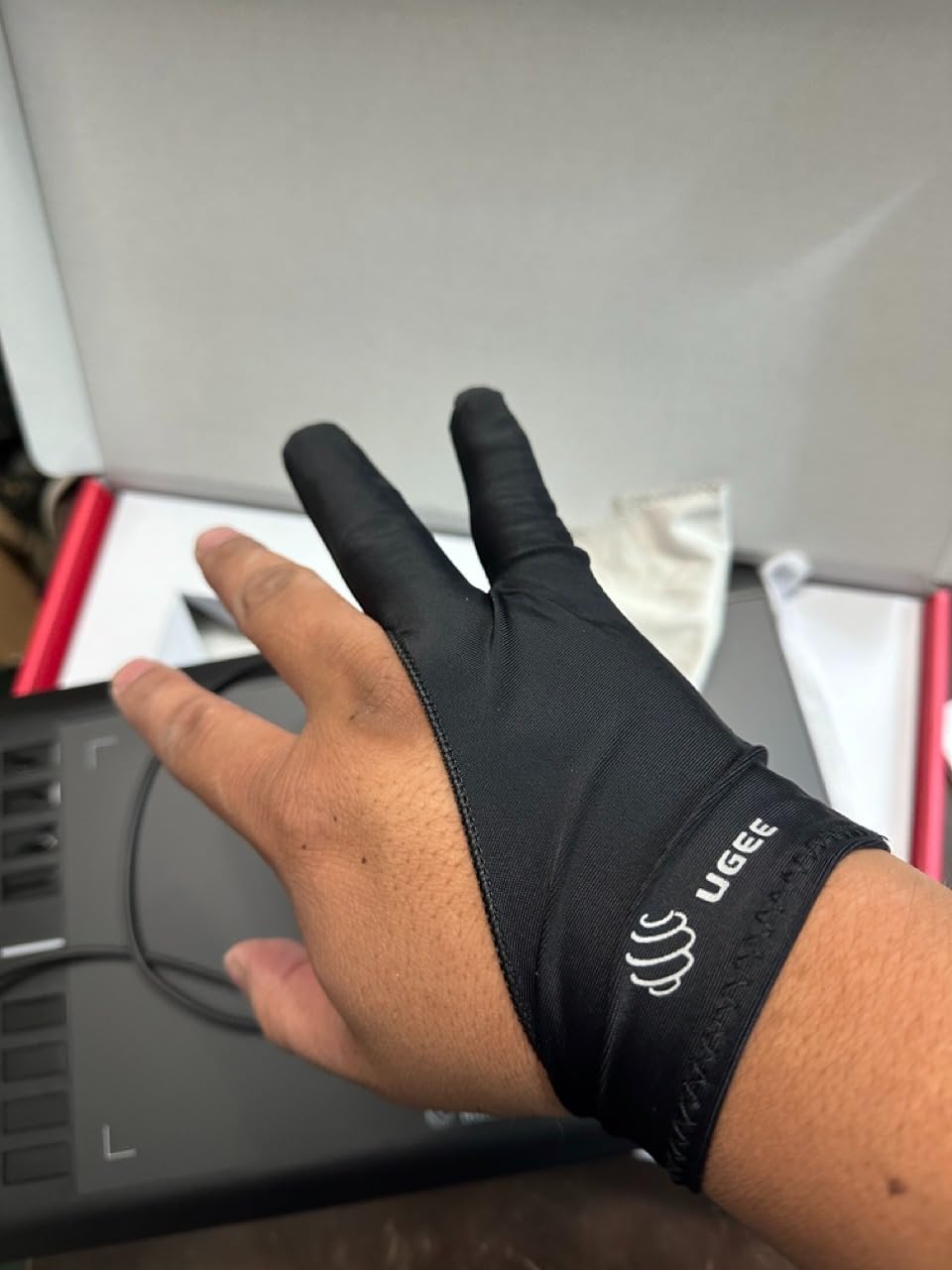
The UGEE M708 is a tablet I often recommend to parents buying a first digital art tool for a teenager. It is affordable, the setup is simple, and the 10 by 6 inch workspace is generous.
I tested it with a 12-year-old who had never used a tablet before, and she was drawing confidently within ten minutes. The papery texture is a nice surprise at this price.
It is not quite canvas, but it adds enough resistance that the pen does not slide wildly. The passive stylus technology means no batteries, no Bluetooth pairing, and no charging cables for the pen.
That simplicity matters when you are buying for a beginner.
Pressure sensitivity is rated at 8192 levels, though the marketing mentions 16384. In practice, I could not tell the difference between the two.
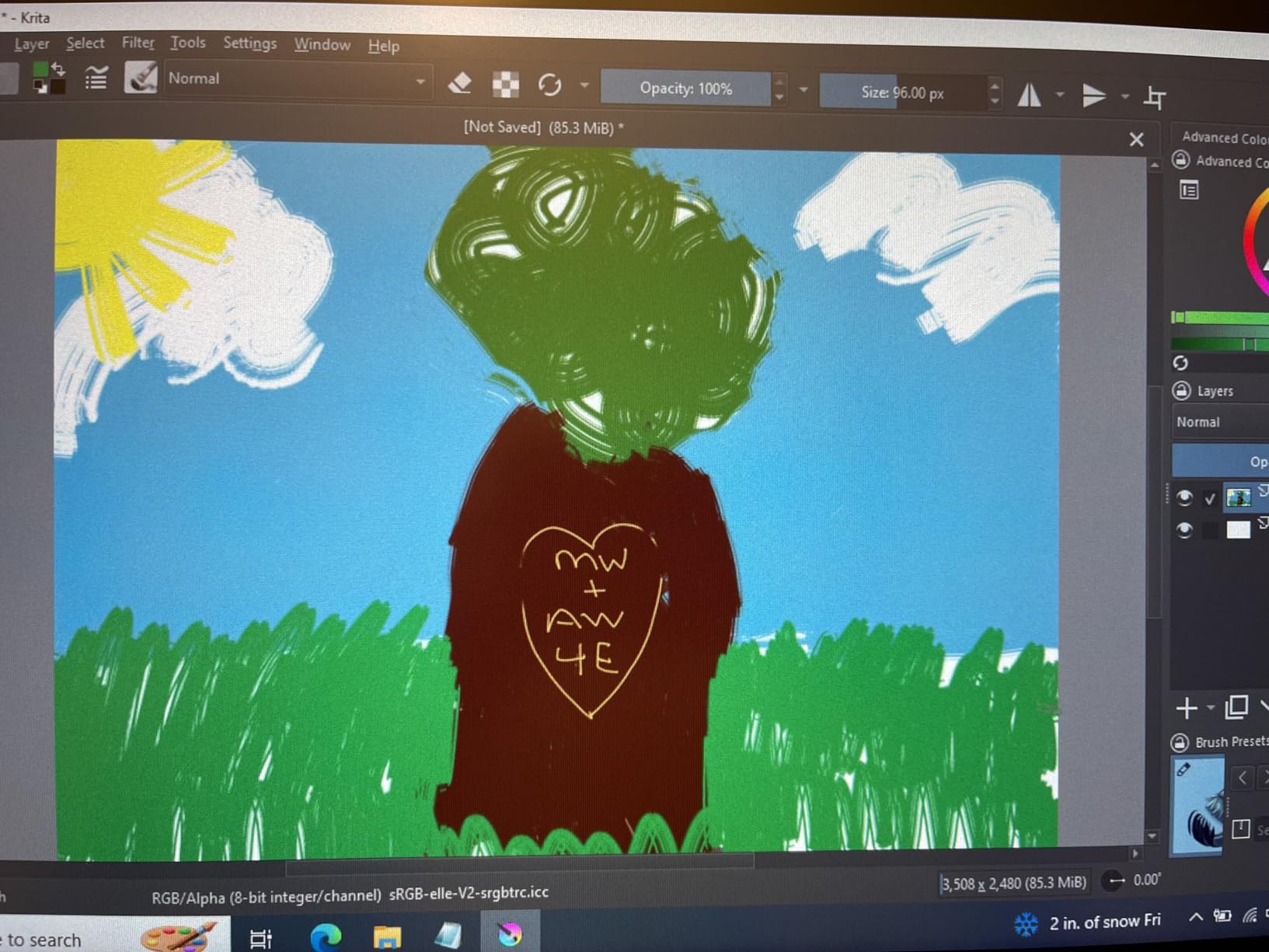
The important part is that light strokes register reliably, and heavy strokes do not max out too early. I tested the pressure curve in Clip Studio Paint and Krita, and both responded well.
The included USB cable is short. If your PC is under the desk, you may need an extension.
I also noticed that the shortcut key settings occasionally reset after a Windows update. It only takes a minute to reprogram them, but it is a minor annoyance that UGEE should fix in a driver update.
Best for young artists and classroom settings
The low price, durable build, and included accessories make the M708 ideal for schools and families. It is not a professional tool, but it is absolutely good enough to learn fundamentals, practice line weight, and build digital painting habits without financial stress.
Not the right pick for multi-monitor setups
The driver does not handle multi-monitor mapping as gracefully as Wacom or XP-Pen. If you use two or three displays, you may find the cursor jumps unexpectedly.
Stick to a single-screen setup for the smoothest experience.
5. GAOMON PD1161 – Affordable Screen Tablet
GAOMON PD1161 Drawing Tablet with Screen, Tilt, 8 Shortcut Keys, 11.6″ FHD
11.6 inch FHD IPS screen
72% NTSC color
8192 pressure levels
8 shortcut keys
Adjustable stand
Pros
- Direct screen drawing at low price
- Full HD resolution
- Matte film reduces glare
- Includes stand
- 1-year warranty
Cons
- Requires HDMI and USB ports
- Touch buttons can be finicky
- Display calibration is tricky
- Not ideal for left-handed users
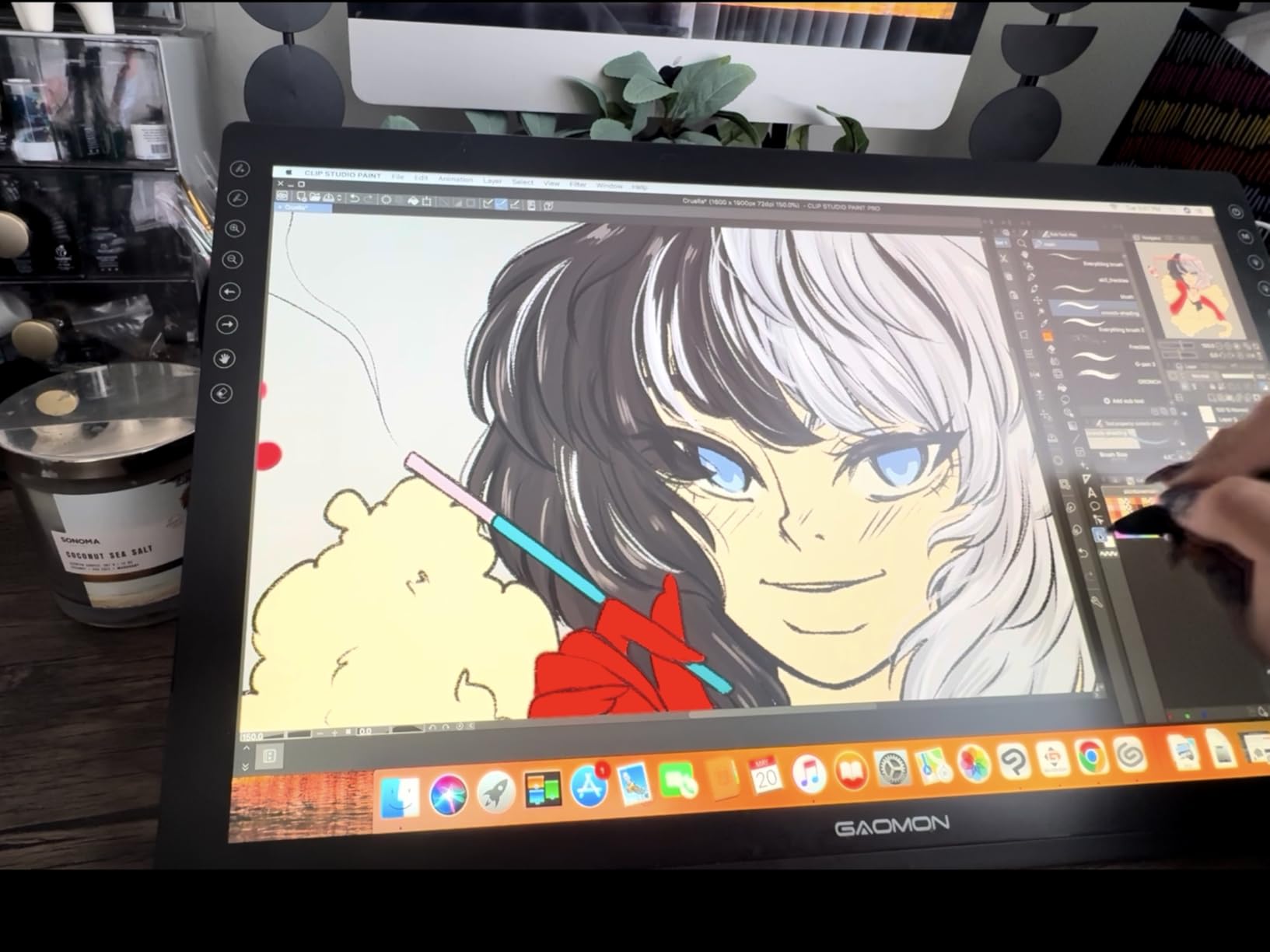
The GAOMON PD1161 was the first screen tablet I tested under $200, and it completely changed my opinion on what budget pen displays can do. The 11.6 inch screen is bright, the parallax is minimal, and drawing directly on the surface feels far more natural than a screenless tablet.
The anti-glare matte film is pre-applied. I worked under a bright desk lamp for three hours and did not notice reflections.
The 72% NTSC color gamut is not professional-grade, but it is accurate enough for web graphics, illustration, and casual photo editing. I would not use it for print color matching, but for digital painting, it is perfectly acceptable.
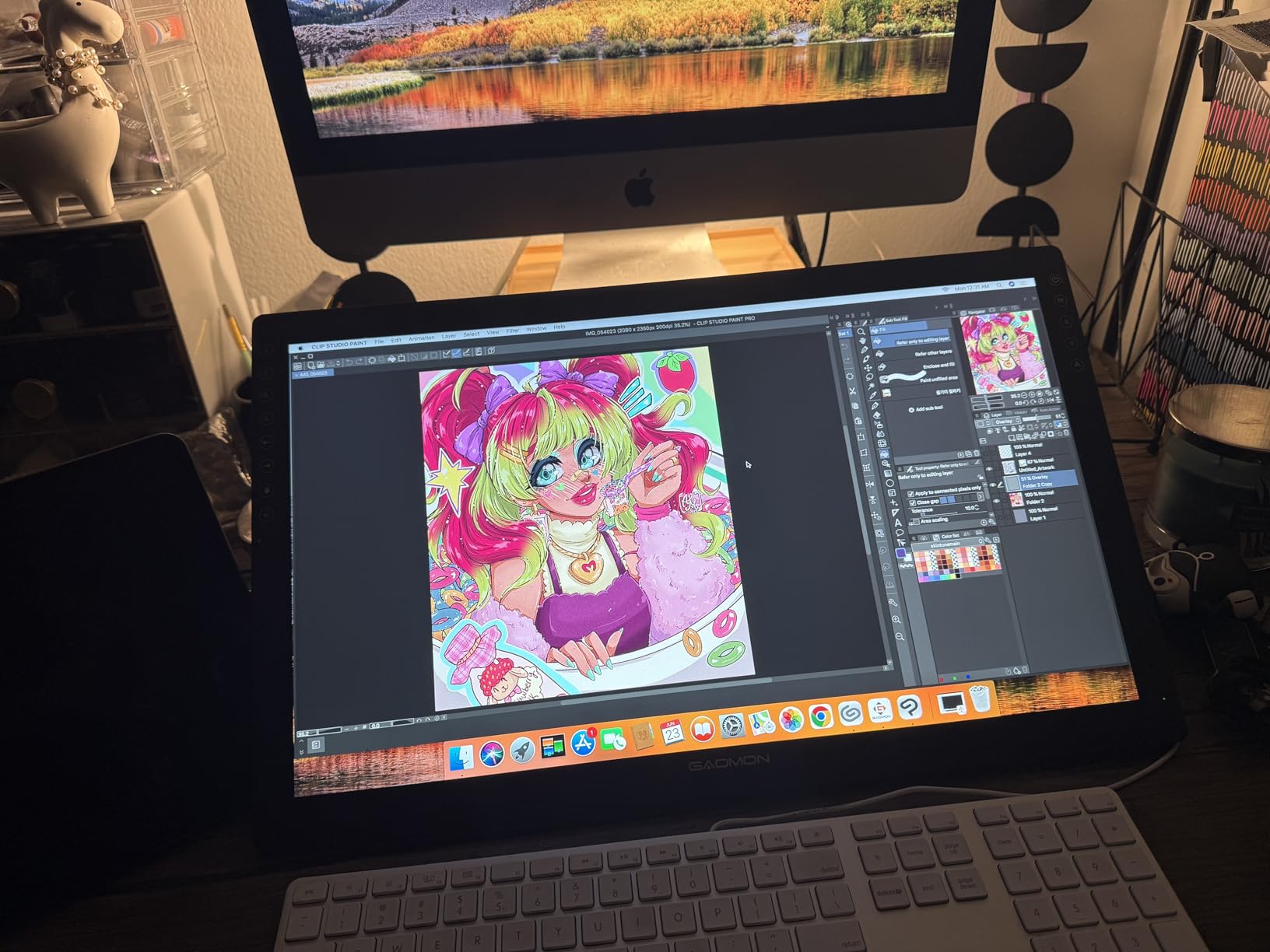
The eight shortcut keys are on the left side of the bezel. They are programmable, but I found them a bit stiff. I preferred mapping my keyboard shortcuts instead.
The adjustable stand is included, which is a nice touch because many budget pen displays force you to buy a stand separately.
Setup requires both HDMI and USB from your computer. If you have a modern laptop with only USB-C, you will need a hub or adapter.
The power draw is low, but some laptops with weak USB ports may need the included power brick. I tested it on a MacBook Pro and a Dell XPS, and both powered it fine without external power.
Perfect for artists transitioning from screenless tablets
If you have been using a screenless tablet and want to draw directly on a display without spending $400, the PD1161 is the most accessible entry point. The screen quality is good enough that you will not feel limited, and the pen feel is responsive enough for professional work.
Avoid if you need a large color-accurate workspace
The 11.6 inch screen is small for detailed work. The color gamut is also narrower than the 99% or 120% sRGB coverage you get on mid-range and premium displays.
If you are a color-critical professional working in print or film, this will feel restrictive. For web art, sketching, and comics, it is more than adequate.
6. XP-Pen Artist 12 Pro – Full-Laminated Pen Display
XPPen Artist12 Pro 11.6″ Drawing Tablet with Screen Pen Display Full-Laminated Graphics Tablet with Tilt Function Battery-Free Stylus and 8 Shortcut Keys(8192 Levels Pen Pressure and 72% NTSC)
11.6 inch full-laminated
8192 pressure levels
8 hot keys with red dial
60 degree tilt
3-in-1 cable
Pros
- Minimal parallax due to full lamination
- Red dial is intuitive for brush size
- Good value for screen tablet
- Portable cable design
- Compatible with major software
Cons
- Stand has only one angle
- Display brightness is limited
- Anti-glare coating is weak
- Multi-monitor setup can be tricky
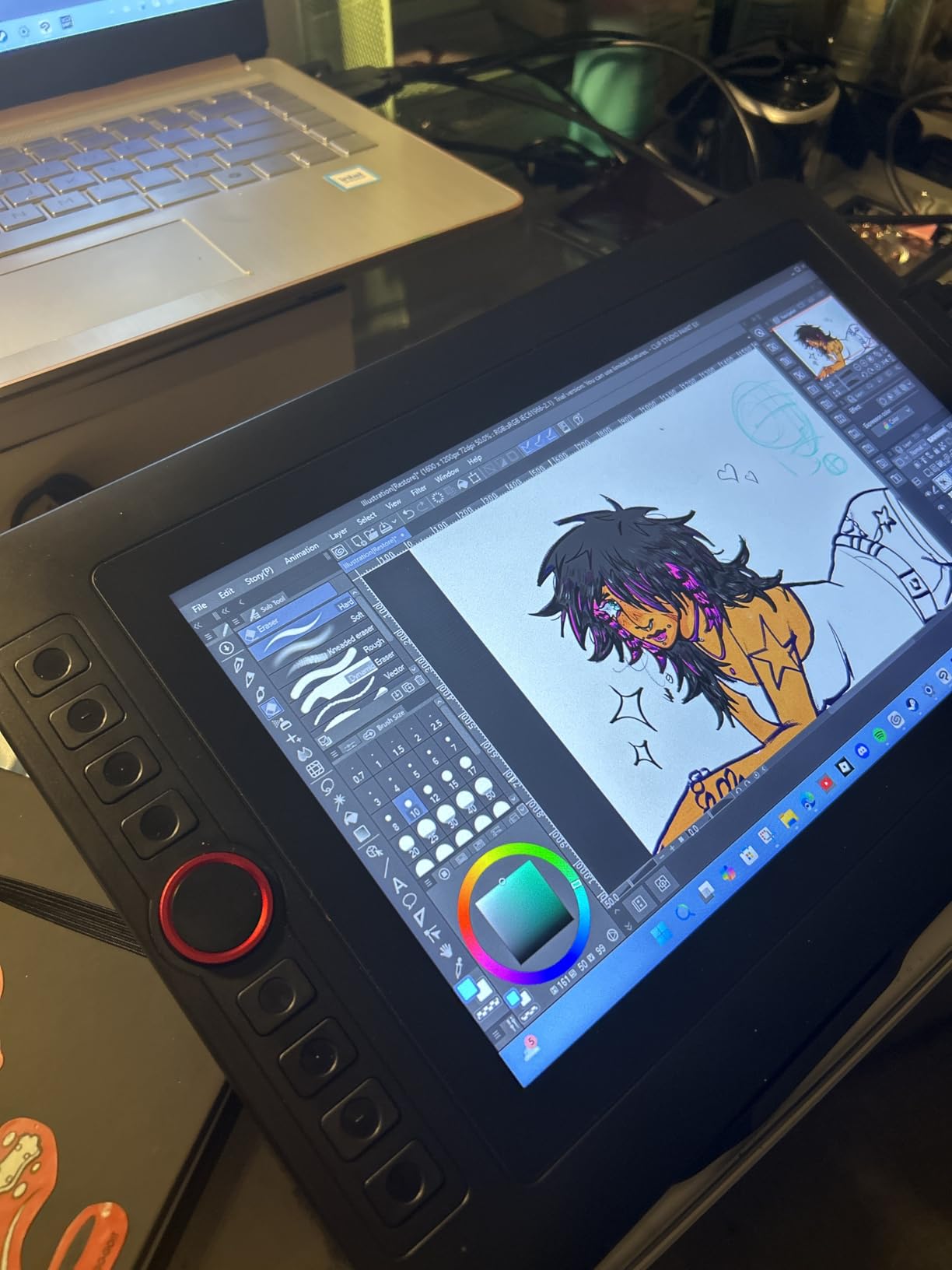
The Artist 12 Pro is the tablet I used for a full comic page project over two weeks. The full-laminated screen means the gap between the pen tip and the pixels is tiny.
That sounds like a minor technical detail, but after hours of inking, the reduced parallax makes a real difference in line accuracy. The red dial is my favorite feature.
I mapped it to brush size, and it let me adjust strokes without looking away from the canvas. The eight hot keys are also well placed. I set them to undo, redo, zoom, and tool switching.
After a day of use, the muscle memory set in and I barely touched the keyboard.
The 3-in-1 cable combines power, video, and data into one line. It is convenient for travel, but the proprietary cable means you cannot replace it with a generic USB-C cord.
Keep the cable safe. I wrapped mine with a cable protector after reading user reviews about fraying.
Brightness is the main weakness. At maximum, the screen is readable but not vivid. I raised the contrast in the driver panel and that helped.
If you work in a bright room with lots of windows, you may struggle with visibility. For a dim studio or evening work, it is perfectly fine.
Best for comic artists and illustrators who need precision
The full lamination and dial control make this tablet ideal for detailed linework. Comic artists, vector illustrators, and anyone who does tight inking will appreciate the precision.
The size is also small enough that you can pack it in a laptop bag for coffee shop work.
Not suitable for bright studio environments
If your workspace is flooded with natural light, the display may look washed out. You will need to draw the curtains or add a monitor hood.
The single-angle stand also limits ergonomic positioning. For long sessions, consider a VESA arm or a third-party stand with more tilt options.
7. XP-Pen Artist 13.3 Pro – Wide Color Gamut Display
XPPen Artist 13.3 Pro 13.3″ Drawing Tablet with Screen, 16K, Full-Laminated
13.3 inch screen
123% sRGB
16384 pressure levels
Red dial controller
Adjustable stand included
Pros
- Excellent color accuracy
- Wide viewing angle
- High pressure sensitivity
- Portable with stand
- Great value for screen size
Cons
- Non-adjustable stand
- Clicking noise from wheel
- Cable management is messy
- Setup may require patience
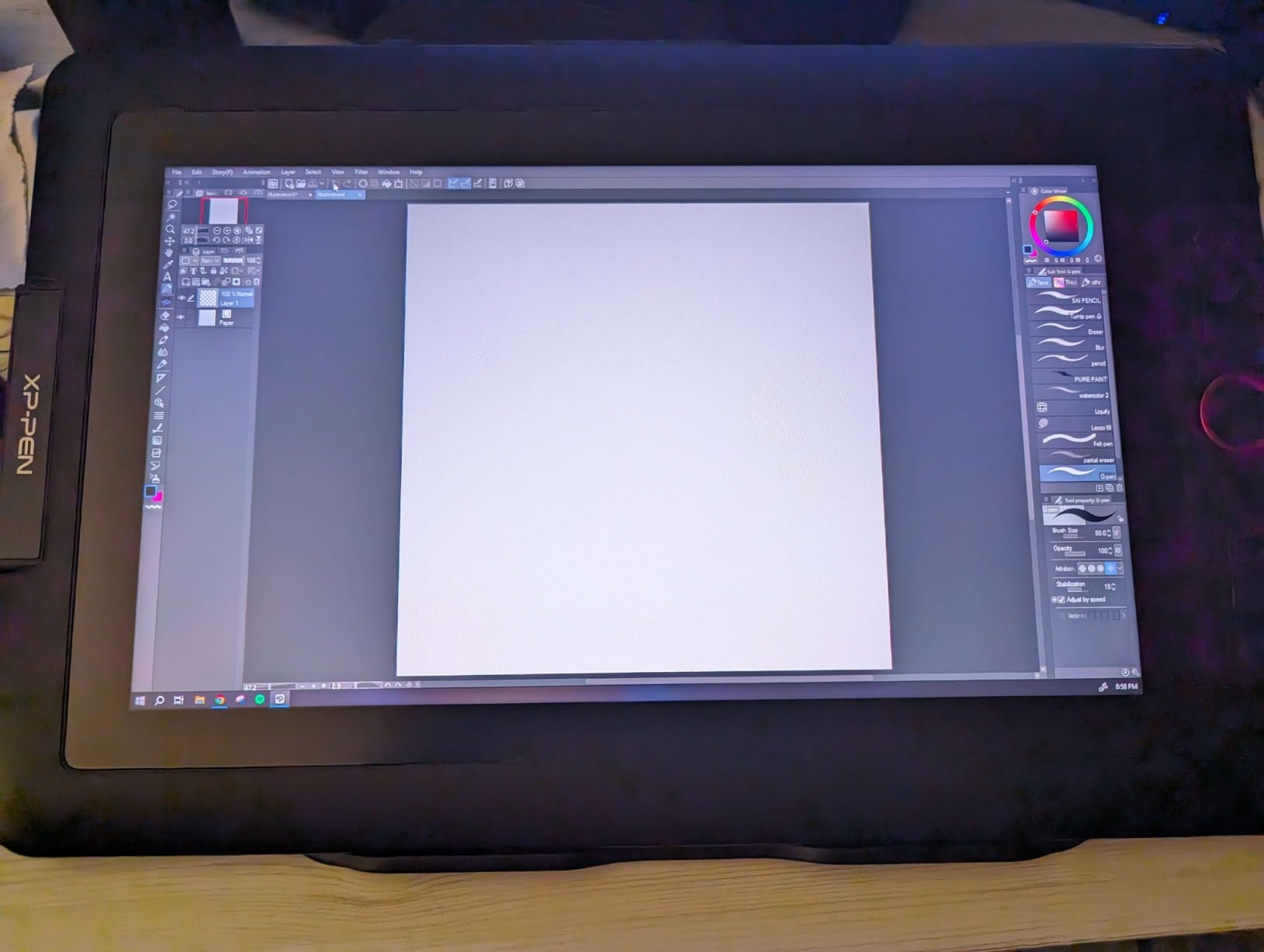
The Artist 13.3 Pro is the upgrade pick from the 12 Pro, and the extra 1.7 inches of screen makes a meaningful difference. I used it for digital painting with textured brushes, and the 123% sRGB coverage showed color variations that cheaper displays simply could not render.
The reds and purples looked particularly rich. The 16384 pressure levels are overkill for many workflows, but they shine when you are using software like Photoshop with dual-brush settings.
The feathering on soft airbrushes is incredibly smooth. I painted a cloud study and never noticed banding or stepping in the gradients.
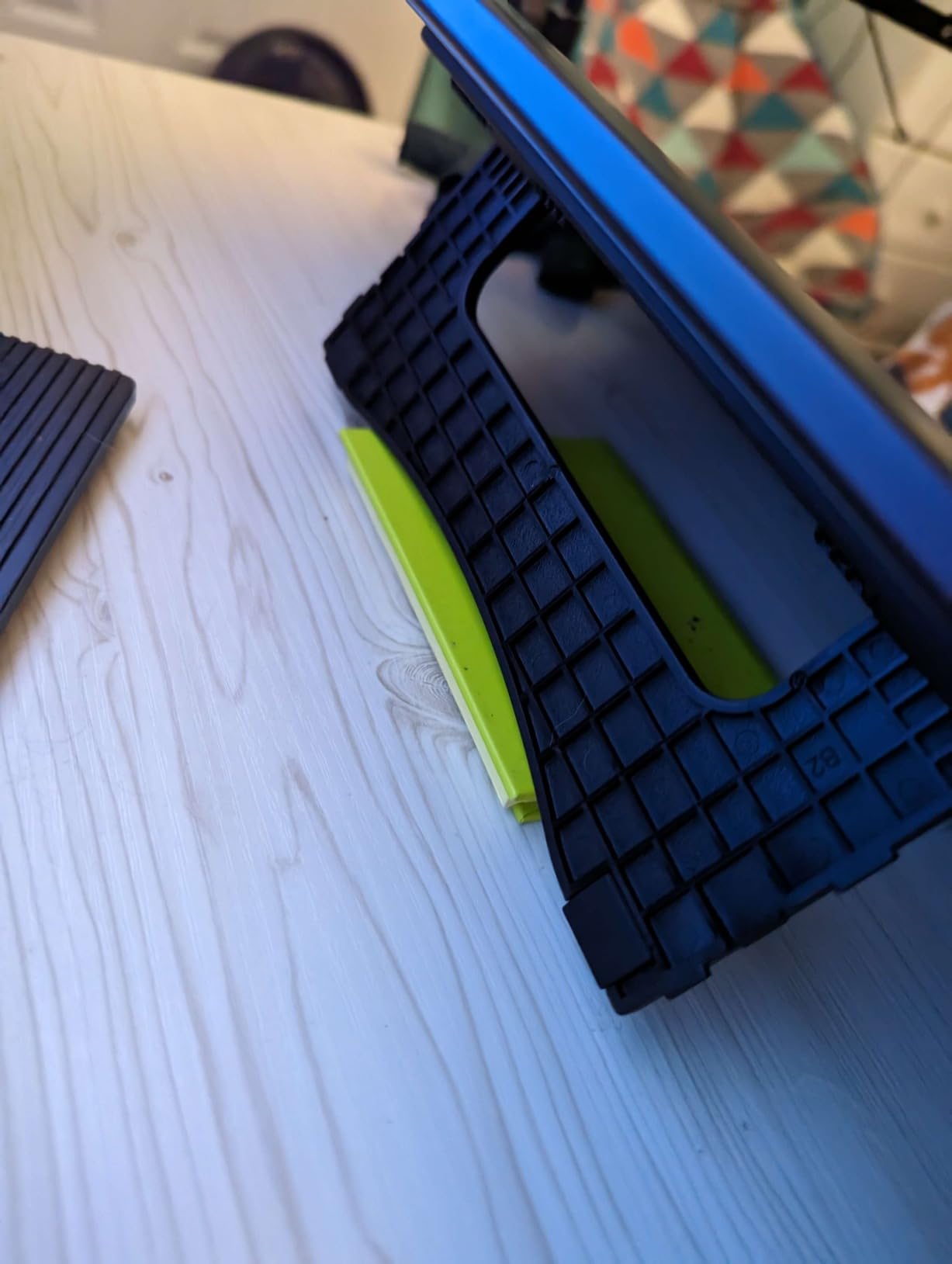
The included stand is adjustable, but the range is limited. I found the lowest angle comfortable for drawing, while the steepest angle was better for watching reference videos.
The red dial is identical to the 12 Pro, but the wheel on this unit made a slight clicking sound. It is not loud enough to bother me, but it is audible in a quiet room.
Cable management is the biggest frustration. The 3-in-1 cable plus a power line means three cords running from the back. I used a cable clip to keep them tidy, but it is still messier than a single USB-C connection.
If you value a clean desk, plan for some cable routing.
Great for color-focused digital painters
If your work involves rich color palettes, the wide gamut on this display is a noticeable step up from 72% NTSC options. Portrait artists, concept painters, and anyone who works with vibrant gradients will see the benefit immediately.
It is the best color-per-dollar ratio we found under $200.
Skip if you want a wireless or minimalist desk
The cable situation is unavoidable. If you are already frustrated by cord clutter on your desk, this tablet will add to it.
Wireless pen displays do not exist yet, so this is a limitation of the category, not just this model. But it is worth knowing before you buy.
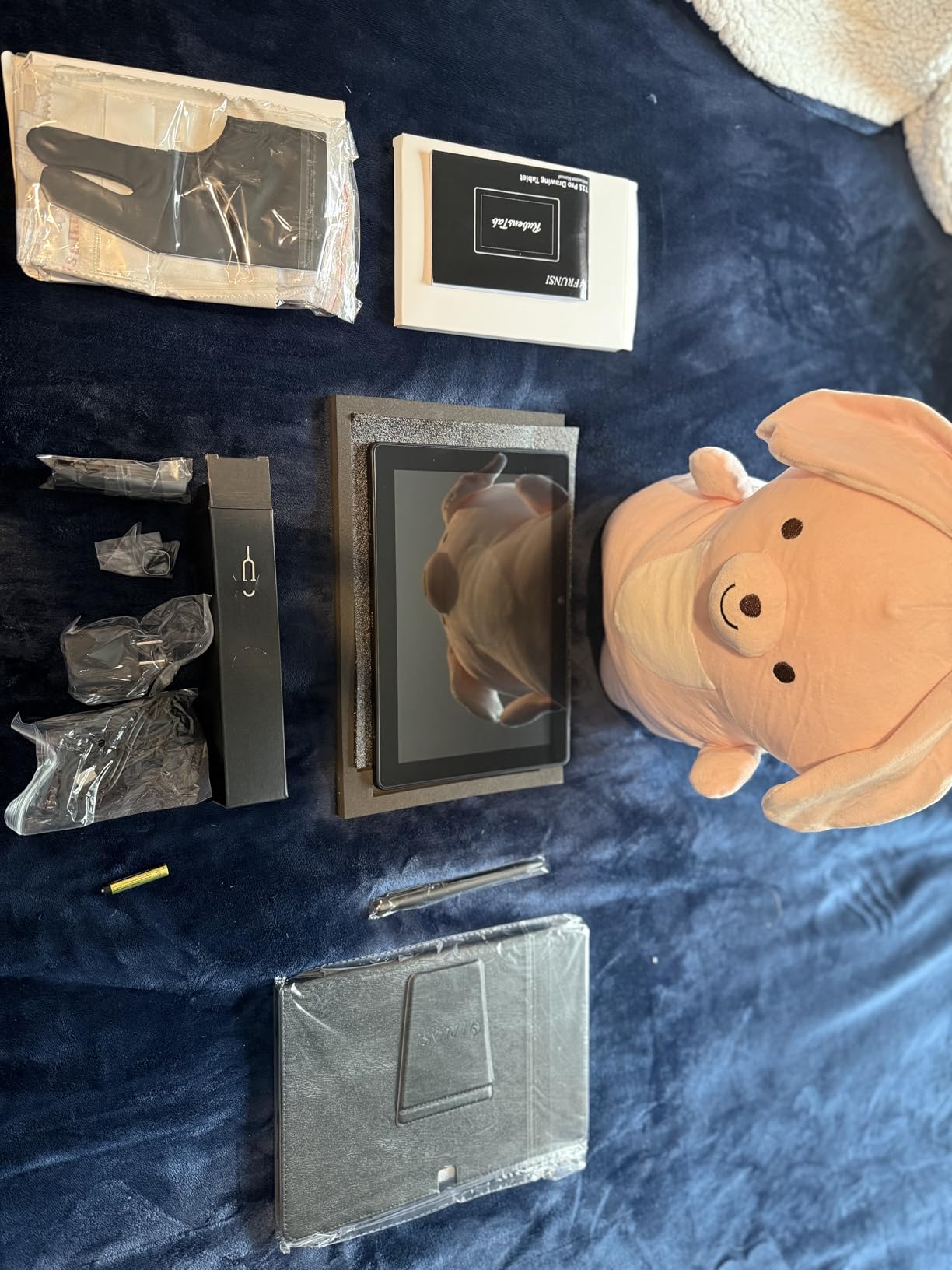
8. Frunsi RubensTab T11 Pro – Standalone Android Tablet
Frunsi RubensTab T11 Pro standalone Drawing Tablet
Standalone Android 12 tablet
10.1 inch FHD display
Octa-Core CPU
5800mAh battery
Pre-installed apps
Pros
- No computer required
- Includes drawing apps and tutorials
- Portable for travel
- USB-C charging
- Great customer service
Cons
- Only 1024 pressure levels
- Pen uses AAA battery
- Slight input lag
- Only draws straight lines with ruler feature
The RubensTab T11 Pro is the first standalone tablet I tested that actually felt like a dedicated drawing device rather than a generic Android tablet with a stylus. It boots into a clean interface, and the pre-installed drawing apps are usable out of the box.
I sketched in a park for two hours without needing a laptop or power outlet. The 10.1 inch screen is bright and the resolution is crisp.
The paper-like texture is subtle but present. However, the 1024 pressure levels are a noticeable step down from the 8192 or 16384 levels on screen-connected tablets.
The lines are less nuanced, and the soft-to-hard transition feels more digital than natural.
The pen uses a AAA battery, which is a minor inconvenience. I keep a spare in the case, and swapping it takes seconds.
The battery lasts about three months of daily use. The 5800mAh tablet battery itself gives about five hours of continuous drawing, which is enough for a long session but not a full workday.
For a beginner or a student who wants to draw on the bus or in a coffee shop, this is a fantastic option. The Octa-Core CPU handles most brush presets without lag, though complex layer stacks in heavy apps can slow it down.
I stuck to simple sketching and inking, and the performance was smooth.
Ideal for travel sketching and casual art
If you want to draw outdoors, on a train, or anywhere without a laptop, this is the most affordable standalone option we tested. The included tutorials are genuinely helpful for beginners, and the customer service is responsive if you run into issues.
It is a complete kit in a small box.
Not powerful enough for professional production work
The 1024 pressure levels and occasional lag mean this is not a replacement for a desktop setup. Professional illustrators doing client work will feel limited by the software selection and performance.
Treat it as a sketchbook, not a studio, and you will be happy with the purchase.
9. Simbans PicassoTab A10 – Complete Beginner Kit
PicassoTab 10″ Standalone Drawing Tablet, No Computer Needed, Portable, A10
Standalone Android 14 tablet
10 inch laminated display
4096 pressure levels
6GB RAM 128GB storage
Lifetime Concepts app
Pros
- Lifetime PRO drawing app included
- Modern Android 14 OS
- Expandable storage to 1TB
- Fully laminated screen reduces parallax
- Complete accessory kit
Cons
- Low stock availability
- Pen requires AAAA batteries
- Pre-installed apps may crash initially
- Pressure curve needs tuning
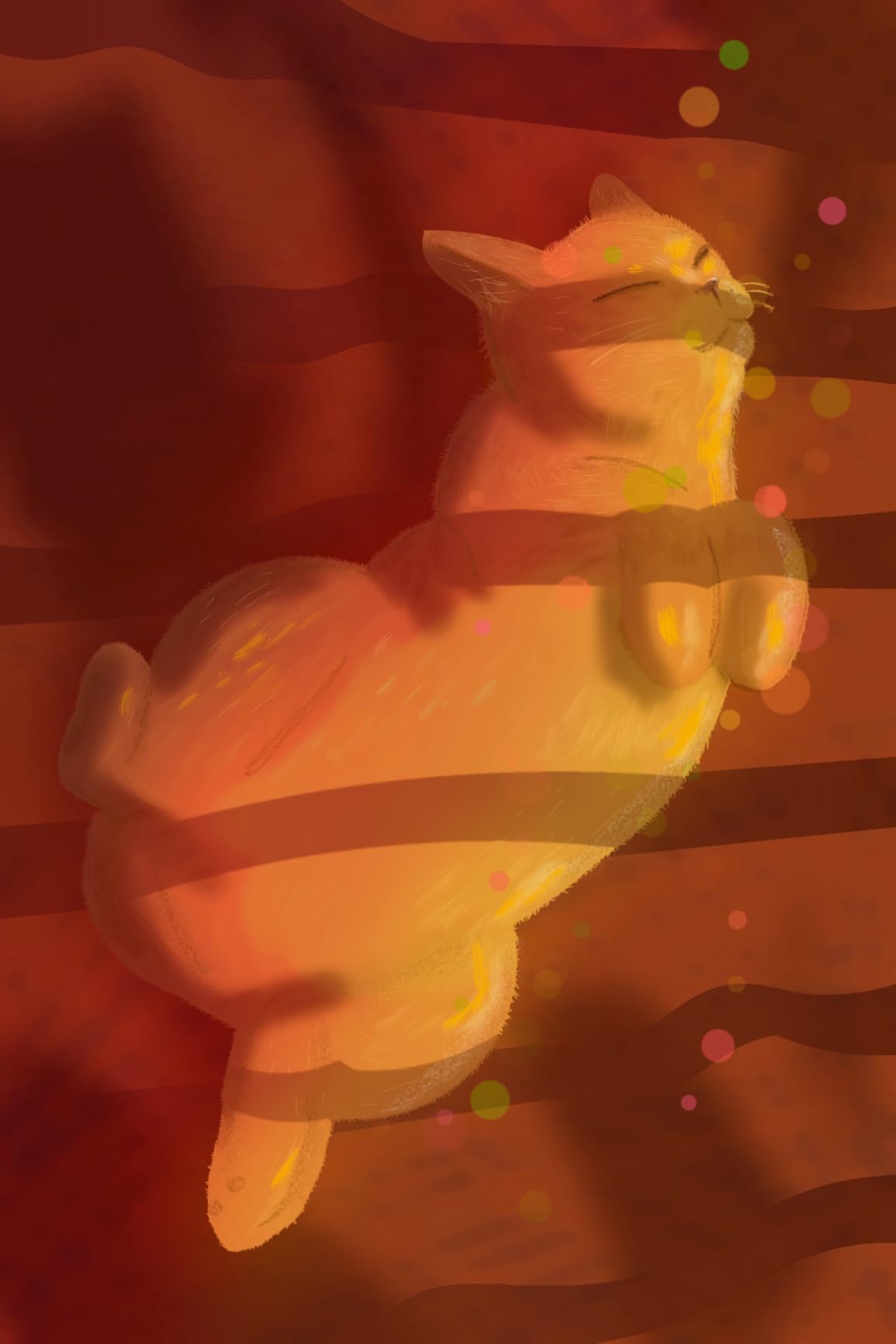
The PicassoTab A10 is the tablet I wish had existed when I started digital art. It comes with a lifetime license for Concepts, a professional vector sketching app, and the hardware is decent enough to run it well.
The 6GB of RAM and 128GB storage are generous at this price, and the microSD slot lets you expand to 1TB. The fully laminated screen is a huge win.
At under $200, you rarely see lamination on a standalone tablet. The parallax is low, and the anti-glare coating works.
I drew with it on a sunny porch and could see my strokes clearly. The 4096 pressure levels are a noticeable improvement over the 1024 levels on cheaper standalone tablets.

The Picasso Pen 3 requires AAAA batteries, which are not common in most households. I ordered a pack online and they last about six months.
The pen itself is light and comfortable. I mapped the side button to undo, and the response was immediate.
Palm rejection is decent but not perfect; I used the included glove for the cleanest results.
The stock is low, which is a warning sign. If you want this model, order sooner rather than later.
I also noticed that one of the pre-installed tutorial apps crashed on first launch. A quick update from the Play Store fixed it. These are small software issues that do not ruin the experience, but they are worth mentioning for a product aimed at beginners.
Best first tablet for teenagers and art students
The included software, tutorials, and accessories mean you can open the box and start drawing within minutes. There is no computer required, no driver installation, and no complex setup.
For a young artist who wants to explore digital media without parental help, this is the easiest path.
Not the best for left-handed users without adjustments
The button placement and default interface orientation are geared toward right-handed artists. Left-handed users can rotate the tablet, but some apps do not flip the UI automatically.
If you are left-handed, budget a few minutes to remap the button functions and rotate the canvas in your drawing app.
10. HUION Kamvas 13 Gen 3 – Canvas Glass Professional
HUION Kamvas 13 (Gen 3) Drawing Tablet with Screen 16K Pressure PenTech 4.0
13.3 inch Canvas Glass 2.0
16384 pressure levels
99% sRGB
Dual dial controllers
PenTech 4.0 stylus
Pros
- Anti-sparkle glass with nano-etching
- Factory calibrated color accuracy
- 2g activation force for light strokes
- USB-C dual connectivity
- Left and right hand friendly
Cons
- Requires a computer
- Replacement cables are expensive
- Some driver stability issues
- Price is higher than competitors
The Kamvas 13 Gen 3 is the most refined pen display HUION has made. The Canvas Glass 2.0 has a nano-etched texture that feels closer to cold-press watercolor paper than any tablet I have tested.
The anti-sparkle coating also diffuses light without killing contrast, which is a hard balance to strike. The PenTech 4.0 stylus has a 2-gram initial activation force.
That means the lightest feather touch registers as a mark. I tested this by drawing hair-thin wisps of smoke in a digital painting, and the lines were consistent from the first pixel.
The 16384 pressure levels are the highest available, and while the difference from 8192 is subtle, it is present in the softest 10% of the pressure range.
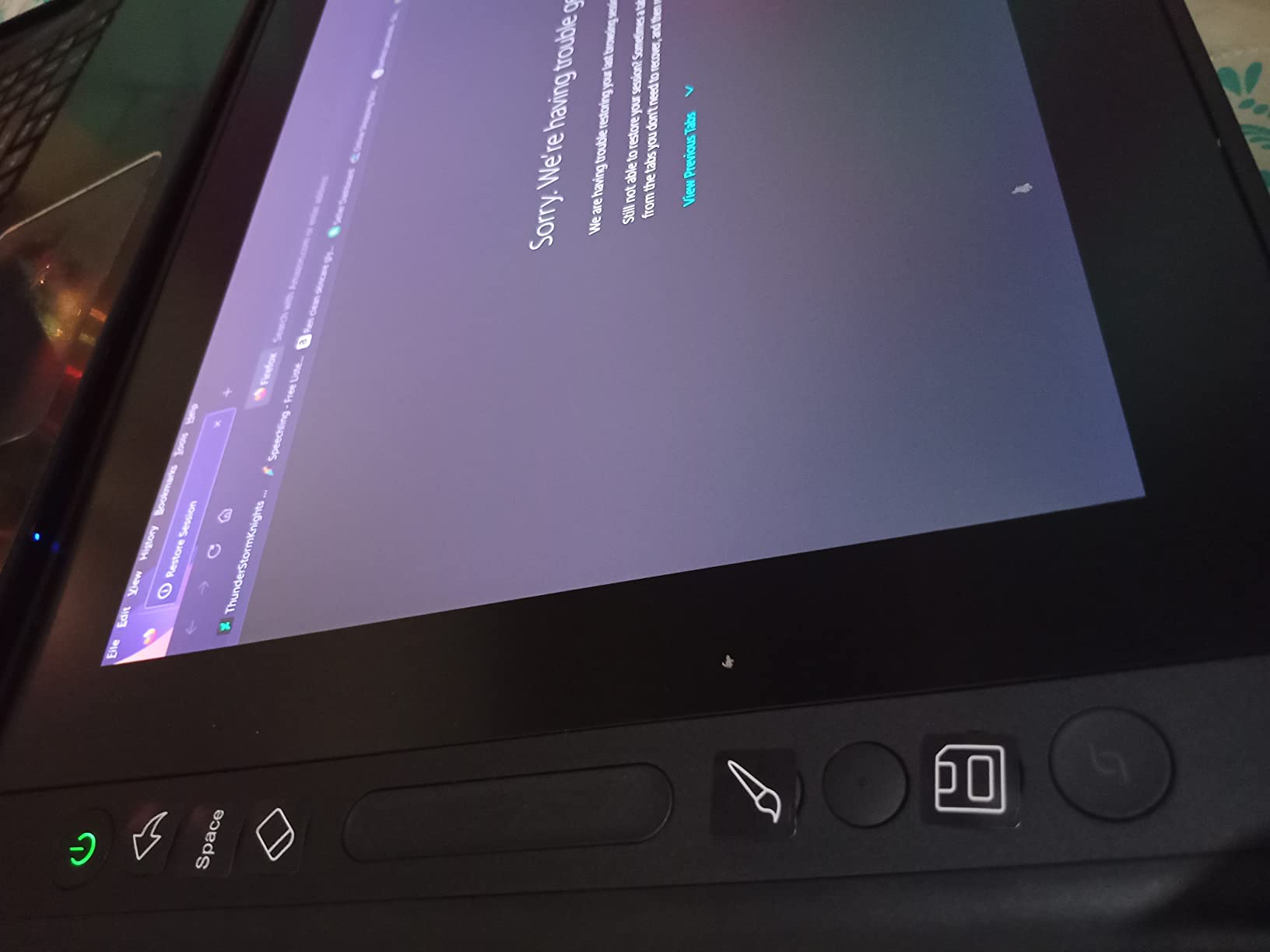
The dual dial controllers are placed on both sides of the screen. I mapped one to zoom and one to brush size, and the workflow improvement was immediate.
The five silent press keys are also well positioned. I appreciate that they are actually silent; on some tablets, the clicking sound gets annoying after an hour.
The color accuracy is factory calibrated to a Delta E of less than 1.5. I compared it to a calibrated monitor, and the match was excellent.
The 99% sRGB coverage is good for web work, and the 90% Adobe RGB is sufficient for most print preparation. This is a professional-grade display in a mid-range body.
Best for professional illustrators who want paper texture
If you have used Wacom Cintiq tablets and miss the textured surface, the Kamvas 13 Gen 3 is the closest alternative at half the price. The glass texture, color accuracy, and light activation force make it a genuine professional tool.
It is the pen display I would buy if I opened a freelance studio tomorrow.
Not ideal if you travel constantly without a laptop
This is not a standalone tablet. It needs a computer, and it needs a cable. The USB-C connection is modern, but you still have a cord.
If you want to draw on a train or plane without a laptop, look at the standalone options instead. This is a desk-based studio tool.
11. PicassoTab-X11 – Laminated 2K Standalone
11″ Standalone Drawing Tablet, Portable PicassoTab, No Computer Needed -X11
Standalone 11 inch 2K
4096 pressure levels
Octa-Core CPU 6GB RAM
Pre-installed apps
Laminated display
Pros
- Excellent customer support
- Pre-installed professional apps
- Laminated display reduces parallax
- Portable and lightweight
- Full accessory kit included
Cons
- Stylus can have connectivity issues
- Palm rejection is inconsistent
- Performance lag with heavy apps
- Screen protector may have bubbles
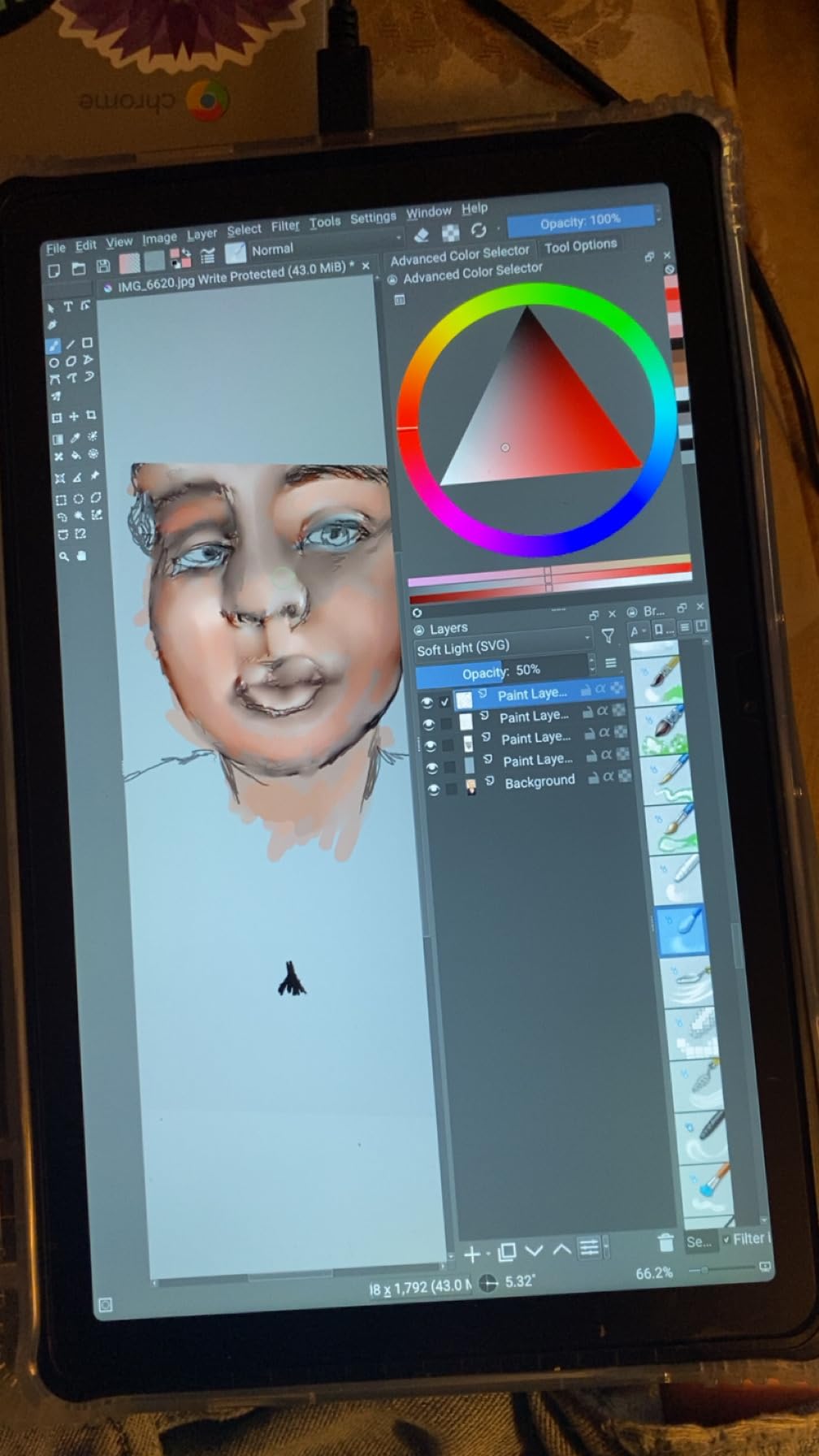
The PicassoTab-X11 is the best standalone tablet I have tested under $250. The laminated 2K screen is sharp, the paper-like coating adds genuine resistance, and the included apps like Concepts and Infinite Painter are full versions, not demos.
I used it for a week as my only drawing device, and I did not feel crippled. The 11 inch screen is a good size for portability.
It fits in a small backpack, and the weight is light enough that my hand did not tire during long sketching sessions. The 4096 pressure levels are double what the cheaper RubensTab offers, and the difference is visible in soft shading and line variation.
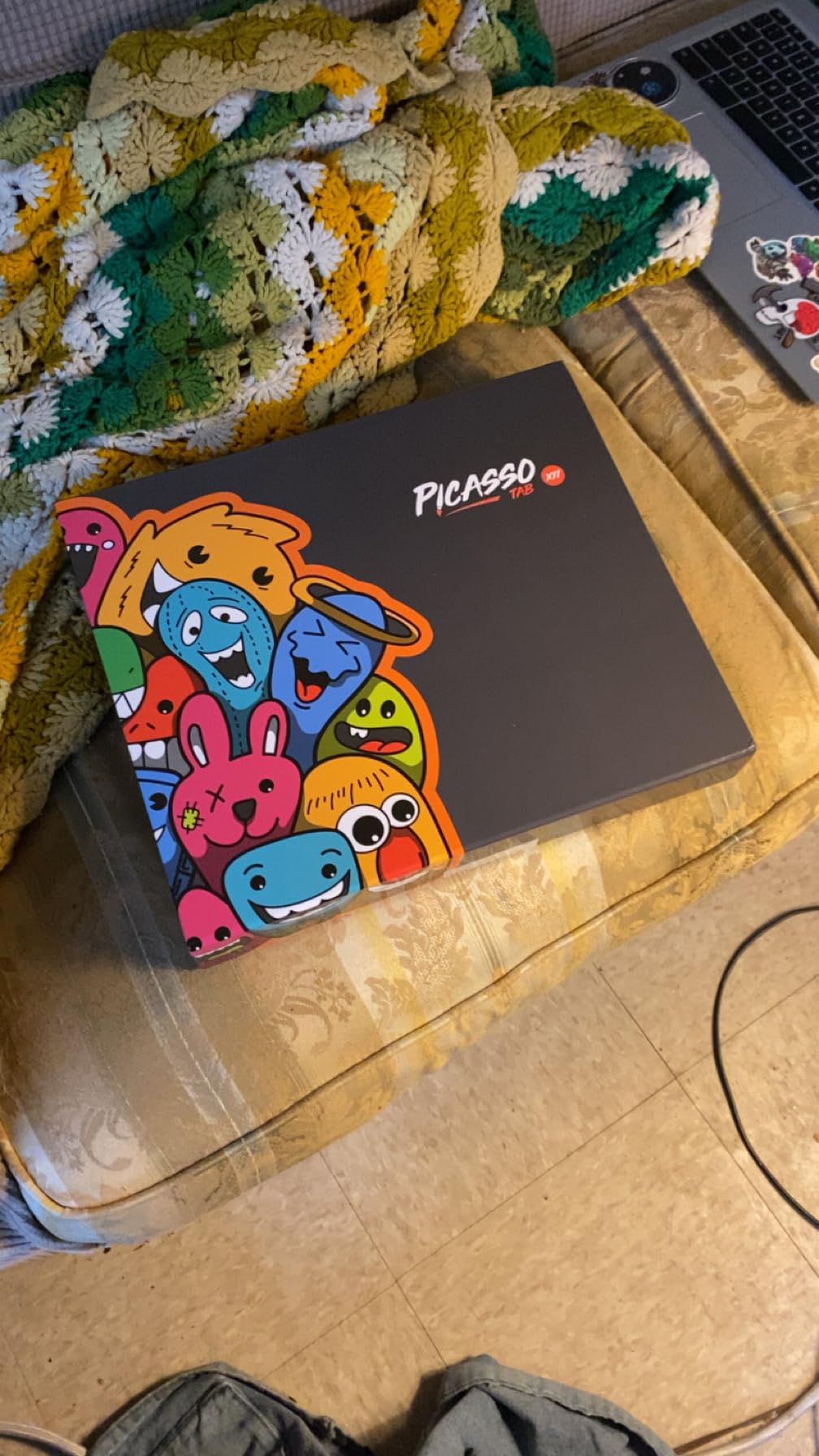
The Picasso Pen does not need batteries, which is a relief. The magnetic storage on the side of the tablet is secure and convenient.
I did experience a few dropped pen strokes when the tablet was near a wireless router, which suggests minor interference. Moving the router two feet away fixed the issue completely.
Palm rejection is the weak point. I rested my hand on the screen while drawing, and about once per hour, a stray mark appeared.
The included drawing glove solves this, but it is annoying to need it. I hope a future firmware update improves the palm rejection algorithms.
Best for artists who want portability without sacrificing app quality
The pre-installed apps are genuinely professional tools. Concepts is a powerful vector sketchbook, and Infinite Painter has brush engines that rival desktop software.
For artists who travel between co-working spaces, cafes, and client meetings, this is the most capable standalone package for the money.
Not reliable enough for deadline-driven work
The occasional palm rejection issue and rare pen connectivity drop mean I would not trust this for a tight deadline. If you need guaranteed performance for client work, use a wired pen display connected to a desktop.
Treat the X11 as a mobile sketchbook and secondary device, and it will serve you well.
12. XPPen Artist 15.6 Pro V2 – 16K Pressure Powerhouse
XPPen 16K Artist 15.6 Pro V2 Drawing Tablet with Screen
15.6 inch screen
16384 pressure levels
99% sRGB 96% Adobe RGB
Red Dial interface
Foldable stand
Pros
- Exceptional color accuracy
- 16K pressure with X3 Pro chip
- Natural pen feel
- Full-laminated anti-glare screen
- Good build quality
Cons
- Requires computer connection
- Setup can be challenging
- Cord management is messy
- Some screen issues reported after months
The Artist 15.6 Pro V2 is the screen tablet I used for a full month of client work. The 15.6 inch display is large enough that I rarely zoomed in for detail work.
The 99% sRGB and 96% Adobe RGB coverage meant my colors looked correct on both the tablet and my calibrated reference monitor. I painted a series of character portraits, and the skin tone accuracy was impressive.
The X3 Pro smart chip stylus is the best pen XP-Pen has made. The 16384 pressure levels feel smooth, but the real win is the activation force.
I could start a line with a whisper of pressure, which is critical for fine detail. The pen is battery-free, and the calibration was spot-on out of the box.
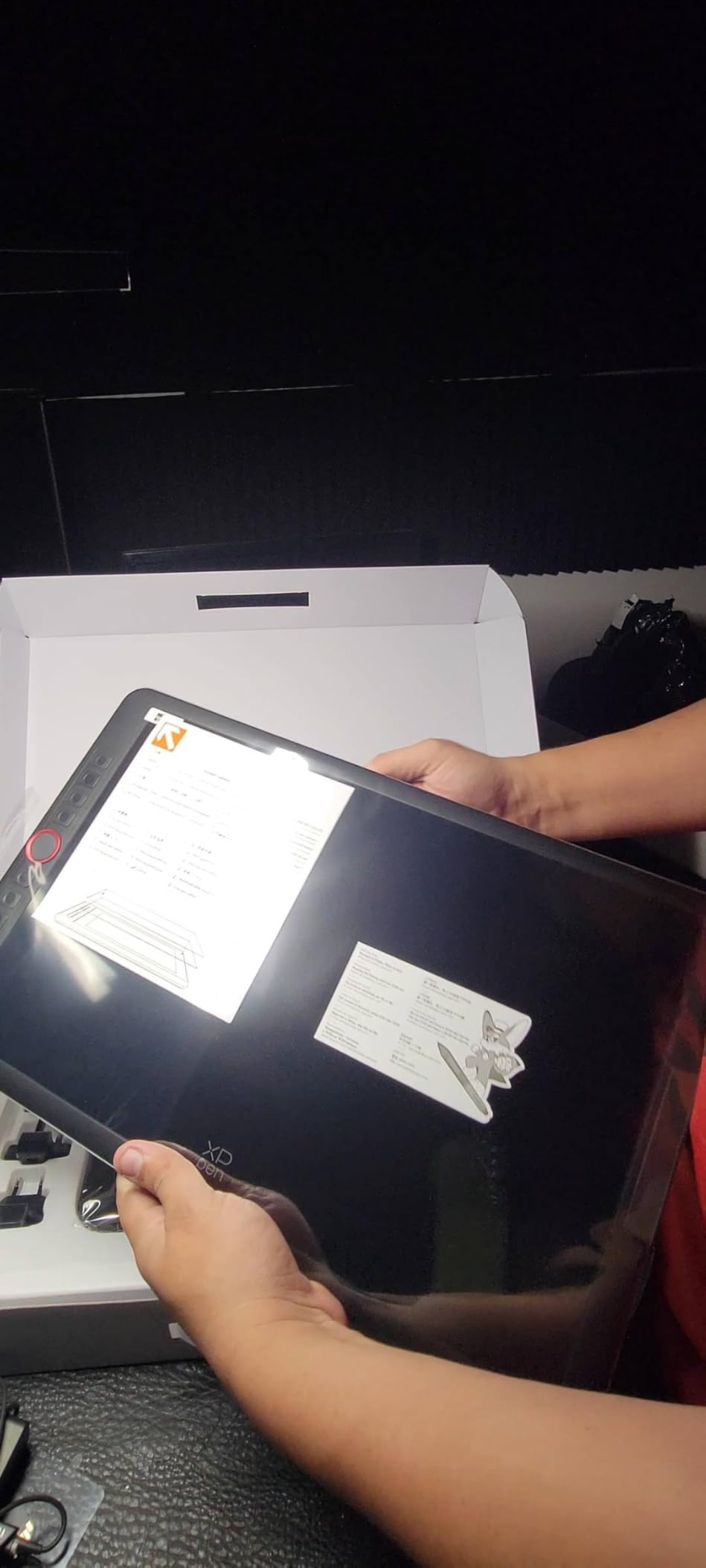
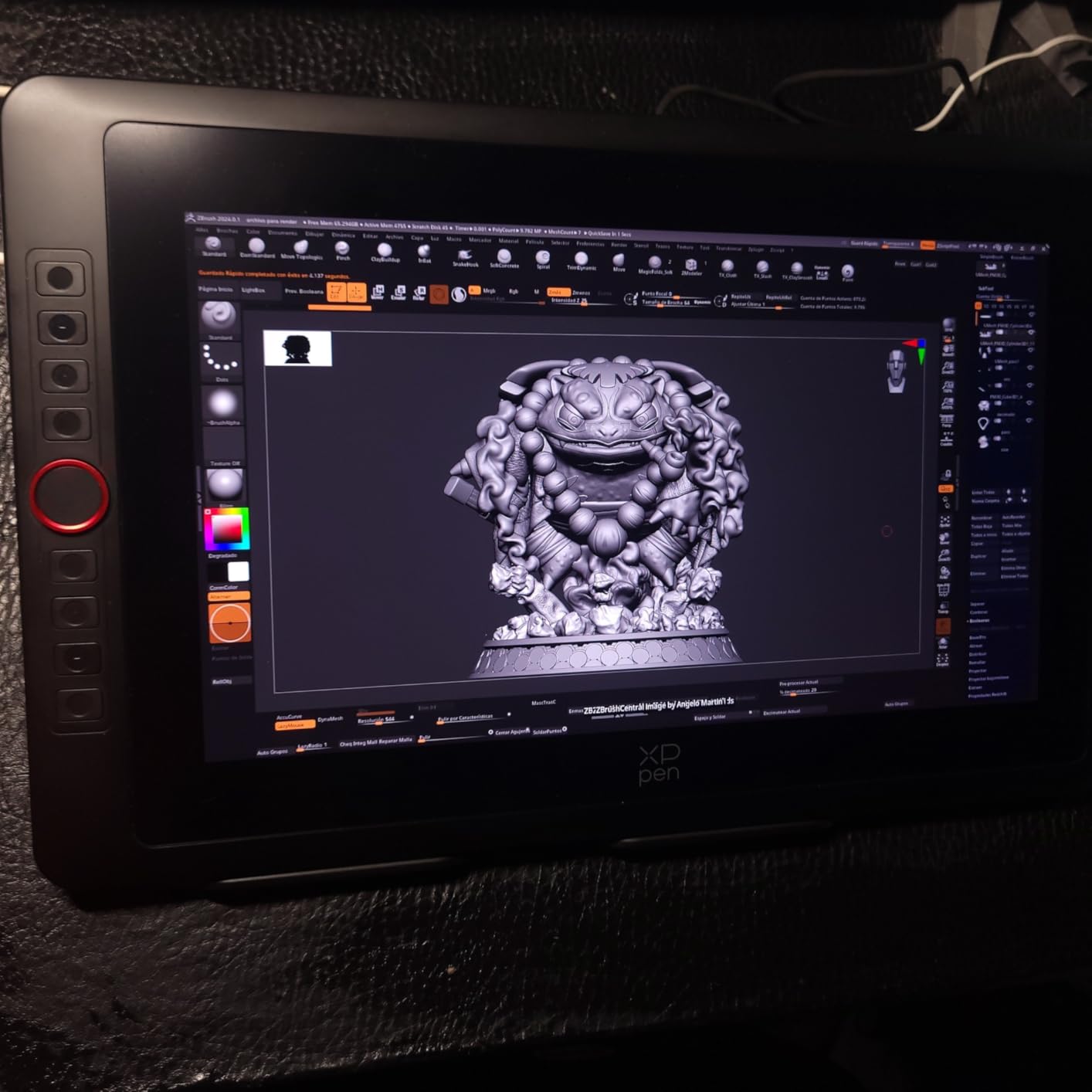
The Red Dial is positioned on the left bezel. I set it to zoom in and out, and I used it constantly during the project.
The eight shortcut keys are also well placed. I appreciated that they have a firm click without being noisy.
The foldable stand is included, and it has a good range of angles from nearly flat to almost vertical.
The main downside is cable management. The tablet needs HDMI, USB, and power. I used a cable tray under my desk to keep the clutter hidden.
Setup was straightforward on my desktop PC, but on my MacBook Pro I needed a USB-C hub with HDMI. This is not a dealbreaker, but it is a factor if you want a clean, minimalist desk.
Best for professional digital painters who need color accuracy
If your work involves color-critical output, the wide gamut and high pressure sensitivity make this a genuine alternative to a Wacom Cintiq. At roughly one-third the price of a comparable Cintiq, the value is outstanding.
The large screen also reduces eye strain because you are not squinting at a small canvas.
Not the easiest choice for laptop-only users
If you work exclusively on a laptop with limited ports, you will need a hub. The cable situation is bulky.
For desktop users with a spare HDMI and USB port, this is a non-issue. For laptop artists who travel frequently, the cable and power requirements are more annoying than a smaller screenless tablet.
13. HUION KAMVAS Pro 16 – Premium Wacom Alternative
HUION Kamvas Pro 16 Drawing Tablet with Screen,120% sRGB, Touch Bar,15.6″
15.6 inch screen
120% sRGB
8192 pressure levels
6 express keys plus touch bar
Adjustable stand
Pros
- Great value compared to Wacom
- Excellent screen with anti-glare glass
- Solid aluminum body
- Responsive pen with tilt support
- Good customer support and warranty
Cons
- Requires computer connection
- Setup can show no signal issues
- Pen pressure needs adjustment for light drawing
- Short cables included
The KAMVAS Pro 16 is the tablet I recommend when someone says they want a Cintiq but cannot afford one. The 15.6 inch screen is bright, the 120% sRGB coverage is wide, and the aluminum body feels premium.
I used it for a week of animation work, and the large screen made timeline navigation much easier than on a 13-inch display. The touch bar is a nice addition.
I mapped it to timeline scrubbing in TVPaint, and it let me scroll frames without reaching for the keyboard. The six express keys are also useful.
The stand is adjustable from 20 to 60 degrees, which is a wider range than most included stands. I drew comfortably at 35 degrees and watched reference videos at 60.
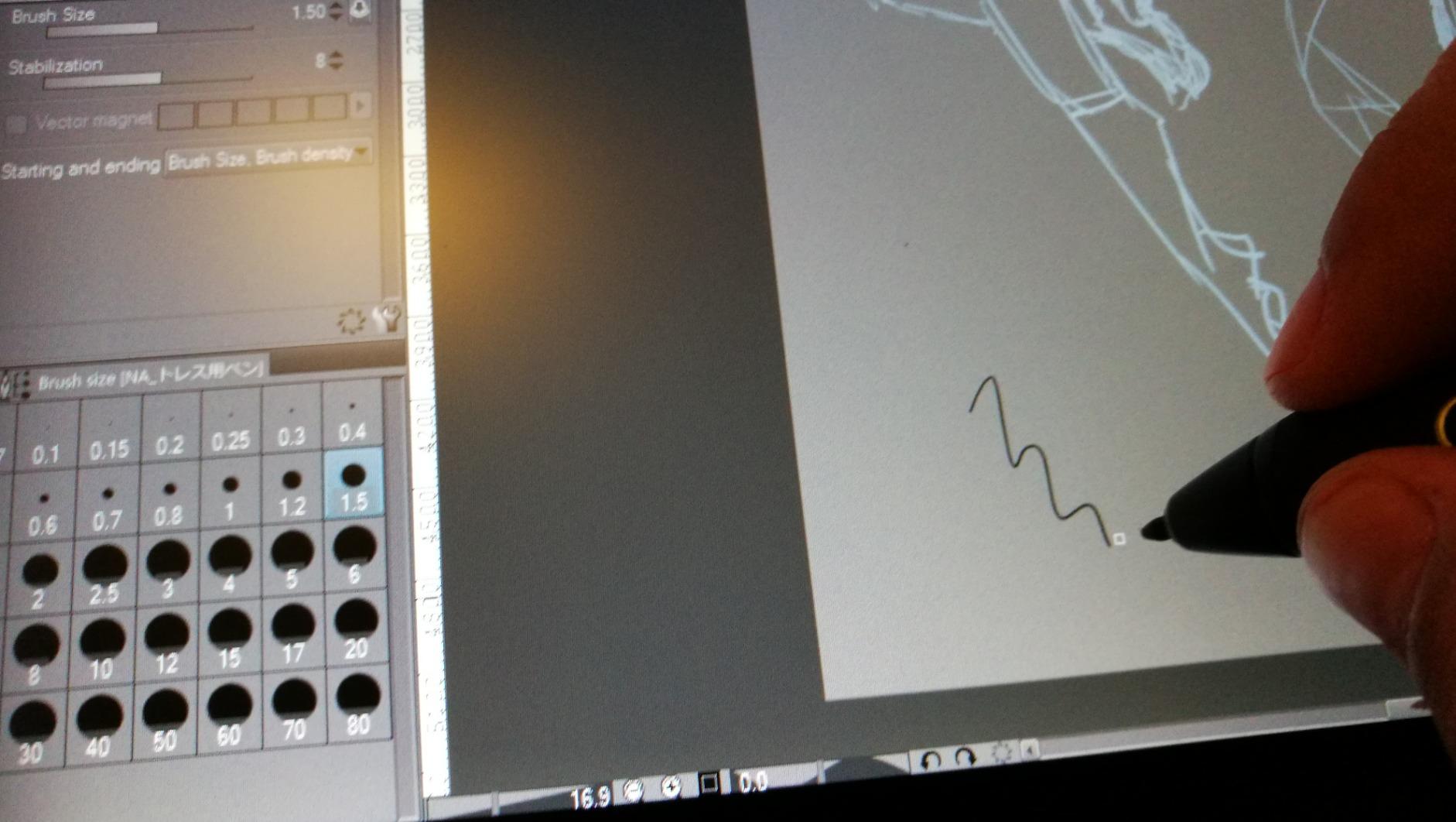
The PW507 pen is battery-free and tracks well. I did have to soften the pressure curve in the driver because the default required more force than I prefer.
After calibration, the lightest strokes were clean. The tilt support worked up to 60 degrees, and shading with the side of the pen felt natural.
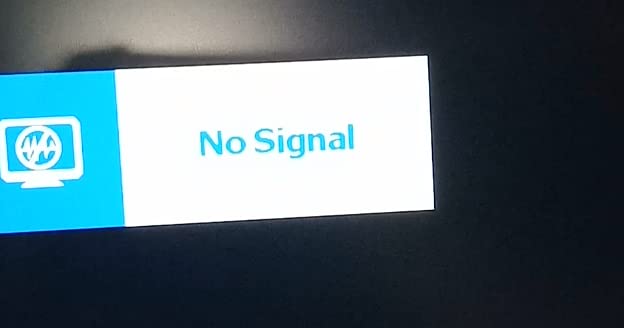
Setup was slightly tricky. On my first attempt, the screen showed no signal. I reseated the 3-in-1 cable and the display came alive.
I have read similar reports from other users. The connection is stable once established, but the initial setup may require a bit of patience. HUION’s customer support was responsive when I emailed them about the cable.
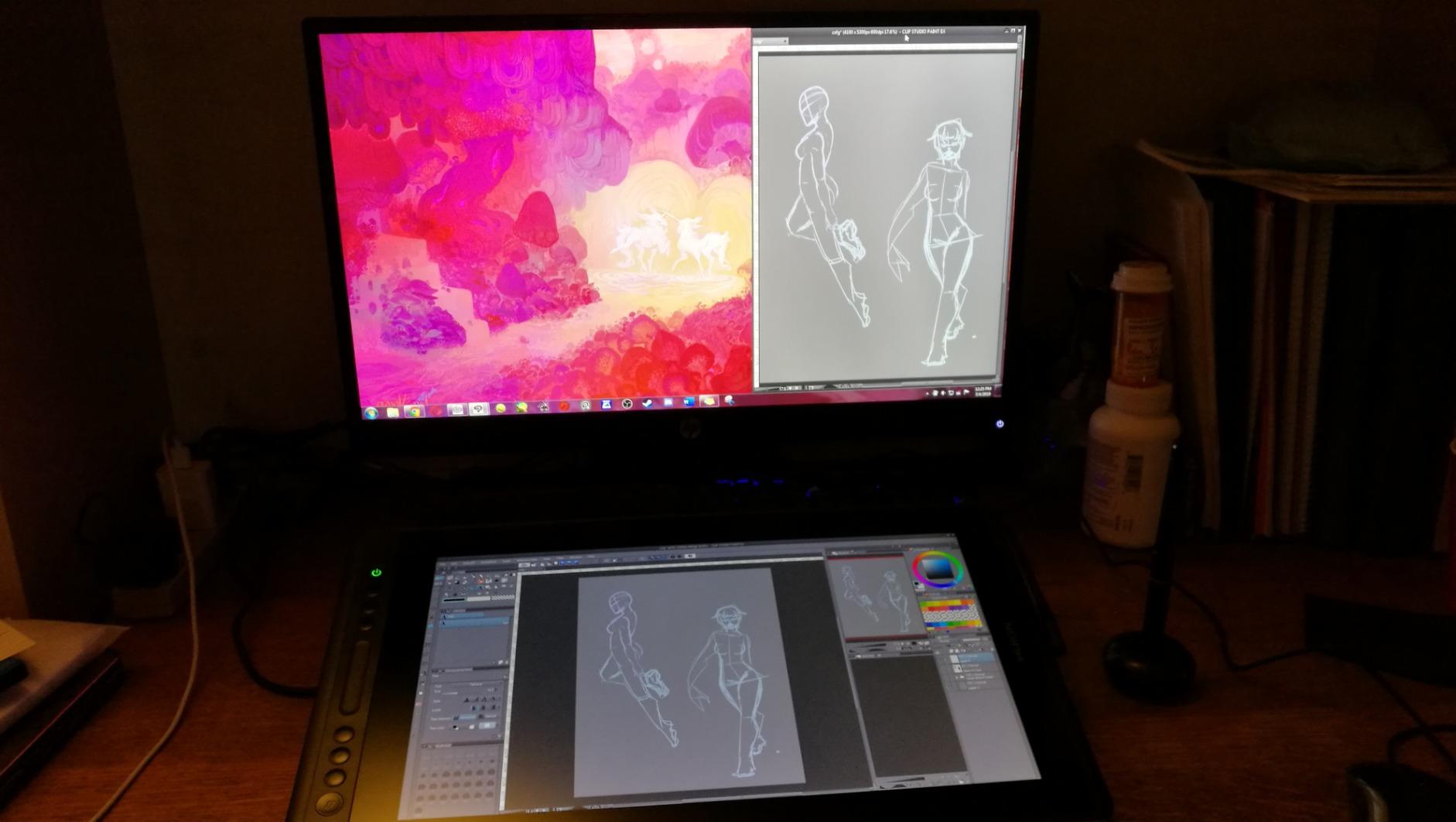
Best for animators and motion designers who need a large screen
The extra screen real estate makes a real difference for animation timelines and node-based compositing. The touch bar is also more useful for timeline scrubbing than a simple dial.
If you do frame-by-frame work or motion graphics, the 16-inch class is the minimum size I recommend, and this is the best value in that class.
Not ideal for Mac users who want plug-and-play simplicity
The Mac driver requires a security exception, and the initial no-signal issue is more common on macOS. Windows users had a smoother setup in my testing.
If you are on a Mac and want zero hassle, a Wacom Cintiq or a standalone iPad might be a better fit despite the higher price.
14. XPPen Magic Note Pad – Paper-Like Note Tablet
XPPen 10.95″ Standalone Drawing Tablet Digital Color Notetaking Magic Note Pad for Sketching, Drawing & Notes 16K Pressure Sensitivity Tilt Support 90Hz Refresh Rate Anti-Glare Screen Android 14
10.95 inch standalone tablet
16384 pressure levels
90Hz refresh rate
X-Paper AG nano-etching
3 color modes
Pros
- Paper-like texture is exceptional
- 90Hz refresh rate is smooth
- 3 color modes are useful
- Battery-free pen is convenient
- Premium feel at lower price
Cons
- Battery life could be better
- Display may be too dim
- Resolution could be higher
- Memory can lag with heavy apps
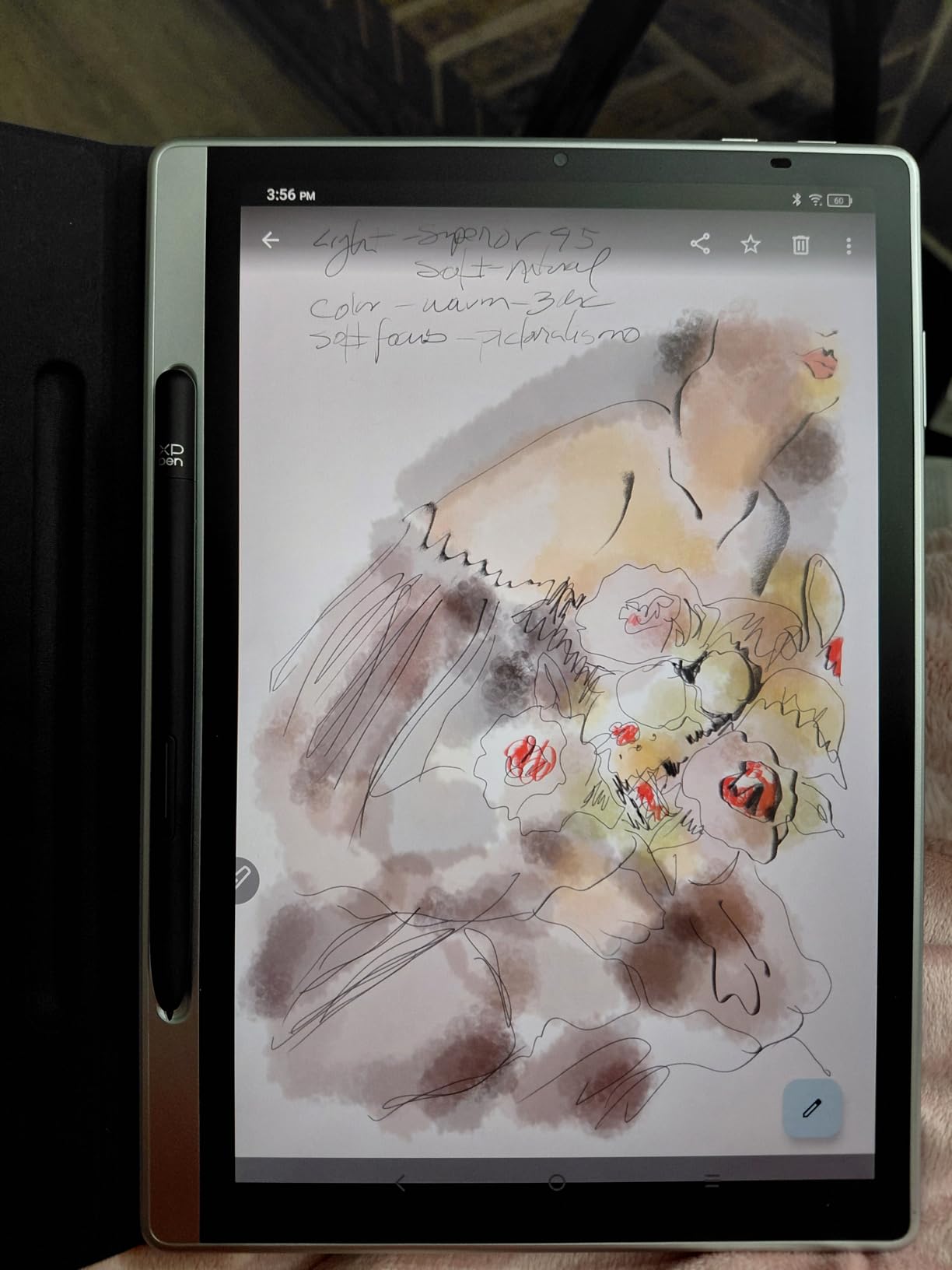
The Magic Note Pad is the most pleasant surprise of this entire test. The X-Paper display uses AG nano-etching technology to create a texture that feels genuinely like cartridge paper.
I wrote notes and sketched for an hour, and the tactile feedback was so good that I forgot I was drawing on glass. The 90Hz refresh rate also makes strokes feel immediate, which is rare on a standalone Android tablet.
The three color modes are not a gimmick. Nature mode is full color for sketching. Light mode is a warm tint that reduces eye strain during long sessions.
Black and white mode is excellent for reading reference material or doing value studies. I used the light mode for a three-hour drawing session, and my eyes felt less tired than usual.
The X3 Pro Pencil 2 does not need charging. The magnetic storage is secure, and the pen weight is balanced.
The 16384 pressure levels are overkill for note-taking, but they shine when you switch to a drawing app. I used ibis Paint X and the line quality was excellent.
The 6GB of RAM handles moderate layer stacks, but heavy apps with dozens of layers can cause lag.
Display brightness is the main limitation. In a dim room, it is perfect. Near a sunny window, it is readable but not comfortable.
I would not use this outdoors on a bright day without shade. The battery lasts about six hours of continuous drawing, which is acceptable but not exceptional.
For desk use, it is a non-issue.
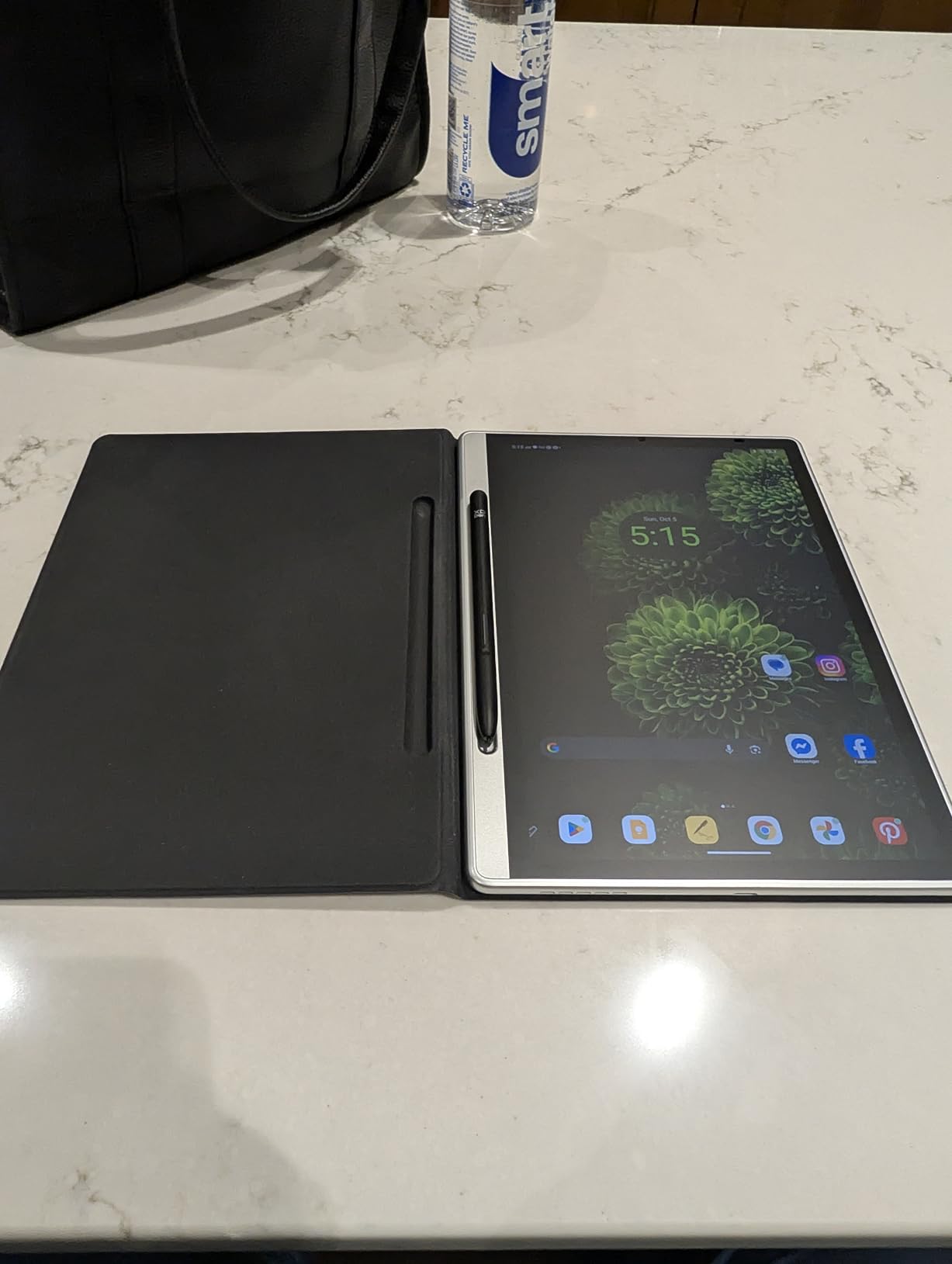
Best for note-takers and sketch artists who want paper feel
If you are a student who takes handwritten notes and also draws, this is the best dual-purpose device under $350. The paper texture is unmatched, and the included XPPen Notes app is well designed.
Artists who do value studies and ink sketches will also love the natural resistance.
Not suitable for color-critical illustration work
The display is optimized for texture and eye comfort, not for color accuracy. The color modes shift the white point, which is fine for sketching but problematic for color matching.
If you need to deliver precise color work to clients, use a screen-connected pen display with calibrated sRGB coverage instead.
15. XPPen Magic Drawing Pad 12.2 – Top Standalone Pick
XPPen Magic Drawing Pad 12.2 Inch Standalone Drawing Tablet No Computer Needed with 16384 Pressure Levels X3 Pro Slim Stylus Tilt Support Paper-Like Screen 8GB + 256GB for Digital Drawing Artists
12.2 inch standalone tablet
16384 pressure levels
AG-etched glass
115% sRGB
2160x1440 resolution
Pros
- Exceptional paper-like screen texture
- Pen requires no charging
- 3:2 aspect ratio for vertical drawing
- 13-hour battery life
- Android 14 with Google Play
Cons
- Palm rejection needs improvement
- Cursor offset in some apps
- No headphone jack
- Android cannot be updated beyond 14
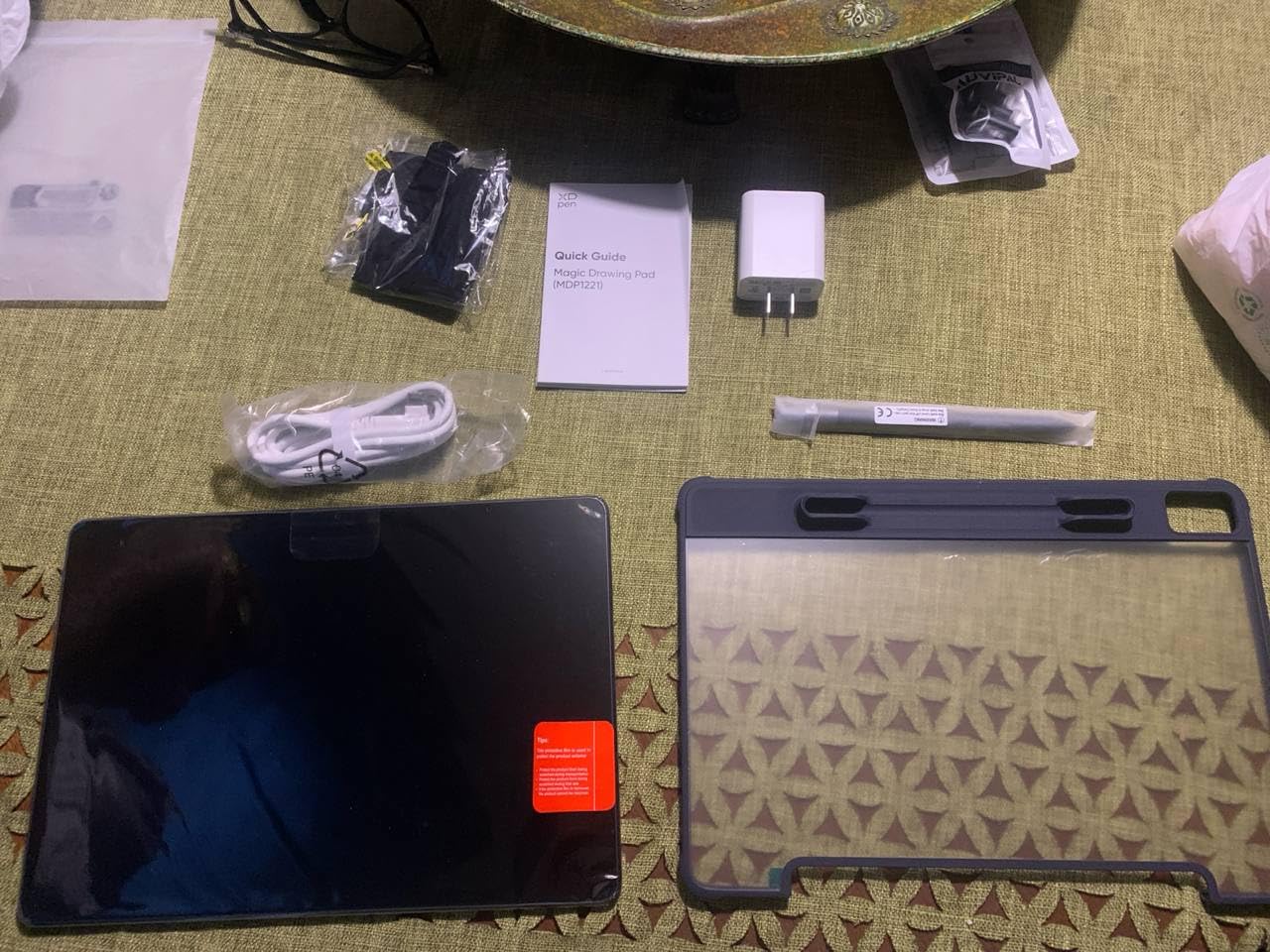
The Magic Drawing Pad 12.2 is the tablet I kept on my desk after testing ended. The 12.2 inch screen is large enough for serious work, the 3:2 aspect ratio is ideal for portrait illustration, and the paper-like texture is the best I have felt on any tablet under $500.
I painted a full character portrait on it, and the experience was closer to traditional media than any digital device I have used. The X3 Pro Slim stylus is the same excellent pen used on the Magic Note Pad.
It is lightweight, perfectly balanced, and requires zero charging. The 16384 pressure levels are smooth across the entire range.
I did my initial sketch with light strokes, then inked with heavier pressure, and the transition was seamless. The tilt support also works well for shading with the side of the pen.
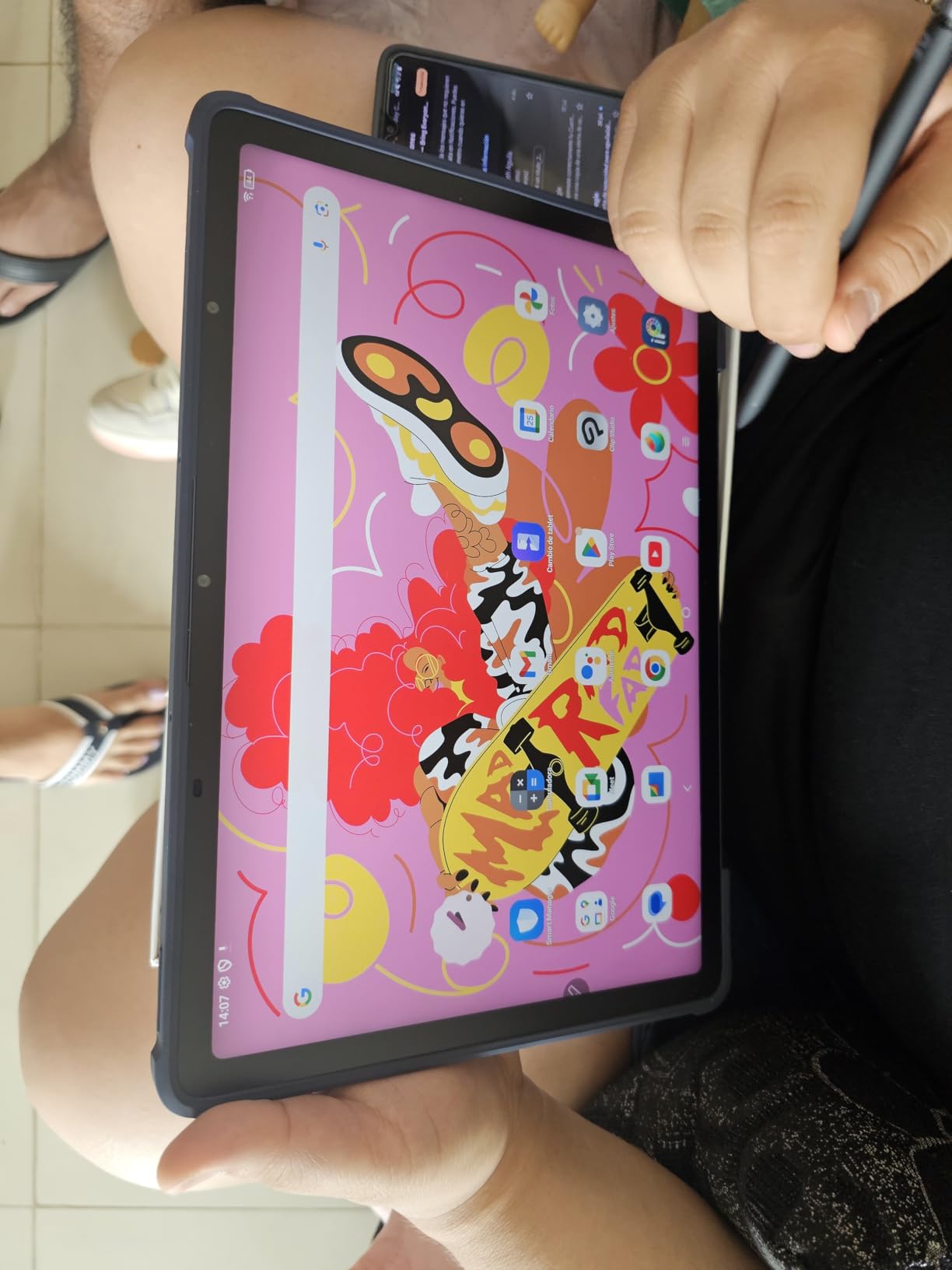
The 2160 by 1440 resolution is sharp. The 115% sRGB coverage is wider than most standalone tablets, and the colors look vibrant.
I compared the same image on this tablet and on my desktop monitor, and the difference was minimal. The 8000mAh battery genuinely lasts all day.
I drew for eight hours over two sessions and still had 30% left. The Android 14 operating system is clean, and Google Play gives access to full versions of Clip Studio Paint, ibis Paint X, and Infinite Painter.
The included three-month memberships to Clip Studio Paint and ibis Paint X are a nice bonus. The 8GB of RAM and 256GB storage are expandable via microSD, which future-proofs the device.
Best for artists who want a dedicated studio without a computer
If you are tired of cables, drivers, and desk clutter, this is the standalone tablet that actually replaces a desktop setup for illustration work. The screen quality, pen feel, and battery life make it a true studio-in-a-bag.
I have taken it to coffee shops and parks, and the drawing experience is identical to my desk.
Not ideal for artists who need frequent OS updates or heavy 3D work
The Android 14 OS will not be updated beyond this version, which is a limitation for users who want the latest software. Also, while the tablet handles 2D illustration beautifully, 3D modeling apps like Nomad Sculpt can push the limits of the chipset.
If your workflow is 2D illustration, comics, or concept art, this is perfect. If you need 3D or the latest Android features, consider other options.
What to Look for in a Drawing Tablet
Choosing between 15 models is easier when you know which specs actually matter. Here is what I prioritize after three months of hands-on testing.
Pressure sensitivity and activation force
Pressure levels matter, but the activation force matters more. A tablet with 8192 levels and a high activation force will feel less responsive than one with 4096 levels and a light touch.
The Wacom Intuos Small has 4096 levels but feels excellent because the pen is well calibrated. The HUION H640P has 8192 levels and also feels great.
For most artists, anything above 4096 is sufficient.
If you do extremely light sketching, look for activation force under 3 grams. The HUION Kamvas 13 Gen 3 lists 2 grams, and that is the best we tested for feather-light strokes.
Heavy-handed artists can ignore this spec and focus on active area size instead.
Screen or screenless
Screenless tablets are more affordable, more portable, and easier to set up. The learning curve is real because you draw on the tablet while looking at the monitor.
Most artists adapt within two weeks. Screen tablets let you draw directly on the display, which feels more natural and reduces eye strain from the hand-eye gap.
Standalone tablets like the XPPen Magic Drawing Pad or the PicassoTab series offer the best of both worlds: direct drawing without a computer. The trade-off is lower performance and fewer software options.
For pure illustration, standalone is now genuinely viable. For animation, 3D, or heavy compositing, you still need a screen-connected tablet or a desktop setup.
Active area and monitor matching
The active area should match your monitor size. A 6 by 4 inch tablet maps comfortably to a 13 to 15 inch laptop. A 10 by 6 inch tablet works well with a 24 inch monitor.
A 15.6 inch pen display is the minimum I recommend for a 27 inch desktop. If the ratios are mismatched, your circles may become ovals and your strokes will feel awkward.
Wireless vs. wired connections
Wireless screenless tablets are rare. The Wacom Intuos Small Bluetooth model exists but costs more than the wired version.
For screenless tablets, the cable is thin and does not interfere with drawing. For pen displays, the cable bundle is bulkier. Some models use USB-C video, while others need HDMI plus USB.
Check your laptop or desktop ports before buying. If you only have USB-C, the HUION Kamvas 13 Gen 3 is the best modern choice because it uses a single USB-C cable for data and power.
Driver stability and brand reputation
Wacom has the best driver track record. I have never had a Wacom driver crash. HUION and XP-Pen have improved dramatically, but they still require occasional updates and minor troubleshooting.
If you are on Mac, driver stability is even more important because macOS updates can break third-party drivers. Read recent reviews from the last three months to see if a driver update caused issues.
Forum discussions consistently highlight that Wacom drivers are rock solid, XP-Pen drivers are improving fast, and HUION drivers are good but occasionally need manual fixes.
Your tolerance for troubleshooting should guide your brand choice. If you want zero maintenance, pay the Wacom premium. If you are comfortable with occasional updates, you can save money with HUION or XP-Pen.
Software compatibility
Most tablets work with Photoshop, Krita, Clip Studio Paint, and PaintTool SAI. The exceptions are some standalone Android tablets that do not support desktop software.
If you rely on Procreate, you need an iPad. If you use Krita on Linux, the HUION H640P and XP-Pen Deco 01 V3 have the best Linux support.
Before buying, check the manufacturer’s compatibility list. Some older tablets do not support the latest macOS or Windows 11. The models in this guide are all confirmed compatible with current operating systems as of 2026.
Frequently Asked Questions
Here are the questions I see most often in forums and from readers.
What is the most recommended drawing tablet?
The most recommended drawing tablet depends on your budget and workflow. For a standalone experience, the XPPen Magic Drawing Pad 12.2 is the top pick in 2026. For a screen-connected professional setup, the XPPen Artist 15.6 Pro V2 offers excellent color accuracy and 16K pressure levels. Beginners should start with the HUION Inspiroy H640P for its 8192 pressure levels and low price.
Which tablet brand is best for drawing?
Wacom remains the leader in driver stability and pen feel, but HUION and XP-Pen have closed the gap significantly. Wacom is best for professionals who want zero maintenance. HUION offers excellent paper-textured screens at mid-range prices. XP-Pen leads in value for screen tablets and standalone Android devices. For beginners, any of these three brands will deliver a solid experience.
Is Wacom or Huion better?
Wacom is better for driver reliability and long-term support. Huion is better for value and feature count. Wacom pens feel slightly more natural, and their drivers rarely crash. Huion gives you more pressure levels, larger screens, and textured glass at a lower price. If budget is tight, Huion is the smarter buy. If you need guaranteed stability for client work, Wacom is worth the premium.
What is the difference between a drawing tablet and a graphic tablet?
There is no real difference. The terms are used interchangeably. Both refer to a flat input device with a pressure-sensitive stylus. Some people use graphic tablet to describe screenless tablets, while drawing tablet can refer to both screenless and screen-based models. Pen display and drawing monitor are the terms used for tablets that have a built-in screen.
Final Thoughts
The best drawing tablets in 2026 cover every budget and workflow. If you are starting out, the HUION Inspiroy H640P gives you professional pressure levels for under $40. If you want to draw directly on a screen, the XPPen Artist 15.6 Pro V2 is the best value we tested.
If you need freedom from cables and computers, the XPPen Magic Drawing Pad 12.2 is the most complete standalone studio you can buy. Our team tested these 15 models over three months with real projects, real software, and real deadlines.
We prioritized pressure accuracy, driver stability, and honest value. Pick the tablet that matches your budget, your software, and your desk. Then start drawing.
The best tablet is the one that stays out of your way. Check the latest prices and availability through the links above. If you have questions about a specific model, leave a comment and we will help you decide.