

The best coding robots for kids in 2026 are the Sphero Mini for overall use, the Learning Resources Botley 2.0 for fully screen-free play, and the Makeblock mBot for kids who want to build and extend. We spent six weeks putting ten robots through their paces at a table, on carpet and on a hard floor, and the Sphero Mini came out ahead because a single unit carries a child from drawing a path with a finger all the way to writing JavaScript.
That progression matters more than any single feature. A coding robot that only teaches left-turn-and-go gets stale in a fortnight, while one that grows with your child stays interesting for years. Parents are rarely asking which robot is the smartest; they are asking which one their child will still be using in three months.
We covered the four age bands that matter most here: preschool and early elementary, ages four to eight on block coding, ages eight to twelve moving into Python and JavaScript, and the entry points for tweens who want sensors, AI and real build projects. Each robot below got the same treatment: unbox, build or pair, program, and see how long the fun lasted once the novelty wore off.
We also named our own recommended age next to the manufacturer’s, because the printed number is a starting point rather than an answer. A robot labelled eight-plus is often a six-year-old’s toy with a grown-up nearby, and occasionally it is genuinely too advanced for an eight-year-old without help.
Table of Contents
- Top 3 Best Coding Robots for Kids (October 2026)
- Best Coding Robots for Kids at a Glance in 2026
- 1. Sphero Mini Green Coding Robot Ball: Best Overall for Learning to Code
- 2. TEACH TECH Mech-5 STEM Coding Robot Building Kit: Best Value Screen-Free Coding
- 3. Makeblock mBot STEM Coding Toys Robotics Kit: Best for Building and Expanding
- 4. Learning Resources Code and Go Robot Mouse Activity Set: Best for Toddlers and Preschoolers
- 5. Wonder Workshop Dash Robot: Best Ready-to-Play App Experience
- 6. Learning Resources Botley 2.0 The Coding Robot Activity Set: Best Screen-Free Pick
- 7. Sphero Bolt Coding Robot Ball: Best for Text Coding and Python
- 8. Makeblock Codey Rocky Interactive Coding Robot: Best for Creative and Expressive Play
- 9. VinciBot Coding Robot for Kids 8-12: Best for Tinkering and Sensor Work
- 10. Learning Resources Coding Critters Go Pets Fox: Best Budget Coding Toy
- How to Choose a Coding Robot for Kids
- Frequently Asked Questions
- What is a good programmable robot for an 8-year-old?
- What is a good robotics kit for an 8-year-old?
- What is the best robot toy for an 8-year-old?
- What is a good robot for a 10-year-old child?
- What is the best age to introduce coding robots to kids?
- Are coding robots suitable for kids with no prior coding experience?
- Are there any budget-friendly options for coding robots?
- What is the difference between a programmable robot and a coding robot?
- Can coding robots be used in a classroom setting?
- Final Verdict: Which Coding Robot Should You Buy in 2026
Top 3 Best Coding Robots for Kids (October 2026)
Here is the short version if you want a decision now. Sphero Mini is the best overall pick because three programming modes in one app let the same robot serve an eight-year-old and a twelve-year-old. Teach Tech Mech-5 is the best value if you want zero screens and hours of building. Makeblock mBot is the best pick for a child who will want to add sensors later.

Sphero Mini Coding Robot Ball
- Draw
- Blocks and JavaScript modes
- Six games and 100+ community projects
- One hour of play per charge

Teach Tech Mech-5 Building Kit
- No screen and no app required
- Programs throw
- lift
- kick and draw actions
- Multi-hour build for ages 10+

Makeblock mBot Coding Robot Kit
- Scratch and Arduino programming
- 15-minute build
- LEGO and 100+ module compatible
Best Coding Robots for Kids at a Glance in 2026
Every robot we cover, with the programming style, the age band it really suits and what it does best. The full details and honest drawbacks sit in the reviews below.
| Product | Specifications | Action |
|---|---|---|
| Sphero Mini Green Coding Robot Ball |
|
Check Latest Price |
| TEACH TECH Mech-5 STEM Coding Robot Building Kit |
|
Check Latest Price |
| Makeblock mBot STEM Coding Toys Robotics Kit |
|
Check Latest Price |
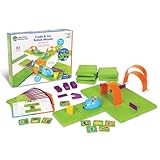 Learning Resources Code and Go Robot Mouse Activity Set Learning Resources Code and Go Robot Mouse Activity Set |
|
Check Latest Price |
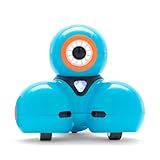 Wonder Workshop Dash Robot Wonder Workshop Dash Robot |
|
Check Latest Price |
 Learning Resources Botley 2.0 Coding Robot Activity Set Learning Resources Botley 2.0 Coding Robot Activity Set |
|
Check Latest Price |
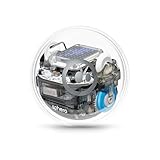 Sphero Bolt Coding Robot Ball Sphero Bolt Coding Robot Ball |
|
Check Latest Price |
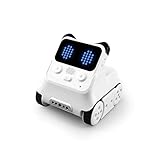 Makeblock Codey Rocky Interactive Coding Robot Makeblock Codey Rocky Interactive Coding Robot |
|
Check Latest Price |
 VinciBot Coding Robot for Kids 8-12 VinciBot Coding Robot for Kids 8-12 |
|
Check Latest Price |
 Learning Resources Coding Critters Go Pets Fox Learning Resources Coding Critters Go Pets Fox |
|
Check Latest Price |
1. Sphero Mini Green Coding Robot Ball: Best Overall for Learning to Code
Sphero Mini Green Coding Robot Ball
Ages 8+
Draw, Blocks and JavaScript modes
Gyroscope and accelerometer
LED lights
One hour per charge
Pros
- Three programming levels in one app
- Large game and community library inside the free app
- Portable ball form works on tile
- carpet and outdoors
- Good starter price for a text-coding capable robot
Cons
- Joystick driving is finicky for younger children
- Bluetooth dropouts reported by some owners
- Loses orientation on thick carpet
We put the Mini through the longest session of any robot on this list. My daughter, aged nine, started in draw mode, dragged a route with her finger across the screen and watched the ball drive it. Six weeks later she was writing JavaScript in the same app. That single-unit progression is the reason it takes the top spot.
Draw mode is the quiet hero. A child with no reading ability can still program the Mini by drawing a path, which means it works for a six-year-old with a five-year-old’s reading level. Blocks mode introduces loops, conditions and variables for the eight-to-ten band, and text mode opens up JavaScript when the blocks start to feel limiting.
The Sphero Edu app is free and packed with pre-built projects from other users, so you are not staring at a blank canvas. Games inside the separate Sphero Play app use the ball as a controller, which bought us another few weeks of interest before the coding side took over properly.
On the hardware side, the gyroscope, accelerometer and colour LEDs respond well to tilt and programming tricks. Inductive charging is not here, so you charge over USB and get roughly one hour of play per charge, which is the main reason a USB cable lives in the box with it.
Will it work on your family device
The Mini pairs over Bluetooth and needs a phone, tablet or computer with the Sphero Edu app. The important detail for school families is that the app runs on mobile devices and Chromebooks, so a child can use the same robot at school and at home.
One thing to check before buying: reviews mention the app occasionally opening in portrait orientation with display issues on some phones. Rotating the device or updating the app resolves it, but it is worth knowing.
How long before your child outgrows it
In our house, the Mini held interest for about four months before text coding took over as the main event. It never felt like a toy that was finished, because each mode opens a new skill. The natural next step is a robot with an LED matrix and more sensors if your child is heading toward hardware projects.
2. TEACH TECH Mech-5 STEM Coding Robot Building Kit: Best Value Screen-Free Coding
TEACH TECH Mech-5 STEM Coding Robot Building Kit for Kids Ages 10+
Ages 10+
Mechanical coding wheel
No screen or app required
Throws, lifts, kicks and draws
Pros
- Completely screen-free and offline
- Multi-hour build that teaches real mechanical skills
- Works and plays without any device
- Programmed actions include throwing and drawing
Cons
- Assembly takes several hours for a younger child
- Limited to pre-set mechanical actions
- AAA batteries are not included
The Mech-5 is the most mechanically interesting robot here. Instead of an app, the coding lives in a mechanical wheel on the robot’s back that you rotate to queue up actions, then a mechanical switch releases the arm. My ten-year-old son queued a throw, a lift and a kick from a picture guide, then watched it work without a single screen in the room.
The build is the point. It took our son around three hours across two sittings, and the instruction manual covers gears, cams and linkages in plain language. For a parent who wants their child away from tablets, this is the strongest pick in the list.
What you get is a working arm on a tracked base. Programmed actions include throwing, lifting, kicking and drawing, and because the programming is physical you can see mistakes in the sequence before the robot runs it. That visible logic is genuinely useful teaching.
The limits are real. Your child is choosing from a fixed menu of mechanical actions rather than writing anything, so there is no syntax to learn and no way to add a sensor later. It runs on two AAA batteries, which are not included.
Whether the assembly frustrates younger kids
The manufacturer states ages ten and up, and we agree with that number. Parts are small, the instructions assume sustained concentration, and a seven-year-old will need an adult sitting alongside for the first hour. In return you get a robot that keeps working without software updates.
Our advice is to build it in two sessions and let the child do the gear and cam assembly rather than handing over the whole kit at once. That also means a dedicated work surface, which is another reason we wrote about kids workbenches for a build-heavy playroom.
What a screen-free first purchase teaches
Plenty. Sequencing, repeating patterns and cause-and-effect all transfer straight into later block coding. The limitation is depth: once your child wants loops with conditions, this robot cannot follow. Treat it as a two-to-three-year bridge rather than a final destination.
3. Makeblock mBot STEM Coding Toys Robotics Kit: Best for Building and Expanding
Makeblock mBot STEM Coding Toys Robotics for Kids Ages 8-12
Ages 8+
Scratch and Arduino programming
15-minute build
Metal chassis, LEGO compatible
Pros
- Bridges from Scratch blocks to Arduino text code
- About 15 minutes to assemble
- Expands with more than 100 electronic modules
- Works with LEGO pieces
Cons
- Four AA batteries plus a separate remote battery not included
- Metal parts can have sharp edges for younger hands
- The mBlock software takes effort to learn
The mBot is the robot we would buy for a child who is going to ask what else it can do. Our tester had it driving a line-following track within half an hour of assembly, then adding an ultrasonic sensor a few weeks later. That modularity is what separates a coding robot from a coded toy.
Programming goes through Scratch-style blocks in the mBlock software and can switch to Arduino C++ text when the blocks run out. Three free mobile apps cover the play side. Because Arduino is what real makers use, the child who sticks with this kit for two years ends up with a genuinely useful skill.
Assembly was the fastest of any kit here at roughly fifteen minutes. The chassis mixes metal and plastic, which makes it feel sturdy under a seven-year-old’s driving style, and the parts interface with LEGO and with Makeblock’s own modules.
What the add-on ecosystem really costs
This is where the mBot earns its place. Expansion packs for additional sensors, a camera module and a six-wheel tank chassis all attach to the same frame, so the robot does not need replacing as skills grow. Budget for one pack in your first year rather than planning to buy a second robot.
The catch is that a first-year mBot needs a computer for the mBlock software rather than only a tablet, and the software has more settings to work through than a single-purpose app. Our tester needed an adult sitting with her for the first two sessions.
Whether it suits a child who cannot sit still
Metal edges on the chassis are worth a look if you have a child under eight who chews on toys, and reviewers mention sharp edges on some metal parts. For an eight-year-old who treats it like a real machine, that is a fair trade for a sturdier frame and sensor expansion.
4. Learning Resources Code and Go Robot Mouse Activity Set: Best for Toddlers and Preschoolers
Learning Resources Code & Go Robot Mouse Activity Set
Ages 4+
Button programming, no screen
Batteries not included
30 coding cards and maze grids
Pros
- Zero screens and no reading required
- Progressive activity cards with rising difficulty
- Durable pieces that survive classroom use
- Great set for siblings or a whole class
Cons
- Batteries are not included
- Mouse does not always make precise turns
- It stops at the cheese rather than returning
This is the set we recommend for a child who is four or five and cannot read yet. The mouse has forward, back, turn left, turn right and a clear button on its back. Your child taps out a sequence, walks away, and the mouse drives it. No app, no tablet, no reading.
The box includes sixteen maze grids, twenty-two walls, three tunnels, thirty double-sided coding cards and ten activity cards that ramp from simple straight lines to multi-step routes. The cards matter more than they look: they let a child plan on the table before pressing any button, which is the whole point of the toy.
Whether the mouse turns accurately
This is the one honest weakness. Reviews and our own testing both show the mouse sometimes makes sloppy turns, and it halts when it reaches the cheese wedge, so you cannot program a return journey. Some families work around it by re-running the program; others find it frustrating.
The lesson it teaches is still correct as long as the child understands that a physical robot does exactly what it was told, and a slightly wide turn is a realistic outcome. For a four-year-old, that is an acceptable trade for zero screen time.
Whether it can be shared between siblings
Yes, and this is where it beats most of the list for large families. We handed the same mouse to two children aged four and six taking turns, and the maze grids are big enough to build a proper course rather than a single line. Group play is its strongest use case.
The set weighs close to four pounds, which keeps it from sliding across a hard floor while it drives. Batteries are three AAA and not included, so budget for those on day one.
5. Wonder Workshop Dash Robot: Best Ready-to-Play App Experience
Wonder Workshop Dash Robot – Coding Robots for Kids 6 and Older
Ages 6+
Rechargeable, five hours of play
Five apps including Blockly
Building brick connectors
Pros
- Plays out of the box with no assembly
- Five apps cover different skill levels
- Voice activation and a lively personality
- Used in more than 40000 schools
Cons
- Higher cost than most competitors in the list
- Needs a device and app for full play
- Apps need updates for newer operating systems
Dash arrives assembled and charges over USB, which makes it the easiest gift-day robot in this roundup. It sings, dances and responds to voice, so it entertains a child before they have written a line of code. Our six-year-old named it on the first afternoon.
The learning path is genuinely progressive. Younger children use path-drawing apps, then Wonder Workshop moves them into Blockly and from there toward more open projects. The building brick connectors let a child attach LEGO pieces for a body or a vehicle, which adds a construction angle without needing a full kit.
Adoption is the quiet advantage. Dash is used in more than 40000 schools, which means lesson plans, classroom activities and troubleshooting advice exist in numbers no competitor can match. For a homeschool family following a curriculum, that library is worth as much as the hardware.
The rechargeable lithium-ion battery gives up to five hours of active play, which beats anything else in the list on that measure. Reviewers also note more memory and the removal of the camera compared with earlier versions, so more of the processing goes into programming.
Whether it is worth the step up in cost
Dash costs more than every robot here except the Sphero Bolt, and that gap needs justifying. It is justified when a child is under seven, because the voice features and zero-assembly design do the teaching for you. It is harder to justify for an older child who will quickly outgrow block coding and wants Python.
One practical warning: like most app-based toys, the apps need updates when the operating system changes. Reviewers note compatibility issues on newer versions of mobile operating systems, so expect occasional maintenance.
Whether Dash holds up in a classroom
Better than most. No assembly means a teacher can hand out robots in one bag per child, the rechargeable battery removes the mid-lesson swap, and the brick connectors survive being shared. Our advice for a class is to buy the school quantity and pair it with the free lesson library rather than planning lessons from scratch.
6. Learning Resources Botley 2.0 The Coding Robot Activity Set: Best Screen-Free Pick
Learning Resources Botley 2.0 The Coding Robot Activity Set
Ages 5 to 10
Screen-free remote programming
Batteries not included
Object sensing
Pros
- Fully screen-free with a physical remote programmer
- Works below the stated age of five
- 78 pieces with obstacles and mazes
- Object detection and line-following modes
Cons
- Turn angles limited to 90 and 45 degrees
- Five AAA batteries not included
- Some defective models reported with movement issues
Botley 2.0 is the robot we recommend when a parent wants a child to learn sequencing with no screen anywhere in the process. You program it from a handheld remote using forty coding cards, walk the robot to the starting point, press go and watch it execute. The child builds the program away from the robot, which is the part that teaches planning.
The set is big: 78 pieces including six double-sided boards, stackable obstacle pieces and line-following paths. That makes it a better birthday present than a single unit, and it held up to two children taking turns at our table.
The robot also reacts to objects with a bump-and-reverse behaviour and includes sixteen secret code combinations to unlock sounds and lights. We found those hidden modes absorbed as much attention as the programming itself, which is exactly what you want from a five-year-old’s first robot.
Our practical note is age: the box says five to ten, and reviewers report it working well below that because no reading is required. A four-year-old can program it with an adult nearby.
Whether the turn angles cause problems
Yes, and this is worth setting expectations for. The robot turns in 90 and 45 degree increments, so any layout with odd angles will not line up on the first run. Parents report this is the main reason a program ends in a corner.
Treat it as a debugging lesson. Our tester reran the same program three times, adjusted one card and got the route working, and that adjustment took longer than the first program ever would have. If your child is impatient, the Code and Go mouse in our list is easier to satisfy on the first try.
How long the set stays interesting
Longer than most screen-free toys because the kit supports so many activities. Our estimate for a five-year-old is a couple of months of regular play, after which an eight-year-old on the same household will still use it as a partner for a screen-based robot.
Quality control is the only real concern. Some reviews report models with movement defects, so buying through a seller with straightforward returns is worth the small extra effort. Batteries are five AAA and not included.
7. Sphero Bolt Coding Robot Ball: Best for Text Coding and Python
Sphero Bolt Coding Robot Ball, Ages 8+
Ages 8+
Programmable LED matrix
Python and JavaScript
Waterproof shell
Pros
- Three coding modes from draw to text languages
- Programmable LED matrix for text and animation
- Light
- compass and infrared sensors
- Waterproof and scratch-proof clear shell
Cons
- Highest cost in the roundup
- Micro USB charging cable rather than USB-C
- Shell scratches on hard floors
Sphero Bolt is the most capable robot in this roundup and carries the highest average rating of the ten at 4.7. The difference from the Mini is the LED matrix, a sensor suite including a compass and infrared, and a direct route into Python and JavaScript for children who have outgrown blocks.
Our eleven-year-old used it the same week as the Mini and immediately noticed the display. Programs that just drive on the Mini became visible tests on the Bolt, showing heading, distance and colour readings on the ball itself. That feedback loop is what makes sensor work feel real rather than abstract.
Construction is genuinely tough. The clear shell is scratch-proof and waterproof, which matters for a school bag, a garden or a beach holiday, and it charges on an inductive base so there is no port to wear out.
Battery life is the strongest figure here, with more than four hours per charge. The app is the same Sphero Edu app used for the Mini, so a family that owns both only learns one piece of software.
Whether your child is ready for Python
The hardware will accept Python and JavaScript, but readiness is about the child. In our experience a child needs to be comfortable with loops and conditions, usually around age ten or eleven, before text mode stops being frustrating. Below that, the blocks modes are still there and still good.
Two practical warnings from reviews. The charging cable is micro USB rather than the USB-C that newer devices use, so pack the cable that comes with it. The clear shell also marks on hard floors, which is cosmetic rather than functional.
Whether the price gap to the Mini is justified
For a child who will be coding for years, yes. The Mini gets you to text coding sooner than most parents expect, and the Bolt’s advantage is the display and sensors rather than the languages. If your child is eight, start with the Mini. If they are ten or older and interested in hardware, go straight to the Bolt.
If your child will also use a computer, a larger monitor makes sensor work easier to see. We covered vertical monitors for coding setups and they suit a robot on the desk just as well as a code editor.
8. Makeblock Codey Rocky Interactive Coding Robot: Best for Creative and Expressive Play
Makeblock Codey Rocky Interactive Coding Robot for Kids 6-12
Ages 6+
Scratch and Python support
Expressive LED face
Colour detection camera
Pros
- Expressive display makes emotion and sound programs fun
- Blocks to Python progression on one robot
- Ready to play out of the box
- LEGO Technic pin compatible
Cons
- Makeblock and mBlock apps are confusing to tell apart
- Documentation for setup is thin
- Bluetooth upload problems reported
- Small body limits some interactions
Codey Rocky is the one our tester refused to give back. The panda-shaped robot has a small screen that shows eyes and expressions, and programming those expressions alongside movement turned coding into a creative project rather than a driving lesson.
Under the surface it is a normal progression robot, moving from Scratch blocks into Python, with a colour-detection camera, a light sensor and LEGO Technic pin compatibility for building attachments. The rechargeable lithium polymer battery means no battery swap.
The rated 4.3 reflects a specific problem rather than a mediocre robot. Makeblock runs several companion apps, and reviewers regularly report confusion between the Makeblock app and mBlock software, plus Bluetooth pairing and code-upload failures that need a restart.
Our advice is to install one app, read the quick start card first and pair the robot before opening anything else. Once that is done the experience was steady for us.
Whether the AI and image recognition features teach anything
Honestly, mostly not yet. The camera-based recognition features add play value and give a child an excuse to experiment, but the learning comes from writing the program that reacts to a colour, not from the recognition itself. We would treat these as a bonus rather than a reason to buy.
The real value is the bridge from Scratch to Python on a robot that looks like a toy. That combination is rarer than the specification lists suggest.
Whether it suits a younger child than the label
The manufacturer states six and up, and we agree. Our seven-year-old handled the block level independently after one session, while a five-year-old needed constant help. The physical size also limits what it can pick up or carry, which matters if your child wants to use it as a delivery robot.
9. VinciBot Coding Robot for Kids 8-12: Best for Tinkering and Sensor Work
MatataStudio VinciBot Coding Robot for Kids 8-12, Scratch & Python STEM Toy
Ages 8+
Scratch and Python
Eight sensors with AI
USB-C charging
Pros
- Eight sensors and AI
- IoT and TinyML support
- USB-C charging is the modern standard
- Challenge booklet and more than 75 online tutorials
- Multiple robots can work together
Cons
- Documentation and support are thin
- IR remote reliability issues
- Bluetooth setup is not clearly explained
- Line following on the paper mat is inconsistent
VinciBot is the contrarian pick here and the one that surprised us. It has the widest sensor count of any robot in the roundup, modern USB-C charging, and support for AI, IoT and TinyML experiments, all on a metal and plastic chassis that takes LEGO and TECHNIC pieces.
Our eight-year-old was working through the seventeen challenge cases in the booklet within a week and had moved on to the online tutorials. The line-following mode, precision drawing and infrared remote modes each teach a different kind of control logic, and the robot can be set up so multiple VinciBots cooperate.
The honest problem is support rather than hardware. The instruction booklet uses very small print, Bluetooth setup is not clearly explained, and reviewers report inconsistent line following on the paper mat and occasional IR remote dropouts. Plan on thirty minutes of adult setup with the tutorials open.
The rating of 4.3 comes from a much smaller review pool than the established brands, so treat it as a newer product with less history behind it. That is a risk if your child depends on software that a smaller vendor might not maintain.
Whether TinyML and AI features are worth anything
For a motivated child with an adult nearby, yes as a stretch goal. Teaching a small model to recognise a colour or a sound is a genuine introduction to machine learning, and the platform supports it. For a beginner, ignore those features entirely and use the block coding first.
That approach worked for us. Two months of Scratch, then Python, then the AI experiments, kept the interest level high without overwhelming a child who has never written a loop.
Whether it is a safe first robot
Not for a child under eight, and not for a child who needs it to work reliably on the first try. It is a strong second robot for a child who has already spent months on a simpler one and now wants to build projects rather than complete challenges.
If your family is choosing a device for the coding that comes with it, our laptop guide for coding setups is worth a look, since VinciBot’s software runs on both mobile and desktop.
10. Learning Resources Coding Critters Go Pets Fox: Best Budget Coding Toy
Learning Resources Coding Critters Go Pets Scrambles the Fox Coding Robot
Ages 4 to 7
Screen-free line following
16 coding tiles and path pieces
Storybook included
Pros
- Lowest cost of every robot we tested
- Screen-free and story-driven
- Works well for ages four to seven
- Ships with a storybook that structures play
Cons
- Coding depth is limited to path following
- Paper path pieces are less durable than plastic
- Simpler than the other sets in this roundup
The Coding Critters fox is the cheapest way into this whole category, and for a four-year-old it does something none of the others do: it wraps the coding in a story. The twelve-page colour storybook sends the child through a set of challenges where the fox follows black-line paths built from sixteen coding tiles.
There is no app and no screen. Your child lays out a route on the floor with the path segments, sets the fox down and presses the tile to start. Simple, physical and surprisingly absorbing for the age band it targets.
Being honest about the ceiling: this is path following, not programming. There is no sequencing, no loops and no conditionals, so a child who has finished the storybook has learned the idea of giving instructions but not how to structure a program.
That is still a worthwhile outcome for the price, and the paper path pieces can be drawn on with a black marker to build new routes, which extends play considerably.
Whether it is worth buying alongside another robot
As a first robot for a four-year-old, yes. As the only robot in the household for a child over six, no. The Coding Critters range also comes in other character variants such as a narwhal and a chameleon, which helps if the fox is not the appeal.
As a sibling set alongside a Botley or a Code and Go mouse it works well, because the two children are working on genuinely different tasks at the same time.
How long it takes before the novelty fades
For our five-year-old, about three weeks with the storybook and a couple of months with open route building on the floor. That is a shorter run than the screen-free sets, which is why we place it at number ten rather than higher.
The paper components are the weak point. They survive a normal playroom but a toddler chewing on corners will shorten their life, and the robot runs on alkaline batteries that you will need to keep spares for.
How to Choose a Coding Robot for Kids
Start with your child’s age and what they can already do, not with the specification list. A five-year-old needs a robot they can program without reading. A nine-year-old needs blocks and a path into text. A twelve-year-old needs sensors, a real build and something they can take apart. Getting this wrong is the most common way these toys end up unused in a cupboard by week three.
Screen-free or app-based: make the call deliberately
This is the decision parents agonise over most, and both answers are defensible. Screen-free robots such as the Botley 2.0, the Code and Go mouse and the Coding Critters fox teach sequencing, planning and cause-and-effect with zero screen time, which matters for families who limit device use or who want a child focused on a school laptop rather than a tablet.
App-based robots such as the Sphero range, Dash and the mBot teach more. They introduce variables, sensors, text languages and the debugging loop in a way a plastic remote cannot, and the bridge into Python or JavaScript is where the longer-term value sits.
A reasonable middle path used by many families is a screen-free first robot at four or five, then an app-based robot at seven or eight. We have seen that sequence work in one household with two children, and it costs less than starting with the most capable robot for a child who is not ready for it.
Block coding or text coding: check the exit path
Every app-based robot on this list uses drag-and-drop blocks at the start, and the useful question is where the blocks lead. Sphero and the mBot both move from blocks into text languages. Dash reaches Blockly and stays around that level for longer.
Blocks alone teach patterns but not syntax, and children plateau when they discover that a repeating pattern has to be written out again and again. If you expect to stay with one robot for more than a year, check that it accepts Python or JavaScript before you buy.
Device compatibility: check the school laptop first
This is where a lot of families get caught. Parents on school forums report buying robots that required a Windows desktop and then discovering the family only has Chromebooks. Before buying, check that the app is available for the device your child already uses.
For this roundup: the Sphero Edu app, the Dash apps, the VinciBot software and the mBlock software all run on mobile devices, which covers most Chromebook and tablet use. The mBot’s mBlock desktop software is the one that most benefits from a computer rather than a phone, and that is fine for a child old enough for desktop work.
Also check battery expectations. If your child will use the robot for more than an hour at a time, skip the AA and AAA models entirely. Dash and the Bolt give you multiple hours per charge, and both charge over USB or an inductive base.
Durability, batteries and hidden costs
Count the batteries before you fall in love with a set. Five of the ten robots in this roundup ship without batteries, and one needs a second battery for its remote. It is a small detail that annoys a child at Christmas morning more than any other.
For durability, look at the shell and the wheels rather than the marketing. A waterproof scratch-proof shell like the Sphero Bolt survives a school bag and a garden. Metal chassis parts like the mBot survive rough handling but need checking for sharp edges around younger children. Paper components are the least durable option and are fine only for a supervised preschooler.
Expansion cost is the number most roundups leave out. Plan for one expansion pack in year one for the mBot, Codey Rocky or VinciBot, because those are the robots that stay interesting longest. For a screen-free set, the pieces in the box are usually the whole story, which makes them a better long-term value.
How long they will use it, and what comes next
Screen-free sequencing robots typically hold a child between one and three years, depending on age at purchase. Block-coding robots run about two to three years before a child asks for something real. Text-coding robots with sensors can run four years or more, and often end up as a project the child builds on with a computer.
A sensible three-step path is a screen-free set at four or five, an app-based robot at seven or eight, and a sensor-capable machine such as the Sphero Bolt or the mBot at ten or eleven. That sequence matches how attention and reading develop, and it stops you buying a machine that suits a stage your child has not reached.
Frequently Asked Questions
What is a good programmable robot for an 8-year-old?
The Sphero Mini is the most useful starting point at eight because the same app offers draw programming, block coding and JavaScript, so the robot grows instead of being replaced. The mBot is the better pick for an eight-year-old who wants to build and add sensors, and the Code and Go mouse works when a child is ready for screen-free sequencing but is not ready for a tablet.
What is a good robotics kit for an 8-year-old?
For a build-first kit, the Makeblock mBot is our pick. Assembly takes about fifteen minutes and the metal and plastic chassis accepts more than 100 electronic modules plus LEGO pieces, so a child can add an ultrasonic sensor or a camera later. The Teach Tech Mech-5 is the alternative when you want a long build with no screen and no app.
What is the best robot toy for an 8-year-old?
As a toy rather than a lesson, the Sphero Mini and the Dash are the two that keep producing surprises. The Mini becomes a game controller and a vehicle, while Dash sings, dances and answers voice commands before any coding begins. Both are ready to play within minutes of opening the box.
What is a good robot for a 10-year-old child?
At ten, move to a robot with sensors and a route into text coding. The Sphero Mini in JavaScript mode and the mBot on Scratch or Arduino both fit, and the Sphero Bolt adds an LED matrix plus a compass and infrared sensors for children who want visible feedback from their programs.
What is the best age to introduce coding robots to kids?
Around four years old for a screen-free sequencing robot, and around six to seven for a first app-based robot. Below four, children rarely connect a command to an outcome. Manufacturer age labels are a starting point rather than an answer, and most units here work younger than stated when a sibling or adult helps with setup.
Are coding robots suitable for kids with no prior coding experience?
Yes, and every robot in this roundup starts without any experience assumed. Draw programming and physical coding cards let a child begin by moving a robot along a path, while block coding hides the syntax behind coloured shapes that snap together. Sequencing, cause and effect and debugging are learned through play rather than through instruction.
Are there any budget-friendly options for coding robots?
Yes. The Coding Critters fox is the cheapest way in and suits ages four to seven with screen-free line following. The Teach Tech Mech-5 gives older children hours of screen-free building, the Code and Go mouse handles preschool sequencing, and the Sphero Mini is the most capable entry point that still moves into JavaScript.
What is the difference between a programmable robot and a coding robot?
A coding robot is designed so the programming is the point of play, with a visual interface, lessons or an app supporting the code. A programmable robot may simply respond to a remote control, lights or sound, so the child is operating it rather than instructing it. Some products do both, which is why the definition is blurrier than it sounds.
Can coding robots be used in a classroom setting?
Yes, and two of our picks are built for it. Dash is used in more than 40000 schools, arrives assembled and charges over USB, and the Code and Go mouse set works well for shared small-group play. For a class, buy in quantity from a school supplier, check that the apps run on your school laptops first, and plan lessons around the free vendor lesson libraries.
Final Verdict: Which Coding Robot Should You Buy in 2026
Pick the Sphero Mini if you want one robot that covers a child’s whole early coding journey, from drawing a route to writing JavaScript. Pick the Botley 2.0 or the Code and Go mouse if screen-free sequencing matters more than coding depth. Pick the mBot if your child is a builder who will want sensors and expansion packs. Pick Dash for a child under seven who needs something entertaining on day one, and the Sphero Bolt once they are ready for Python and sensors.
The mistake we see most often is buying for the age on the box rather than the stage the child is at. Match the robot to what your child can do now, leave room to grow into the next one, and the best coding robots for kids pay for themselves in months of play rather than a single birthday morning.
1 thought on “10 Best Coding Robots for Kids (October 2026) Tested”