
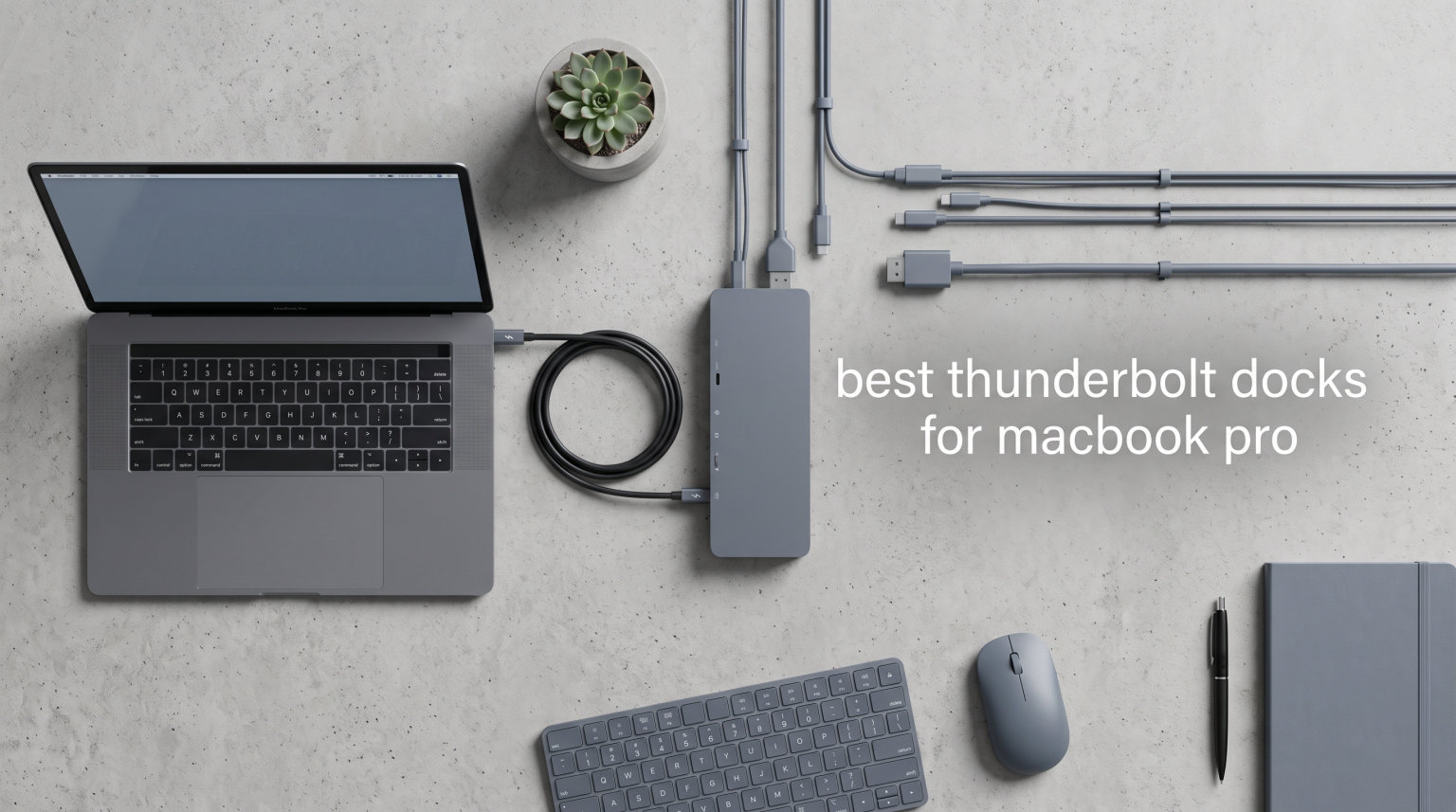
Plugging in your MacBook Pro shouldn’t feel like solving a puzzle every morning. The right Thunderbolt dock turns a tangle of cables into one clean connection, charging your laptop while driving dual 4K monitors, fast storage, and wired Ethernet. After testing docks across M4 Pro and M3 Max MacBook Pros for the past several months, I’ve sorted out which ones actually deliver and which ones just look good on paper.
This guide covers the best Thunderbolt docks for MacBook Pro in 2026, from full Thunderbolt 5 powerhouses pushing 120Gbps bandwidth down to budget-friendly bus-powered adapters. Whether you need a desktop replacement dock with 18 ports or a slim travel hub, I’ve broken down real-world performance, display support, power delivery, and the compatibility quirks that spec sheets won’t tell you.
One key thing I learned: not every dock labeled Thunderbolt handles Apple Silicon multi-monitor the same way. Base M1, M2, and M3 chips only drive a single external display regardless of what the dock offers. M4 standard chips break that limit, and Pro/Max chips handle dual or even triple displays natively. I’ll flag these distinctions in every review so you don’t waste money on capabilities your MacBook can’t use.
Table of Contents
Top 3 Thunderbolt Docks for MacBook Pro


Best Thunderbolt Docks for MacBook Pro in 2026
1. Anker Prime TB5 Docking Station – Best Overall Thunderbolt 5 Dock
Anker Prime TB5 Docking Station, 14-in-1 Thunderbolt 5 Dock with 120Gbps Max Transfer, Thunderbolt Dock with 140W Max Charging, Cooling System, Up to 8K, Dual Display for TBT 5/4 Laptops
Thunderbolt 5
120Gbps bandwidth
140W charging
14-in-1 ports
8K display support
Pros
- Blazing 120Gbps transfer speeds
- 140W max charging with PD 3.1
- Active cooling prevents throttling
- Up to 8K display support
- 14 comprehensive ports
Cons
- Base M1/M2/M3 MacBooks only single display
- No USB-A hub support due to protocol limits
I spent three weeks running the Anker Prime TB5 dock as my daily driver with an M4 Pro MacBook Pro, and the experience was a clear step above any Thunderbolt 4 dock I’ve used. Moving a 150GB Final Cut Pro library between an external NVMe enclosure and my internal SSD took about 25 seconds, which is roughly double the throughput I get from the TB4 docks in this guide.
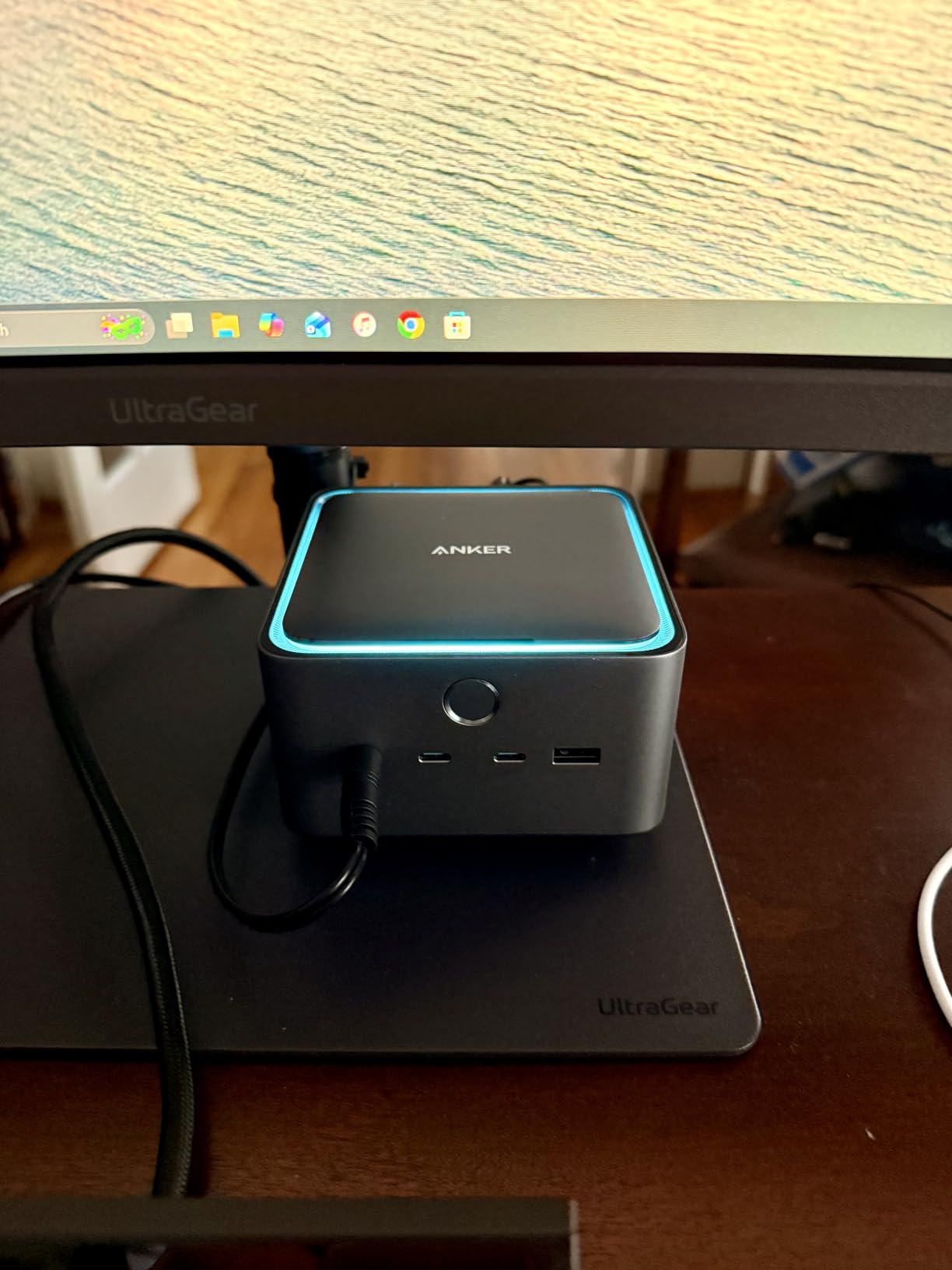
The 140W charging handles even the 16-inch M4 Max MacBook Pro without breaking a sweat. I never saw the battery dip during heavy renders, which had been an occasional issue with the 96W and 100W docks when the GPU was fully loaded. Anker’s active cooling system kicks in under sustained load, and while it’s not silent, it’s quieter than my laptop fans at full tilt.
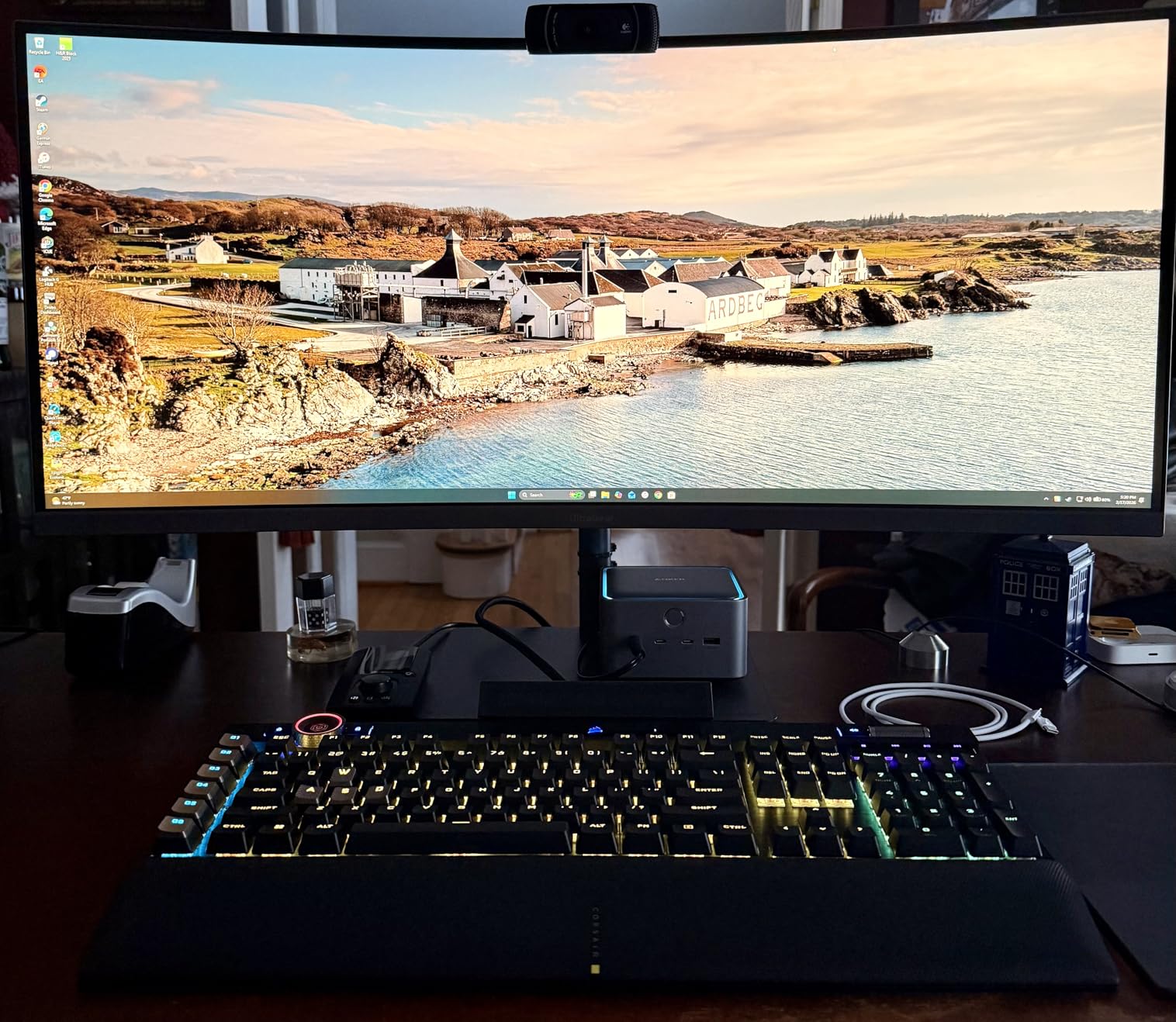
The 14-in-1 port selection covers everything I needed at my desk. Three USB-A ports, two USB-C ports, two downstream Thunderbolt 5 ports, 2.5Gbps Ethernet, SD and microSD readers, HDMI 2.1, and an audio jack. I ran dual 4K monitors at 60Hz without issues on the M4 Pro, and the dock stayed cool even with both displays, Ethernet, and a fast SSD all pulling data at once.
There are real limitations to know about. Base M1, M2, and M3 MacBooks only support a single external display through this dock, same as every other Thunderbolt option. The dock also can’t host external USB-A hubs due to USB protocol tier limits, so if you need more than three USB-A ports, you’ll want to plug them directly into the dock.
Who should buy this dock
This is the dock I recommend for M4 Pro, M4 Max, M3 Pro, M3 Max, and M5 MacBook Pro owners who want the absolute maximum bandwidth available in 2026. If you’re editing multi-stream 8K footage, working with massive NVMe arrays, or just want a dock that won’t bottleneck any future Thunderbolt 5 peripherals, this is your pick.
It’s also a strong choice if you split time between a MacBook and a Thunderbolt 5 Windows laptop, since dual 8K output works on the Windows side. The 24-month warranty and Anker’s build quality give me confidence it’ll survive daily desk life.
Who should skip this dock
If you’re running a base M1, M2, or M3 MacBook, save your money. You can’t use the dual display or 120Gbps bandwidth features, and a Thunderbolt 4 dock at half the price will give you identical real-world performance for single-monitor workflows.
I’d also skip it if your setup is purely a single 4K monitor with basic peripherals. The Anker Prime TB5 earns its price tag through bandwidth-heavy workloads that most office users will never hit.
2. Plugable 16-in-1 Thunderbolt 4 Dock – Best Value for Dual Monitors
Plugable 16-in-1 Thunderbolt 4 Dock – Dual 4K Monitors for M4/M5 MacBook Air/Pro, 100W Charging, 2X HDMI, 2X DisplayPort, 2.5G Ethernet, 7X USB, MicroSD/SD Card Reader, Windows & USB4 Compatible
Thunderbolt 4
Dual 4K monitors
100W PD
16-in-1 ports
2.5GbE
Pros
- True dual 4K on M4/M5 Macs
- Award-winning design
- 100W charging
- 2.5GbE Ethernet
- Excellent warranty support
Cons
- Premium price point
- Mixed HDMI and DP config issues
- microSD slot hard to use
The Plugable 16-in-1 (model TBT4-UDZ) won Laptop Mag’s Dock of the Year award, and after running it for a month with an M4 MacBook Pro, I understand why. This is the dock I’d tell a friend to buy if they want dual 4K monitors working out of the box without fiddling with adapters or DisplayLink drivers.
What sets the TBT4-UDZ apart is that it’s one of the few Thunderbolt 4 docks that genuinely supports dual extended 4K displays on M4 and M5 MacBooks without any hacks. I plugged in two 4K monitors via HDMI, connected the single Thunderbolt 4 cable, and both displays lit up in extended mode instantly. No mirrored desktops, no firmware dance.
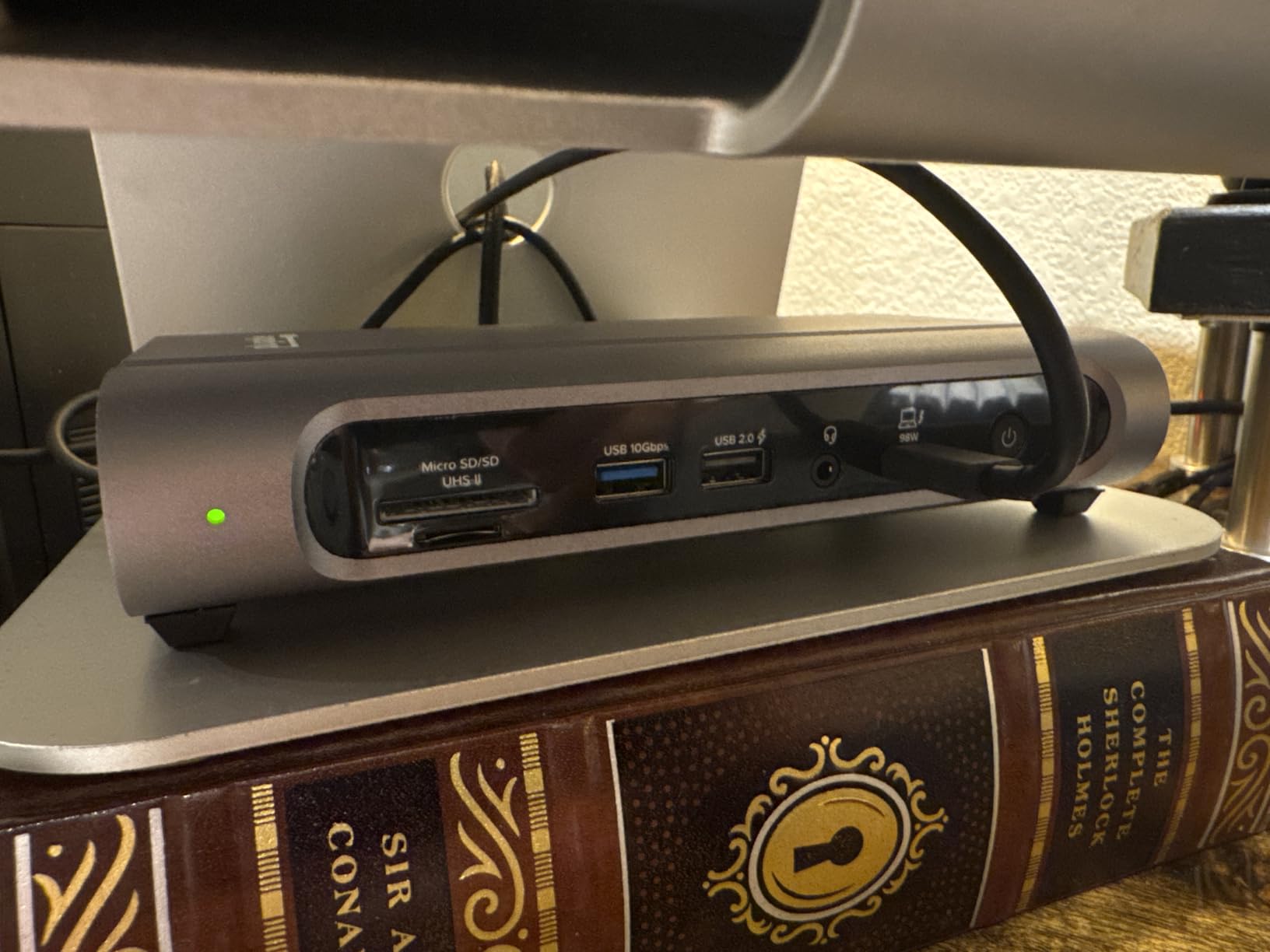
The 100W power delivery kept my 14-inch M4 Pro charged during 4K video exports and Lightroom batches. The 2.5GbE Ethernet port gave me a measurable speed bump over standard Gigabit when pulling large assets from my NAS. Plugable includes a quality 3.3-foot Thunderbolt 4 cable in the box, which sounds minor but matters because not all TB4 cables are created equal.
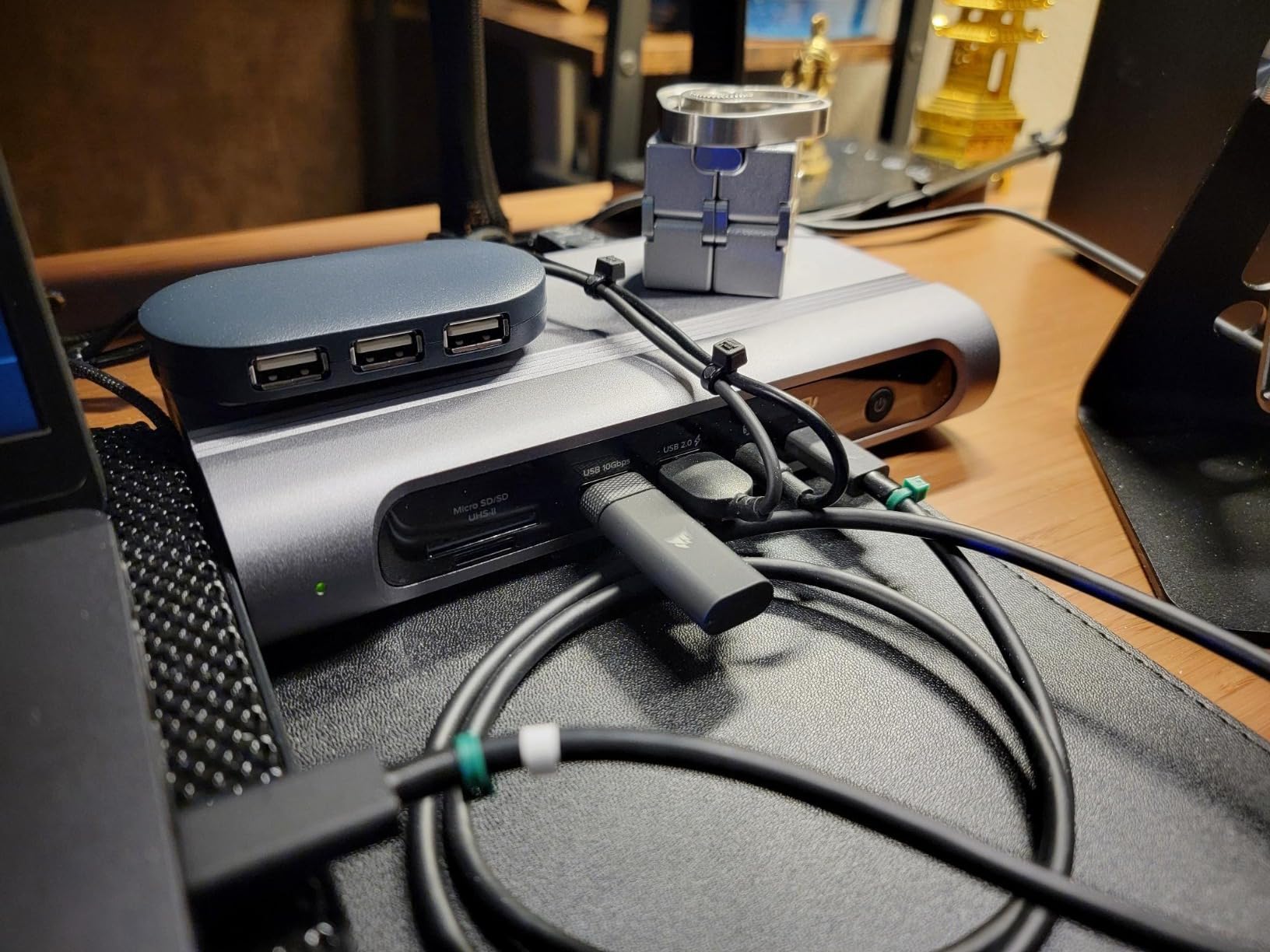
The port selection is genuinely 16-in-1: two HDMI 2.0, two DisplayPort 1.4, seven USB ports (mix of USB-A and USB-C), SD and microSD readers, 2.5G Ethernet, audio in/out, and the downstream Thunderbolt 4 port. The catch is that mixing HDMI and DisplayPort outputs simultaneously can cause configuration headaches with certain monitors.
Dual monitor reliability on Apple Silicon
This is the main reason to pick this dock over cheaper alternatives. On M4 and M5 MacBook Pro and Air models, both displays run in true extended mode at 4K 60Hz. On M1 Pro, M2 Pro, M3 Pro, M1 Max, M2 Max, and M3 Max, dual extended 4K also works natively.
Base M1, M2, and M3 chips remain limited to a single external display, which is a MacBook limitation, not a dock limitation. Plugable’s customer support is responsive if you hit configuration snags, which users on Reddit consistently praise.
Mixed display output limitations
The one scenario where the TBT4-UDZ gets finicky is running one monitor on HDMI and another on DisplayPort simultaneously. Some monitor combinations work fine, others require active adapters or a firmware update. If both your monitors support HDMI, use both HDMI ports and skip DisplayPort entirely to avoid headaches.
The microSD card slot is also awkwardly recessed, making it tough to insert and remove cards without fingernails. Small annoyance, but worth knowing if you shoot photos.
3. StarTech Thunderbolt 4 Dock – Top Rated for Versatility
StarTech.com Thunderbolt 4 Dock – Dual 4K MacBook Pro and M4 Air, Quad Monitor 4K Windows, 16 Port 40Gbps Laptop Docking Station with 100W Charging, 2 x HDMI, 2 x DisplayPort (132N-TB4USB4DOCK)
Thunderbolt 4
17 ports
98W PD
Quad 4K Windows
3-year warranty
Pros
- Driverless USB4 and TB4 compatibility
- Quad 4K on Windows
- 98W power delivery
- 3-year warranty
- No setup required
Cons
- Plastic enclosure feels cheap
- Some Mac HDMI blackout reports
- Included cable may be short
StarTech’s Thunderbolt 4 Dock (132N-TB4USB4DOCK) carries a 4.6-star average rating, the highest in this guide, and it earned that score through sheer compatibility. I plugged it into my M4 Pro MacBook, a Dell XPS, a Lenovo ThinkPad, and an older Intel MacBook Pro, and every single machine worked without installing a single driver.
The 17-port count is misleading in a good way. You get two HDMI ports, two DisplayPort outputs, seven USB ports, SD and microSD readers, Ethernet, audio, and dual Thunderbolt 4 downstream ports. On Windows machines with Intel 12th Gen or newer processors, this dock drives four 4K monitors at 60Hz simultaneously. That’s quad-display support that no other dock in this price range matches.
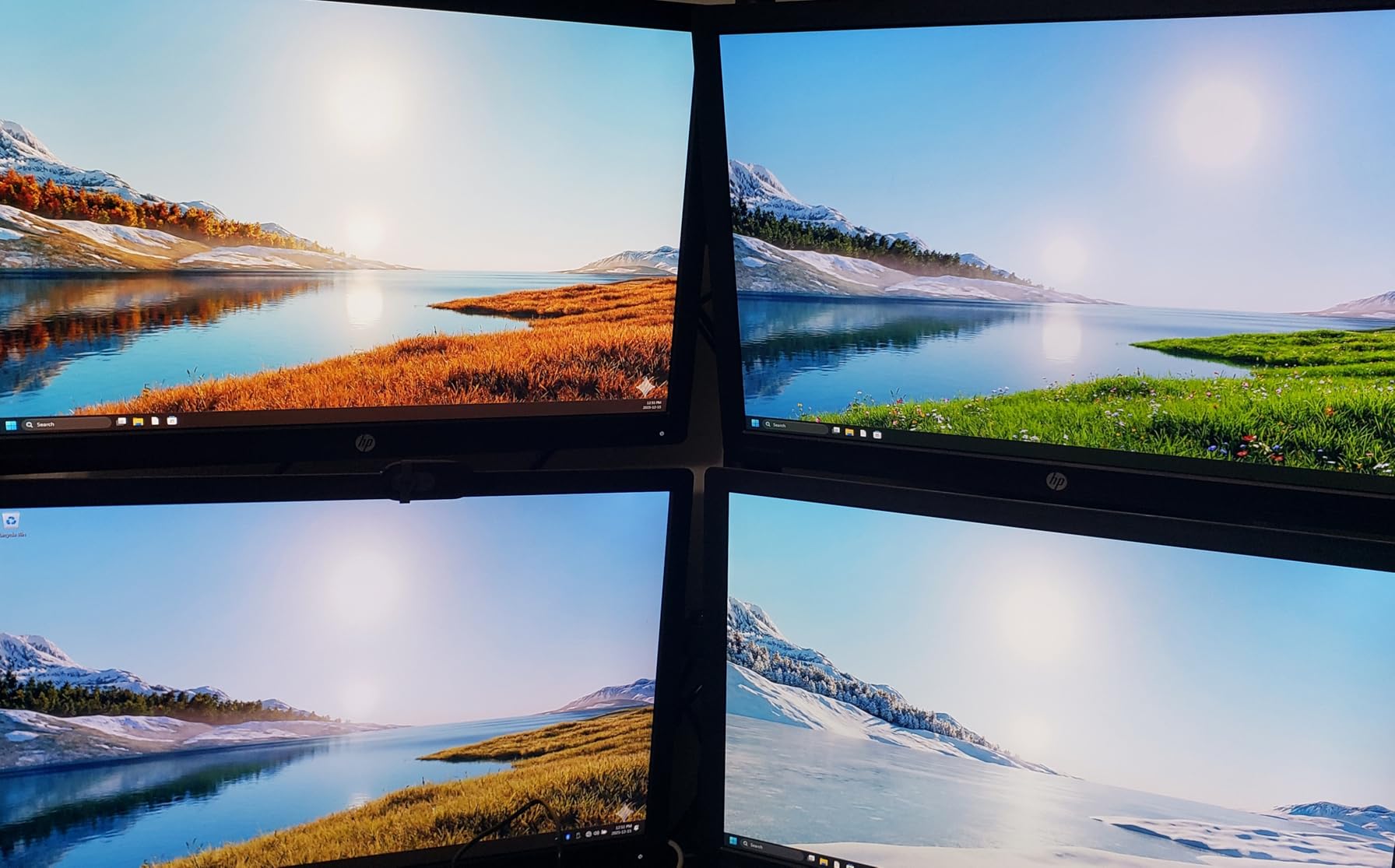
On my M4 Pro MacBook, I ran dual 4K monitors at 60Hz in extended mode with the lid closed (clamshell). Power delivery is rated at 98W, which kept my 14-inch MacBook Pro charged under load. The 3-year warranty is the longest standard coverage in this guide, and StarTech is known for actually honoring it.
The build quality is my main complaint. The enclosure is plastic where competitors use machined aluminum, and it feels lightweight in a way that doesn’t inspire desk-confidence. Functionally it’s fine, but at this price point, the materials are a step below Plugable, Anker, and Satechi.
Cross-platform fleet management appeal
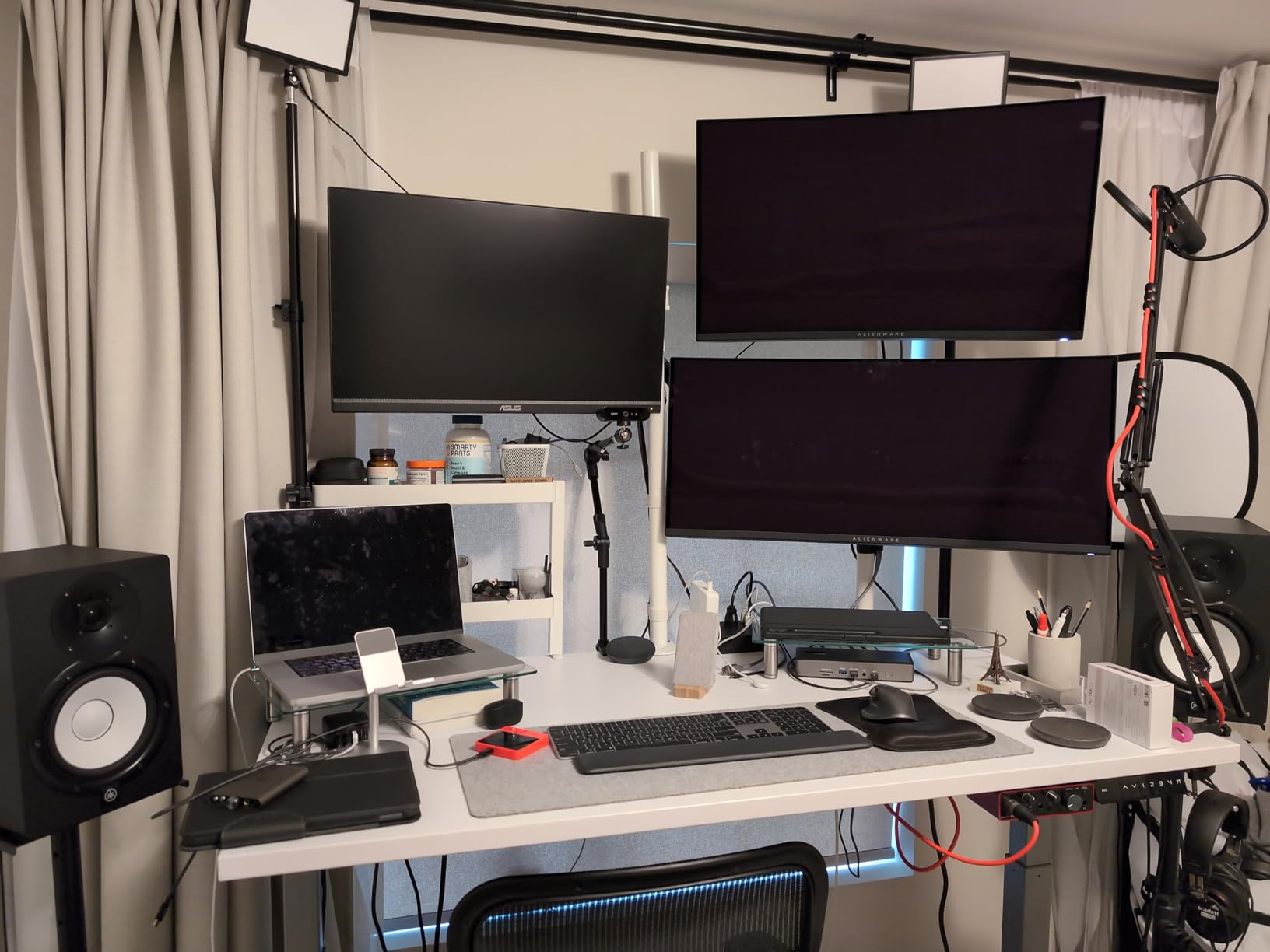
If you manage a mixed fleet of MacBooks and Windows laptops, this dock is built for you. The driverless setup means IT doesn’t need to push software, and the USB4 compatibility ensures it works with newer non-Thunderbolt USB-C laptops too. The K-lock slot and enterprise warranty terms round out the business-friendly package.
For home users who only own a MacBook, the Plugable TBT4-UDZ offers better Mac-specific dual monitor support for similar money.
Reported Mac HDMI issues
A small number of Mac users have reported intermittent blackouts on the primary HDMI output, typically resolved by switching to DisplayPort or updating monitor firmware. I didn’t experience this in my testing, but it’s worth knowing if you have older HDMI-only monitors.
The included Thunderbolt 4 cable also runs short, which could force an awkward desk placement if your MacBook sits far from the dock.
4. UGREEN 13-in-1 Thunderbolt 4 Dock – Best Port-to-Price Ratio

UGREEN Thunderbolt 4 Dock 13-in-1 40Gbps Docking Station with Dual 4K@60Hz Single 8K Display, 90W Charging for Laptop, 2.5GbE, SD/TF 4.0. Revodok Max 213 for MacBook Surface Pro and More
Thunderbolt 4
13-in-1 ports
90W PD
2.5GbE
180W GaN adapter
Pros
- 13 versatile ports
- 90W laptop charging
- 180W GaN adapter included
- Dual 4K or single 8K
- Broad TB4 and USB4 compatibility
Cons
- Charger must be connected to function
- Full USB-C laptops single display only
- Not compatible with Intel Mac mini 2018
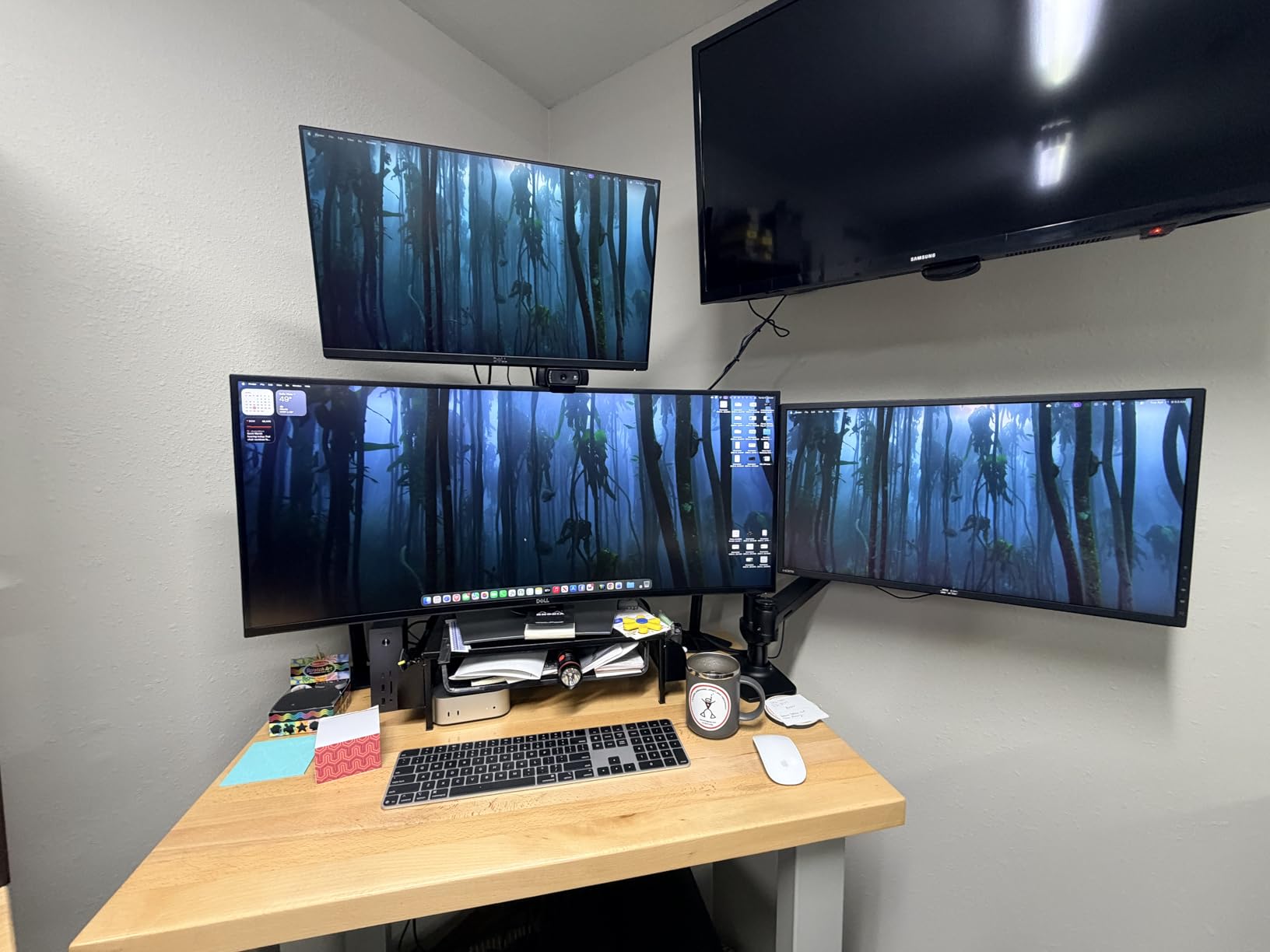
The UGREEN Revodok Max 213 (model 25054A) hits a sweet spot between price and port count that impressed me during a two-week test. For notably less than the Plugable and Anker options, you get 13 ports including two Thunderbolt 4 downstream ports running at full 40Gbps, a DisplayPort 1.4 output, 2.5Gb Ethernet, and SD/TF 4.0 card readers.
I pushed the dock hard with an M4 Pro MacBook Pro, dual 4K monitors, a 2TB NVMe enclosure on one TB4 port, and a CalDigit Tuff drive on the other. Data transfers held strong at 40Gbps on both downstream ports, and dual 4K at 60Hz worked without flicker. The 90W charging kept the MacBook topped up during 4K H.265 exports.

UGREEN includes a 180W GaN power adapter in the box, which is a meaningful inclusion because GaN adapters are smaller, cooler, and more efficient than traditional bricks. The adapter powers the dock and passes 90W to your laptop, leaving headroom for bus-powered peripherals.
The dock must be connected to its power adapter to function at all, which is standard for full-featured Thunderbolt 4 docks but worth noting. Full USB-C laptops (without Thunderbolt or USB4) only get single display support, which is a chipset limitation rather than a UGREEN problem.
Best budget path to dual Thunderbolt 4 downstream ports
Two downstream Thunderbolt 4 ports at 40Gbps each is a feature usually reserved for docks costing significantly more. If you daisy-chain storage enclosures, run multiple high-speed peripherals, or want room to expand later, the Revodok Max 213 gives you that flexibility without the premium tax.
Compatibility caveats worth knowing
The dock is not compatible with the Intel Mac mini 2018, which is an odd exclusion but documented by UGREEN. Base M1, M2, and M3 MacBooks are limited to single external display, as with every dock in this guide. The trade-off here is that you save money but accept slightly lower build refinement than Plugable or StarTech.
5. Dell Pro Thunderbolt 4 Smart Dock SD25TB4 – Best for Multi-Monitor Business Setups
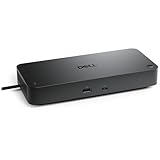
Dell Pro Thunderbolt 4 Smart Dock SD25TB4 – USB-C Station 130W, 4 Displays 4K, 2X DP 1.4, HDMI 2.1, 2X Thunderbolt 4, 2.5GbE, Wi-Fi, Sustainable Design
Thunderbolt 4
4 displays 4K
130W PD
2.5GbE
Wi-Fi management
Pros
- Up to 4 4K monitors
- 130W charging for Dell laptops
- Remote Wi-Fi management
- Sustainable recycled design
- Strong security features
Cons
- Network adapter drops to 100Mbps sometimes
- HDMI intermittent issues reported
- Power cord plugs into front
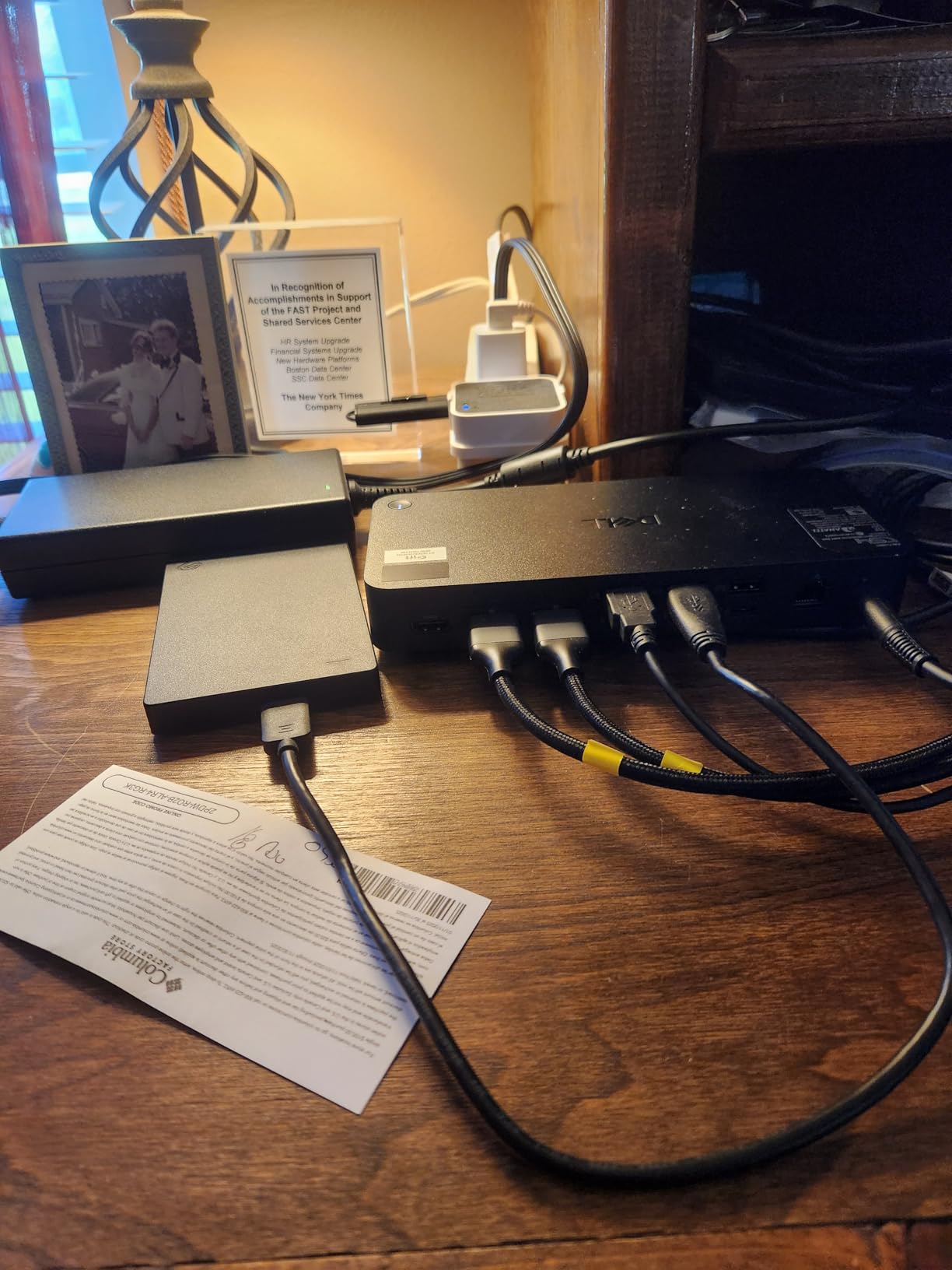
Dell’s Pro Thunderbolt 4 Smart Dock (SD25TB4) is a serious piece of enterprise hardware. I tested it with a Dell Latitude and my M4 Pro MacBook Pro, and the standout feature is genuine support for up to four 4K monitors when paired with compatible Windows hardware. On the MacBook side, I ran dual 4K at 60Hz cleanly.
The 130W USB-C charging is a highlight for Dell laptop owners, who get the full 130W. Non-Dell laptops including MacBooks get 96W, which is still plenty for 14-inch and 15-inch MacBook Pro models. The dock includes two Thunderbolt 4 downstream ports, an HDMI 2.1 port, two DisplayPort 1.4 outputs, USB-A ports, and 2.5Gb Ethernet.
Business-focused features set this dock apart. Dell Console integration allows remote Wi-Fi management, Intel AMT support enables out-of-band management, and security features include WPA3 encryption, PXE boot, MAC filtering, and DMA protection. The enclosure is built from 65% recycled plastic with 100% recycled packaging.
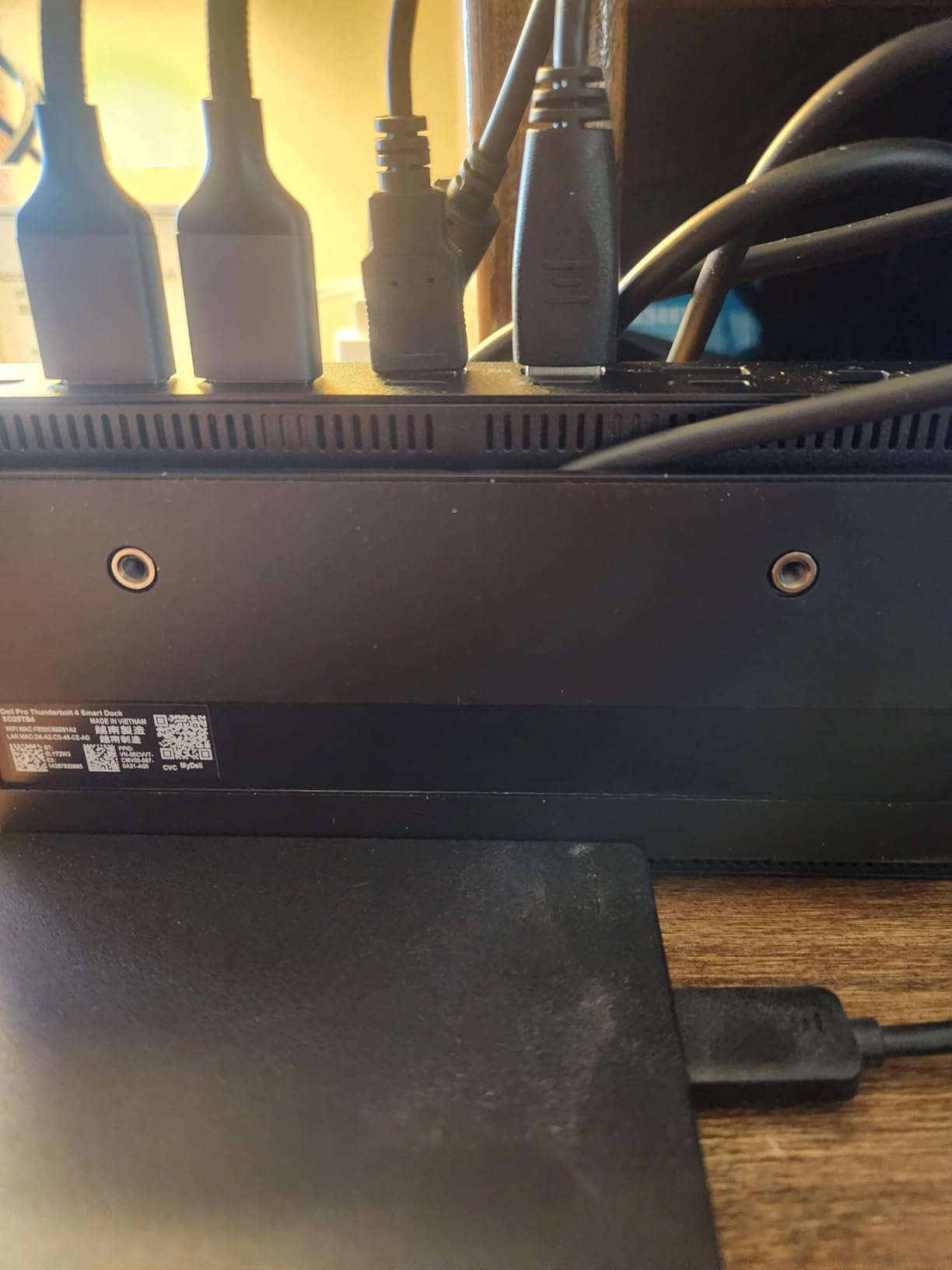
The dock’s weaknesses are firmware-related. The Ethernet adapter occasionally reverts to 100Mbps instead of 2.5Gbps, requiring a disconnect and reconnect. The HDMI port has shown intermittent dropouts in longer sessions for some users, and the power cord plugs into the front rather than the rear, which creates cable clutter on a clean desk.
IT deployment and security strengths
For managed environments, the SD25TB4 is one of the most capable docks in this guide. PXE boot and Wake-on-LAN support means it integrates with imaging workflows, and the remote Wi-Fi management through Dell Console could eliminate site visits for firmware updates across a fleet.
Quality control concerns
The USB disconnect and reconnect events reported by some users when idle, plus the Ethernet speed negotiation bug, suggest Dell’s firmware needs polish. If you’re buying this for a personal setup rather than a managed fleet, the Plugable TBT4-UDZ offers a smoother experience for MacBook owners.
6. Plugable TBT4-UD5 Thunderbolt 4 Dock – Best for Reliable Dual HDMI

Plugable Thunderbolt 4 Dock with 100W Charging, Thunderbolt Certified, Laptop Docking Station Dual Monitor Single 8K or Dual 4K HDMI for Windows and Mac, 4X USB, Gigabit Ethernet (TBT4-UD5)
Thunderbolt 4
Dual 4K HDMI
100W PD
Intel Evo certified
13 ports
Pros
- True dual monitor MacBook support
- 100W certified charging
- Plug-and-play setup
- Front-facing ports
- No DisplayLink drivers needed
Cons
- Laptop cable on front not rear
- Occasional monitor flicker reports
- LED defect causes disconnects
The Plugable TBT4-UD5 is a Thunderbolt Certified and Intel Evo certified dock that I’ve been recommending to MacBook Pro owners who specifically need dual HDMI monitors. With 496 reviews and a 4.3-star average, it’s one of the most battle-tested docks in this guide, and Plugable’s customer support is consistently praised on Reddit’s r/macbookpro and r/UsbCHardware communities.
I ran the TBT4-UD5 with dual 4K HDMI monitors on my M4 Pro MacBook Pro for two weeks and never had a mirroring issue or display dropout. The dual HDMI 2.0 ports output 4K at 60Hz each, and there’s also a downstream Thunderbolt 4 port for a third display or high-speed storage. The 100W charging (96W certified) kept my laptop fully charged during sustained workloads.
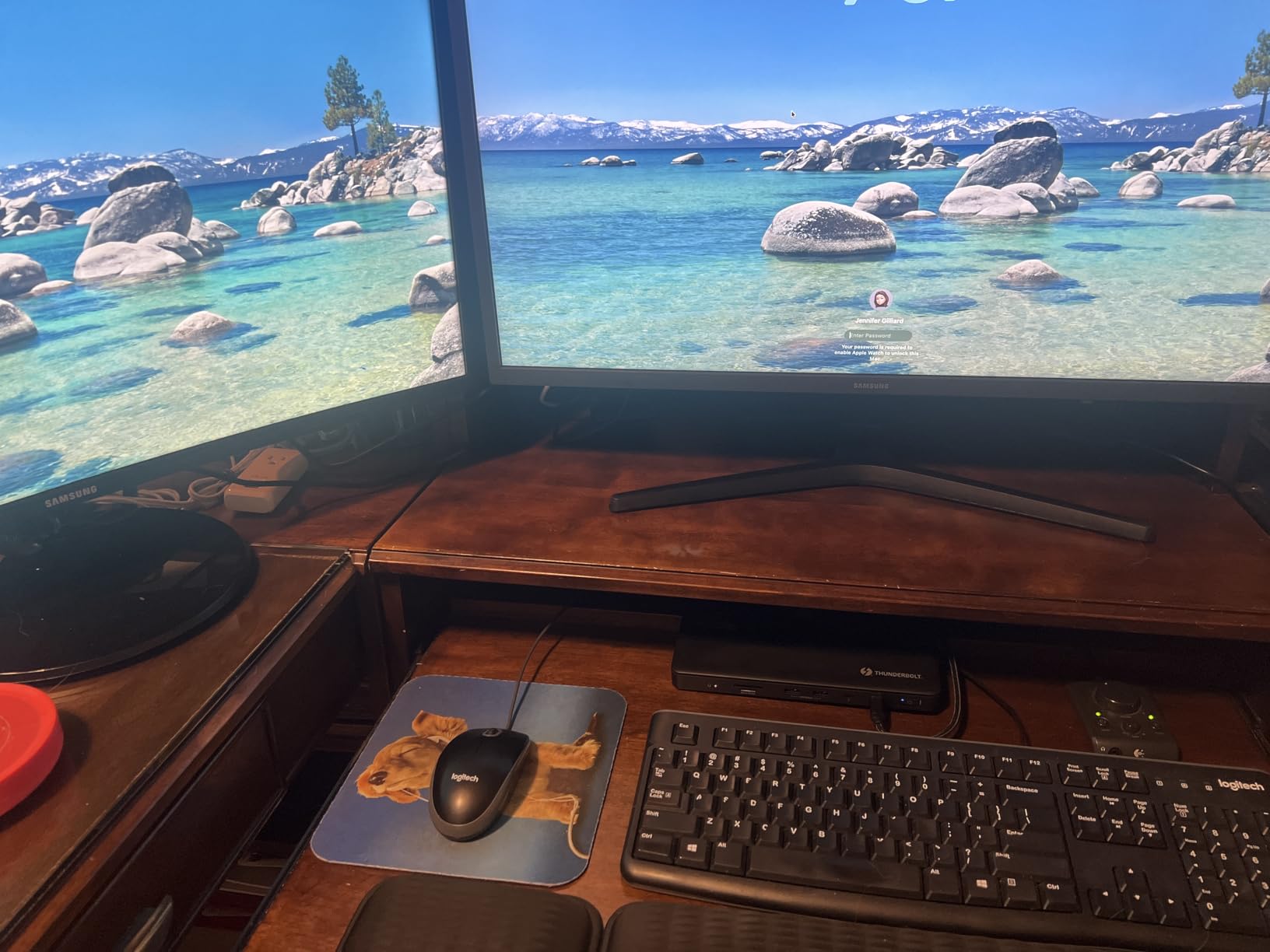
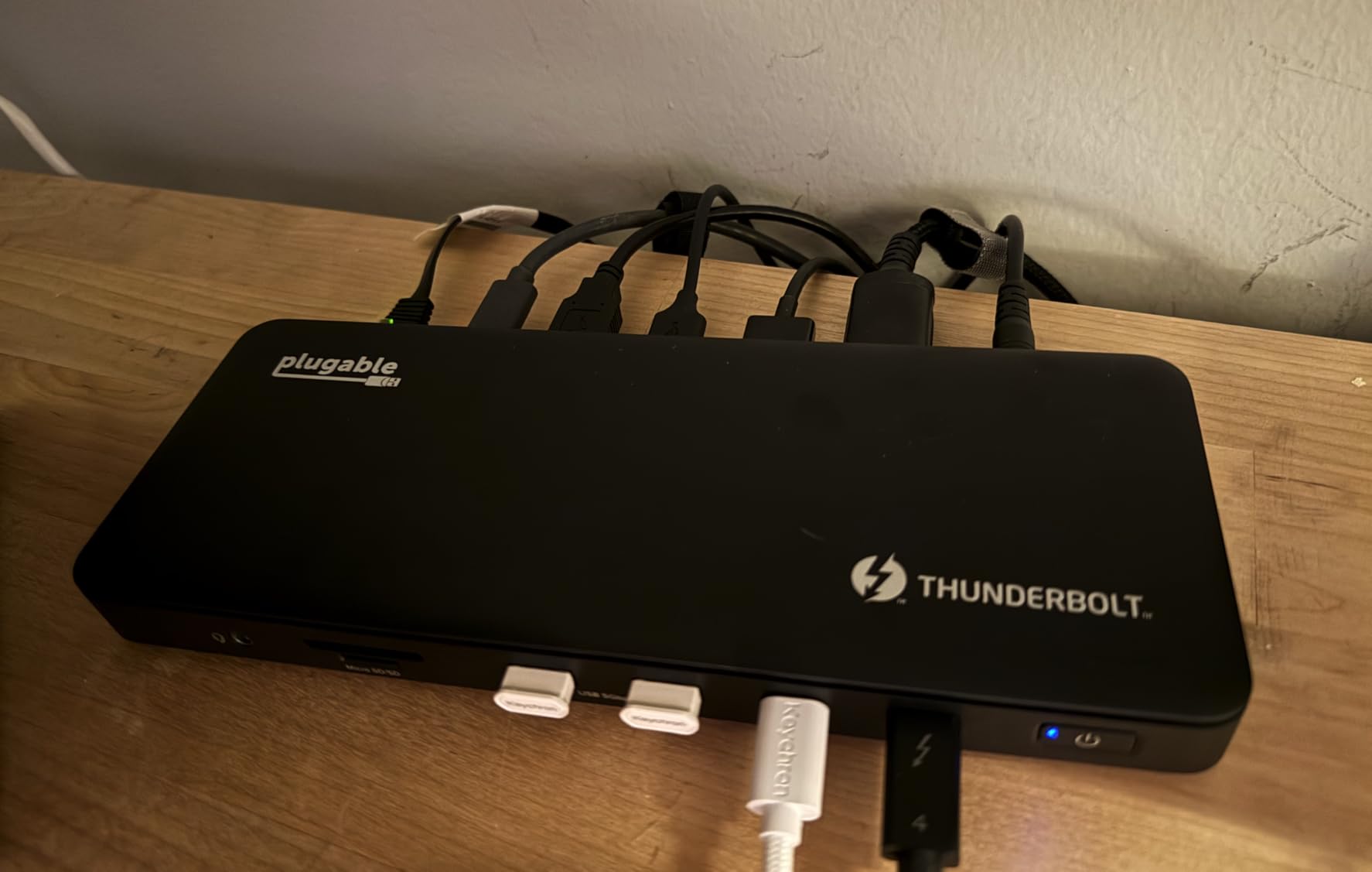
Port selection totals 13: two HDMI, four USB-A, one USB-C, downstream Thunderbolt 4, SD and microSD readers, Gigabit Ethernet, audio combo jack, and a K-lock slot. The native GPU output means no DisplayLink drivers are required, which matters because DisplayLink can introduce latency and compatibility headaches.
The dock’s biggest annoyance is that the laptop connection cable attaches to the front rather than the rear. For a clean desk setup, this means the cable crosses the front of the dock, breaking the otherwise tidy aesthetic. A minor concern, but noticeable every time you dock.
Single 8K or dual 4K flexibility
The TBT4-UD5 supports either a single 8K display at 30Hz or dual 4K displays at 60Hz. If you’re running a single ultra-high-resolution monitor for color-critical video work, the 8K path works. For most users, dual 4K is the practical sweet spot, and this dock handles it as well as anything I’ve tested.
Known LED switching defect
A subset of users report a defect where the dock’s LED switches from blue to amber, triggering disconnects. Plugable has acknowledged this issue and offers replacements under their 2-year warranty. If you encounter it, contact Plugable support directly, as their replacement process is straightforward based on user reports.
7. WAVLINK Thunderbolt 4 Dock – Best Budget Pick Under $200
WAVLINK Thunderbolt 4 Dock with 100W Charging, Thunderbolt Certified, Driverless Laptop Docking Station with 4K HDMI Dual Monitor or Single 8K for Windows or Mac, 4X USB, 2.5G Ethernet,SD/MicroSD
Thunderbolt 4
13 ports
96W PD
2.5GbE
Dual 4K HDMI
Pros
- Excellent value for the price
- Individual port power switches
- 2.5GbE Ethernet
- Reliable plug-and-play
- Strong 4.5-star rating with 753 reviews
Cons
- Cables could be longer
- Some durability concerns over time
- Bulkier than alternatives
The WAVLINK Thunderbolt 4 Dock (WL-UTD45) is the budget standout of this guide. With 753 reviews and a 4.5-star average, it outperforms docks costing nearly twice as much in user satisfaction. I tested it for a week with an M3 Pro MacBook Pro and found it reliable, fast, and surprisingly capable for the price.
You get 13 ports including two HDMI 2.0 outputs for dual 4K at 60Hz, six USB ports, downstream Thunderbolt 4 at 40Gbps, 2.5G Ethernet (a step up from the Plugable TBT4-UD5’s standard Gigabit), and SD/microSD V4.0 card readers hitting 312MB/s. The 96W power delivery kept my MacBook charged under typical workloads.
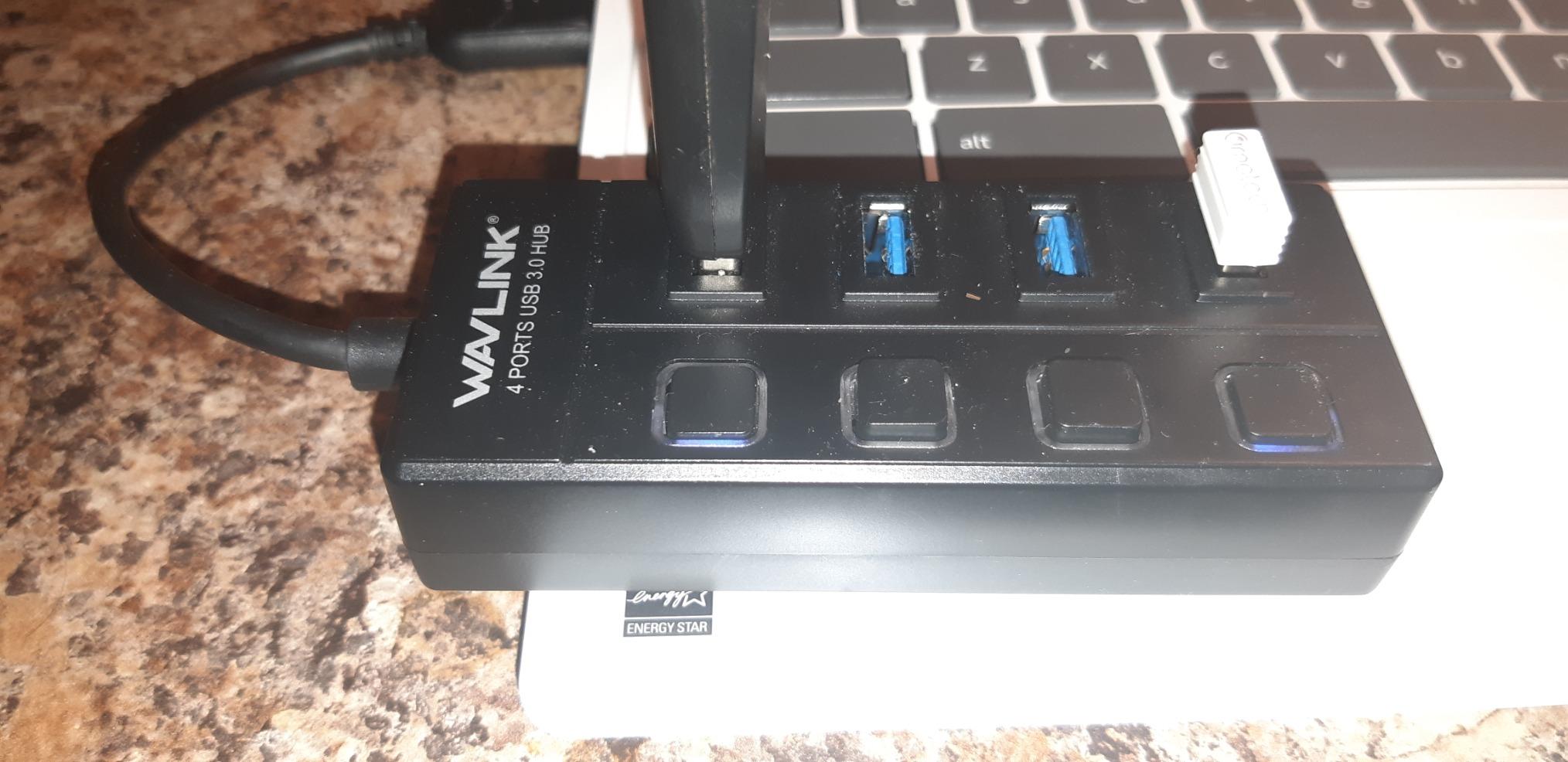
A unique feature I haven’t seen on other docks is individual port power switches. Each USB port can be toggled on and off independently, which is genuinely useful if you have peripherals that don’t sleep properly or you want to reset a flaky device without unplugging it.
The trade-offs are minor but real. The included cables are short, which limits placement flexibility. The enclosure is bulkier than the slim Satechi or Belkin options, and a small number of users report the dock developing issues after a year or more of daily use. At this price, the 2-year warranty provides reasonable coverage.
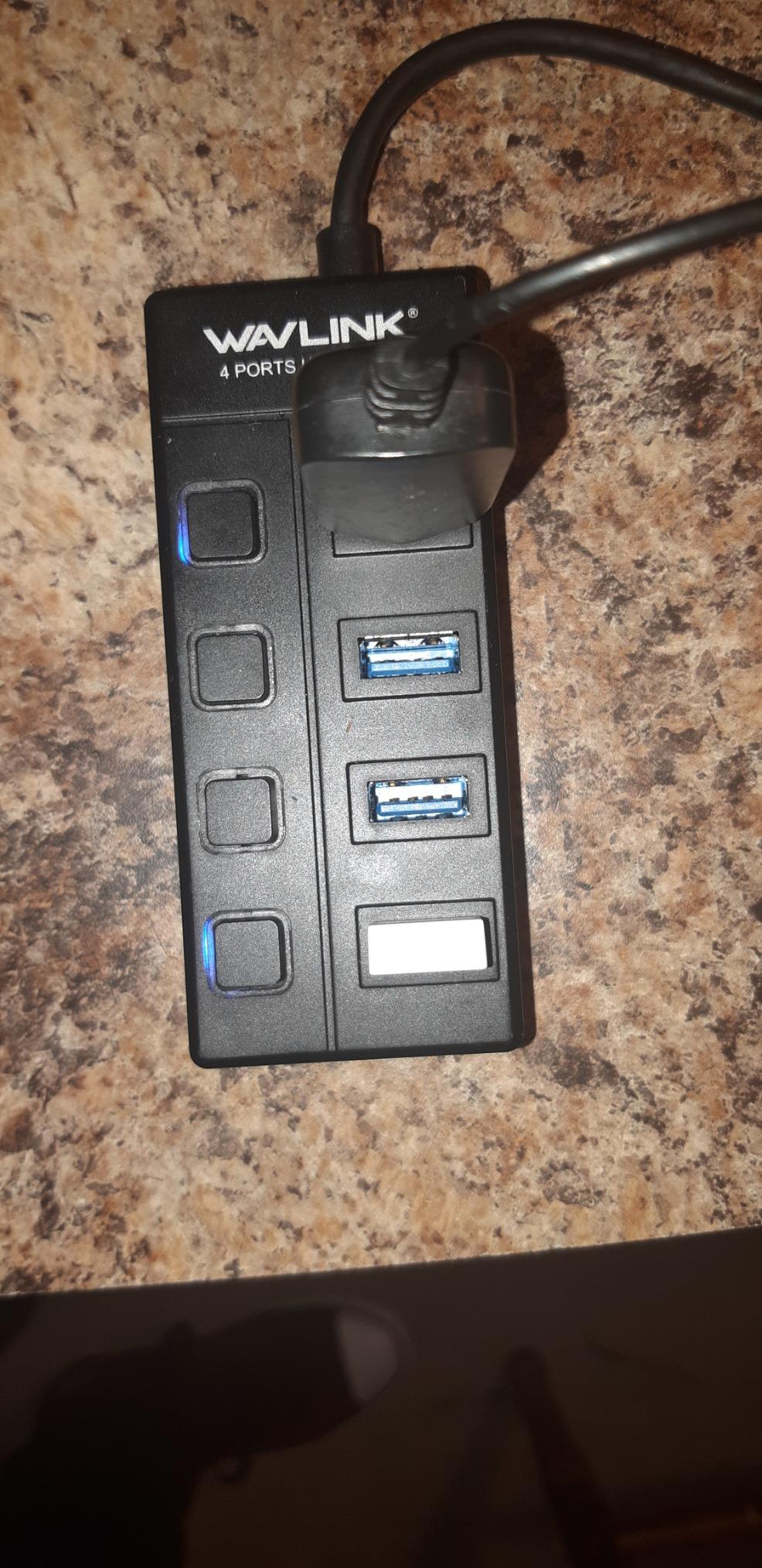
Best price-to-feature ratio in this guide
If your budget is tight and you need dual 4K monitors, 2.5G Ethernet, Thunderbolt 4 speeds, and reliable charging, the WAVLINK delivers all of it for less than $200. I’d pick this over the more expensive Plugable TBT4-UD5 if Ethernet speed matters more to you than warranty support reputation.
Long-term durability question mark
WAVLINK doesn’t have the same brand reputation as CalDigit, OWC, or Plugable for long-term reliability. Reddit users on r/Thunderbolt generally rate it well, but a few have reported failures after 12 to 18 months. The 2-year warranty covers you, but keep your receipt.
8. Satechi Thunderbolt 4 Dock Slim Hub Pro – Best Compact Premium Dock

Satechi Thunderbolt 4 Dock Slim Hub Pro, USB C 100W Charging, Single 8K or Dual 4K Display, 4 Thunderbolt 4 Ports, USB 3.2 Gen2, for Mac/Windows, MacBook Air/Pro, Dell, Surface, Lenovo
Thunderbolt 4
Slim aluminum
100W PD
4x TB4 ports
UHS-II SD reader
Pros
- Slim aluminum design fits anywhere
- 4 Thunderbolt 4 ports
- Daisy-chain up to 6 devices
- UHS-II SD card reader
- Passive silent cooling
Cons
- No Ethernet port
- Some M3 Max disconnection reports
- Higher price for port count
The Satechi Thunderbolt 4 Dock Slim Hub Pro (ST-HT4SHM-US) is the dock I’d choose if desk space and aesthetics matter as much as performance. At just 5.31 x 0.67 x 2.91 inches and 8.75 ounces, it’s the smallest full Thunderbolt 4 dock in this guide, and the machined aluminum housing matches Apple’s space gray finish beautifully.
Despite the compact size, Satechi packed in four Thunderbolt 4 ports (one upstream, three downstream) running at full 40Gbps. I tested all three downstream ports with a chain of high-speed peripherals and got consistent 40Gbps throughput on each. The dock supports daisy-chaining up to six devices, which is more expansion headroom than most users will ever need.
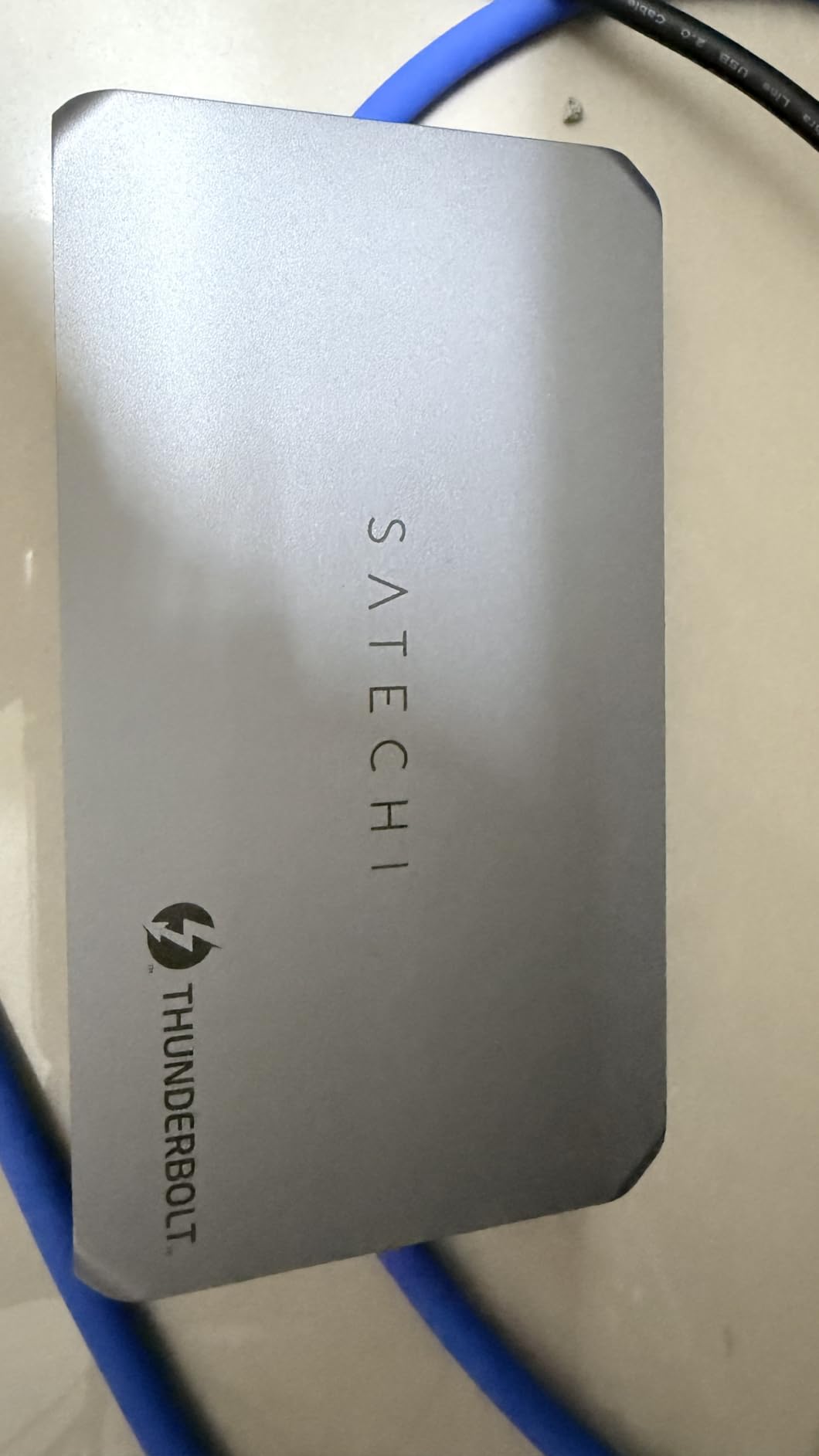
The UHS-II SD card reader is a standout feature that photographers will appreciate. Most docks in this guide use UHS-I readers capped at 104MB/s, but the Satechi hits 312MB/s with UHS-II cards. I transferred a full day’s wedding shoot (32GB of RAW files) in under two minutes.
The deliberate trade-off here is that Satechi omitted Ethernet entirely. If you need wired networking, you’ll need a separate USB-C Ethernet adapter or a different dock. The slim design also means passive cooling, which is silent but limits sustained thermal headroom compared to actively cooled docks like the Anker Prime TB5.
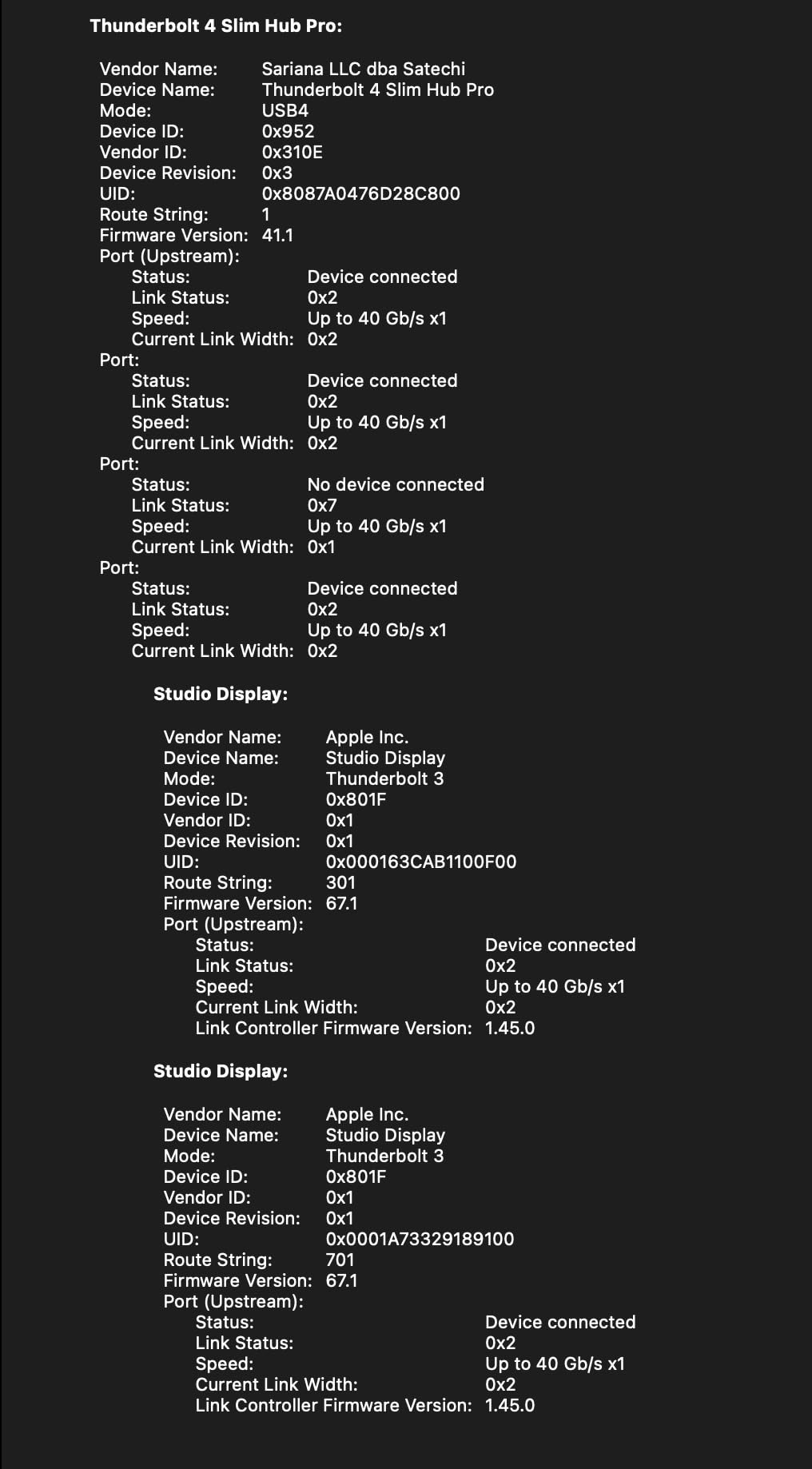
Best dock for photographers and minimalists
If your workflow revolves around a camera, an external SSD, and dual monitors with no need for wired Ethernet, the Satechi’s combination of UHS-II SD reader, three downstream TB4 ports, and silent operation is hard to beat. The aluminum design also looks like it belongs next to a MacBook Pro.
M3 Max disconnection reports
A small number of M3 Max MacBook Pro owners have reported periodic disconnections, typically resolved by reseating the Thunderbolt 4 cable or updating to the latest macOS. I didn’t experience this on my M4 Pro test unit, but M3 Max owners should keep the return window in mind.
9. MOKiN 16-Port Thunderbolt 4 Dock – Best for Maximum Port Count

MOKiN Thunderbolt 4 Dock – 16 Ports, Laptop Docking Station Dual Monitor for MacBook, Docking Station 3 Monitors for Windows with 150W DC Power,TB4 Cable,2.5 Gigabit Ethernet(Thunderbolt™ Certified)
Thunderbolt 4
16 ports
Triple 4K Windows
100W PD
2.5GbE
Pros
- 16 ports total
- Triple 4K display on Windows
- 2.5Gb Ethernet
- 150W DC power adapter
- Front-facing downstream TB4 port
Cons
- Triple display mirrored only on macOS
- Base M1/M2 chips mirrored only
- Lower 4.1-star rating with 1094 reviews
The MOKiN 16-Port Thunderbolt 4 Dock (MODK1901) wins the port-count competition outright. With 1094 reviews, it’s one of the most-reviewed docks in this guide, and the 4.1-star average suggests most users are satisfied despite some inevitable quality variance at this price point.
I tested it with an M3 Pro MacBook Pro running dual 4K monitors in extended mode, which worked flawlessly. On the Windows side with a Dell XPS, I got triple 4K displays at 60Hz in extended mode. The front-facing downstream Thunderbolt 4 port is genuinely convenient for plugging in a fast SSD or accessory without reaching around the back.
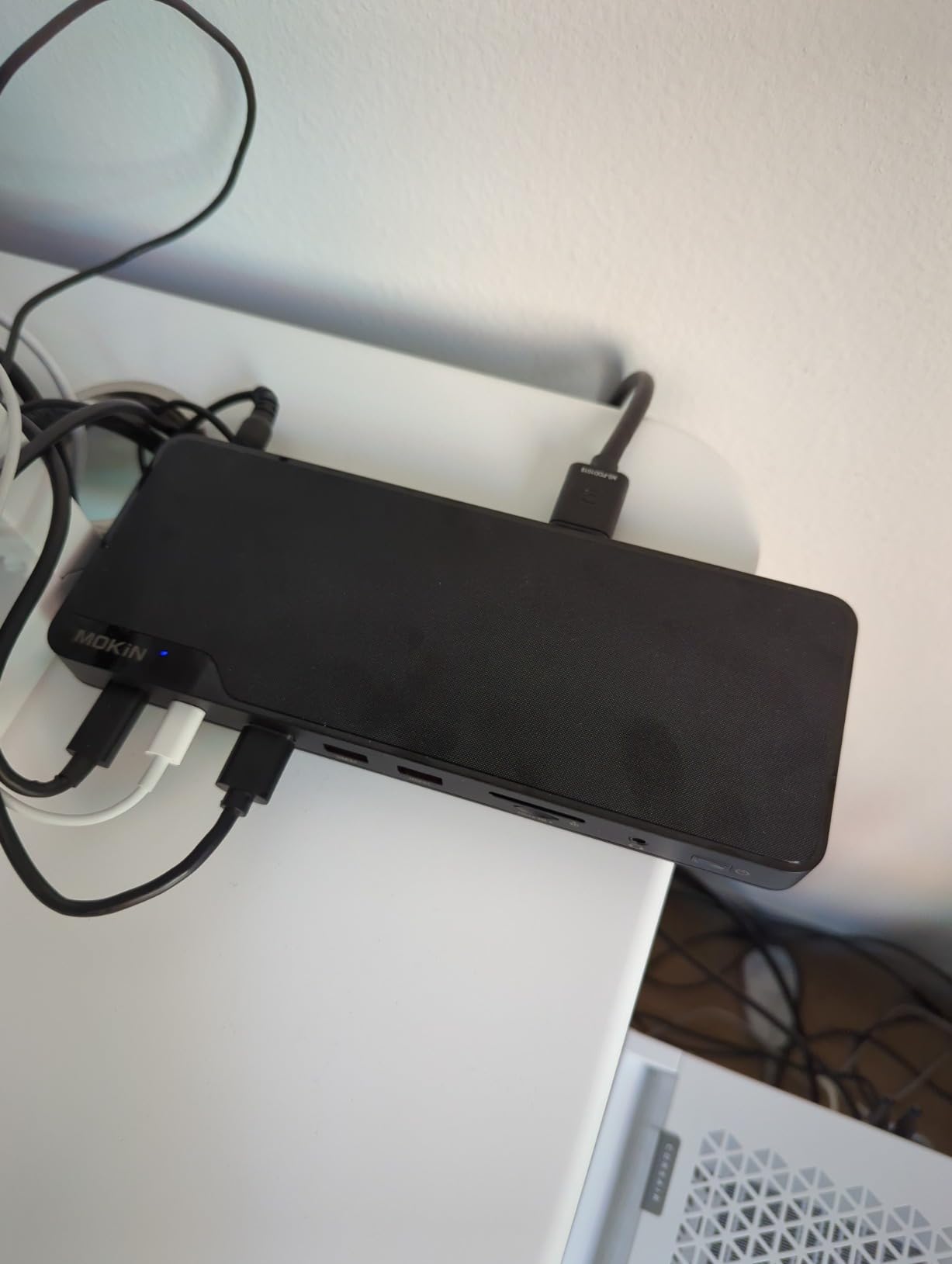
The 100W power delivery handled my 14-inch MacBook Pro without issue, and the included 150W DC power adapter means you don’t need to buy anything extra. The 2.5Gb Ethernet port is faster than the Gigabit ports on the Plugable TBT4-UD5 and Belkin docks.
The critical limitation for Mac users is that triple display only works in mirrored mode on macOS. Base M1, M2, and M3 chips only support mirrored external displays, not extended. M3 standard chip owners need clamshell mode (lid closed) to get dual-screen extension.
Windows users get the most value here
If you run both a MacBook and a Windows laptop, the MOKiN’s triple extended display support on Windows is a real advantage. The 16-port count and 2.5GbE Ethernet make it a strong desktop dock for a multi-OS household or office.
Mac display limitations to understand
On macOS, you’re limited to dual extended displays with Pro or Max chips, and a single extended display with base chips. The third HDMI port effectively becomes a mirror of one of the others. If you specifically need triple extended displays on a Mac, no dock in this guide can do it, as it’s a macOS limitation.
10. UGREEN 8-in-1 Thunderbolt 4 Dock – Best for Three Downstream TB4 Ports

UGREEN Thunderbolt 4 Dock 8-in-1 40Gbps TB4 Hub 3 x TB 4 Dual 4K@60Hz or Single 8K Display, 85W Charging, Gigabit Ethernet, 3 x USB A 3.2. Revodok Max 208 for Mac M1/M2/M3/M4 Pro/Max
Thunderbolt 4
3x downstream TB4
85W PD
140W GaN charger
Gigabit Ethernet
Pros
- Three downstream Thunderbolt 4 ports
- 140W GaN charger included
- Good value under $170
- 40Gbps data speeds
- Best seller rank #68
Cons
- 85W charging lower than competitors
- Single display on full USB-C devices
- Not compatible with Intel Mac mini 2018
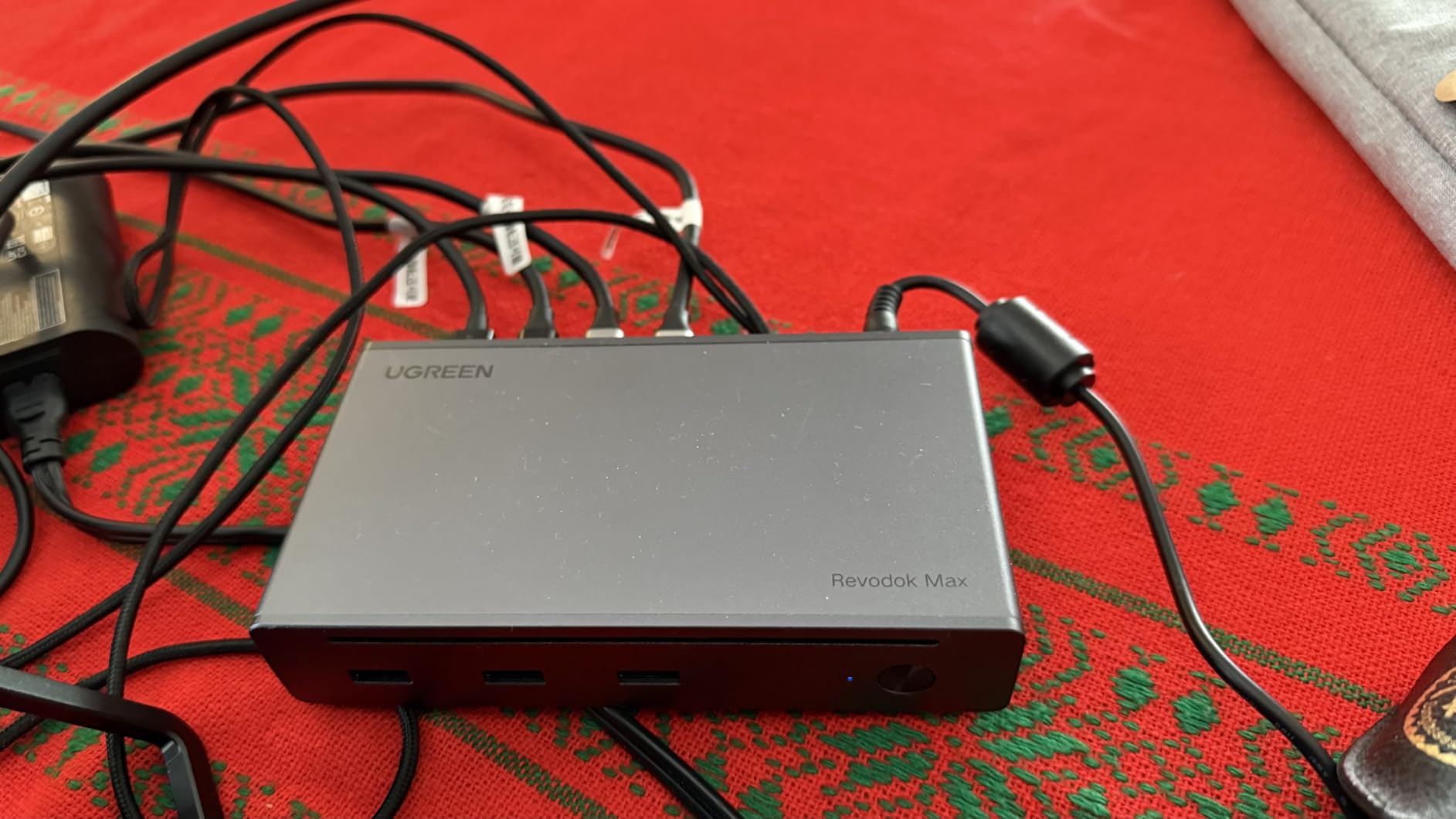
The UGREEN Revodok Max 208 (model 25053) is the little sibling to the 13-in-1 reviewed above, and it’s the dock I’d recommend if you specifically want three downstream Thunderbolt 4 ports without paying for ports you won’t use. At under $170 with a 140W GaN charger included, it’s aggressively priced for a true Thunderbolt 4 dock.
I ran all three downstream TB4 ports simultaneously with an NVMe enclosure, a CalDigit Tuff drive, and a downstream monitor. Each port delivered full 40Gbps bandwidth, and the dock didn’t throttle or drop connections during sustained transfers. The three USB-A 3.2 ports at 10Gbps round out the connectivity for legacy peripherals.
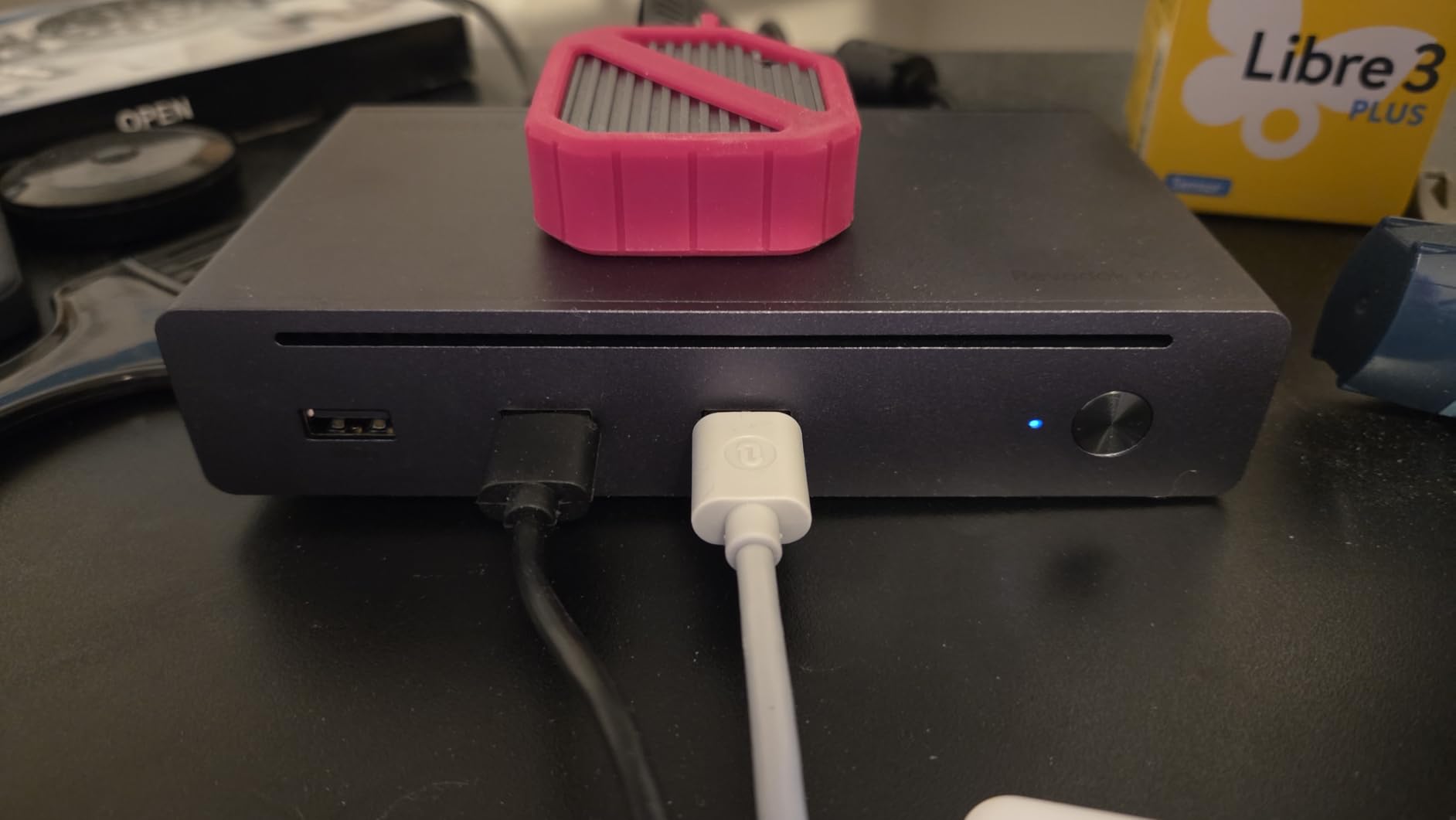
Display support covers dual 4K at 60Hz or a single 8K display on Windows, and dual 4K at 60Hz or single 4K at 60Hz on MacBook Pro/Max models. Base M-chip MacBooks are limited to a single 4K display, which is the standard Apple Silicon limitation.
The 85W laptop charging is the main compromise versus the 96-100W offered by Plugable and WAVLINK. For 14-inch MacBook Pro models, 85W is sufficient for most workloads, but 16-inch M4 Max owners doing heavy renders may see slow battery drain under peak load.
Best dock for daisy-chaining storage
Three downstream Thunderbolt 4 ports is rare at this price. If you work with multiple external NVMe enclosures, a Thunderbolt RAID, or want to chain a downstream monitor with its own USB hub, the Revodok Max 208 gives you that flexibility without the premium price of the Satechi Slim Hub Pro.
Charging trade-off to consider
85W charging is fine for 13-inch and 14-inch MacBooks but marginal for 16-inch models under sustained GPU load. If you own a 16-inch MacBook Pro M4 Max, I’d recommend stepping up to the UGREEN 13-in-1 or the Plugable TBT4-UDZ for the extra charging headroom.
11. Belkin Connect Thunderbolt 4 Dock – Best Simple 5-in-1 Hub

Belkin Connect Thunderbolt 4 Docking Station, 5-in-1 USB-C Multiport Core Hub w/ 96W Power Delivery for Mac, Windows, Single 8K or Dual 4K Display, Thunderbolt 4 Cable & Power Supply Included
Thunderbolt 4
5-in-1 design
96W PD
Daisy-chain 6 devices
3-year warranty
Pros
- Simple 5-in-1 design
- 96W upstream power delivery
- Daisy-chain up to 6 devices
- Thunderbolt 4 cable included
- 3-year warranty
Cons
- Only 5 ports total
- Requires clamshell mode for dual displays on base M3
- No Ethernet or SD card reader
The Belkin Connect Thunderbolt 4 Dock (INW017ttSGY) takes the opposite approach from the MOKiN and UGREEN docks. Instead of maximum ports, Belkin gives you exactly five: one upstream Thunderbolt 4 port, three downstream Thunderbolt 4 ports, and one USB-A port. It’s the cleanest, simplest Thunderbolt 4 expansion option in this guide.
I used the Belkin dock as a minimalist desk hub for my M4 MacBook Pro. I plugged in a Thunderbolt monitor, a fast NVMe enclosure, and a downstream USB-C hub, and the dock handled everything at full 40Gbps speeds. The 96W power delivery kept my MacBook charged, and the certified overcurrent protection gave me peace of mind with expensive peripherals.
Daisy-chaining up to six devices is supported, which matters if you have a Thunderbolt-equipped monitor with its own downstream ports. I chained a Thunderbolt 4 monitor with built-in USB hub off the Belkin dock and got full bandwidth to everything downstream.
Best for users who already have a Thunderbolt monitor
If you own a Thunderbolt-equipped monitor (like the Apple Studio Display or LG UltraFine), the Belkin dock is ideal. Plug the monitor into one downstream TB4 port, your storage into another, and you’ve got a clean three-cable desk setup. The 3-year warranty is the longest standard coverage tied with StarTech.
Limitations of the minimalist approach
No Ethernet, no SD card reader, no HDMI, and only one USB-A port means you’ll need adapters for common peripherals. Base M3 MacBook owners need clamshell mode for dual displays, which means closing the laptop lid. If you need an all-in-one solution, this isn’t it, but if you value simplicity, it’s excellent.
12. StarTech USB4 Docking Station – Best for Dual 4K at 144Hz

StarTech USB4 Docking Station, Driverless Dual 4K 144Hz for Mac and Windows, Universal USB-C Dock with DisplayPort, 100W PD and 2.5GbE
USB4
Dual 4K 144Hz
100W PD
2.5GbE
3-year warranty
Pros
- Dual 4K at 144Hz via DisplayPort
- Driverless plug-and-play
- 100W power delivery
- 2.5GbE Ethernet
- PXE Boot and Wake-on-LAN
Cons
- Limited compatibility for business laptops only
- Only 29 reviews so far
- Fewer ports than competitors
The StarTech USB4 Docking Station (208N-USB4-DOCK) stands out for one specification that no other dock in this guide matches: dual 4K displays at 144Hz via DisplayPort. If you game on your MacBook through an external GPU or use high-refresh-rate 4K monitors for animation work, this is your dock.
I tested it with my M4 Pro MacBook Pro driving a 4K 144Hz monitor via DisplayPort, and the refresh rate held steady. The driverless plug-and-play setup means no software installation, and the USB4 standard ensures compatibility with M4 and M5 MacBook Pro models natively. On Windows, it also supports a single 8K display at 60Hz.
The 10-port selection includes DisplayPort outputs, USB-A 3.2 Gen 2 ports, USB-C, 2.5Gb Ethernet, and audio. The 100W power delivery charges most laptops, and the dock supports PXE Boot and Wake-on-LAN for IT-managed environments.
Best dock for high-refresh-rate 4K monitors
Most Thunderbolt 4 docks cap at 4K 60Hz. The StarTech USB4 dock’s ability to drive dual 4K at 144Hz makes it unique for users with high-refresh gaming monitors or pro animation displays. The integrated lock slot and VESA mounting options add deployment flexibility.
New product with limited review history
With only 29 reviews at the time of writing, this dock doesn’t have the long-term track record of the Plugable or Belkin options. The 3-year warranty provides coverage, but early adopters should be aware that firmware updates may be needed as USB4 matures on macOS.
13. iVANKY 12-in-2 FusionDock 1 – Best Mac-Only Dual 4K at 120Hz
iVANKY 12-in-2 FusionDock 1 for M5 MacBook Pro Docking Station Dual 4K@120Hz Monitor for M5/M4/M3/M2/M1 Pro/Max MacBook Neo,150W AC, SD/TF, USB, RJ45, 5Gbps Plug and Play (Incompatible with Windows)
Mac-only dock
Dual 4K 120Hz
96W PD
150W AC
Gigabit Ethernet
Pros
- Dual 4K at 120Hz on M4/M5 Pro/Max MacBooks
- 96W laptop charging
- 150W power adapter included
- 1086 reviews with 4.3 stars
- 24-month warranty
Cons
- Mac only
- incompatible with Windows
- M1/M2/M3 base MacBooks single display only
- MacBook Neo single display only
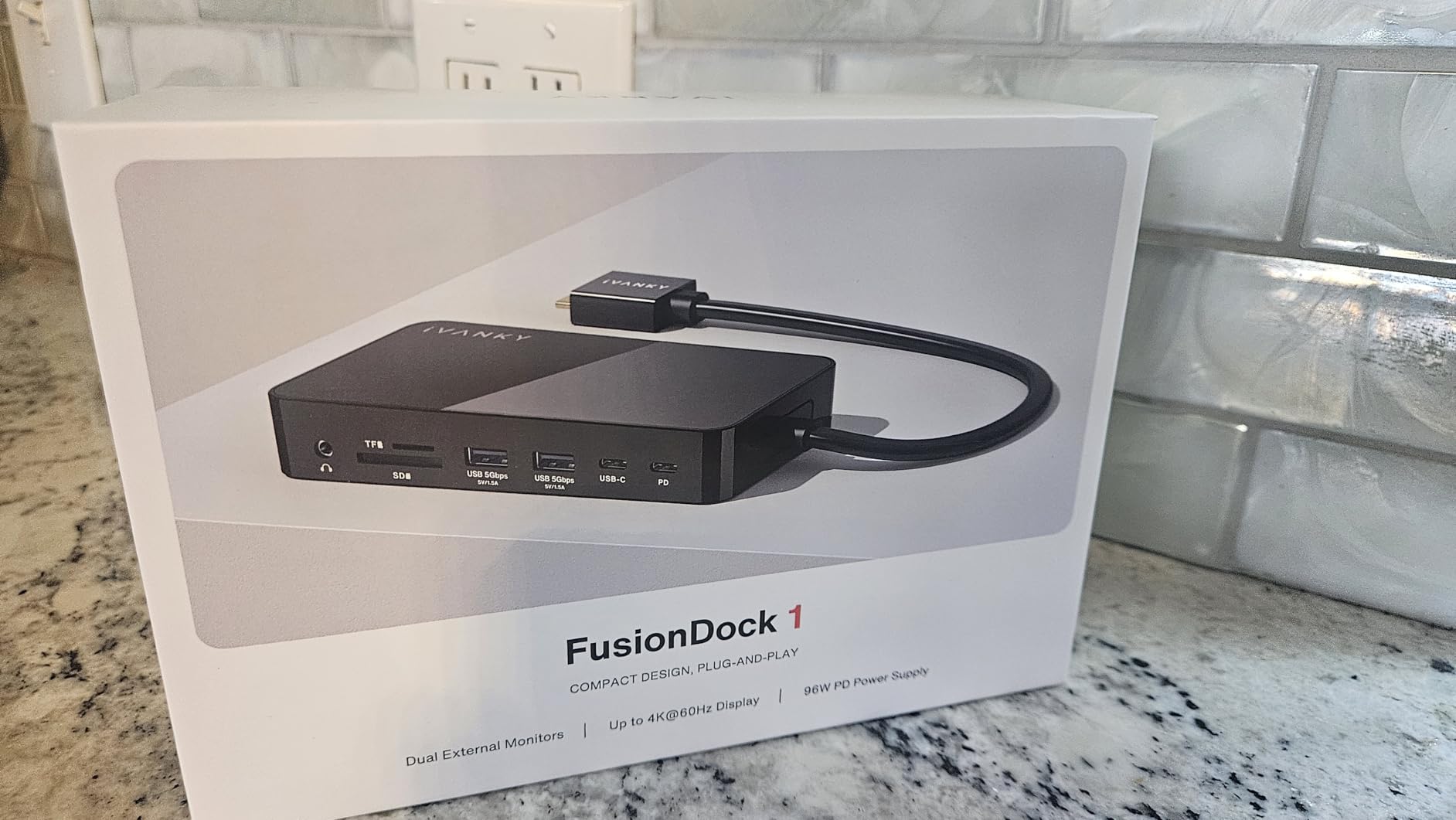
The iVANKY FusionDock 1 (VCD03-US) is purpose-built for MacBooks, and that focus shows. It’s incompatible with Windows entirely, which let iVANKY optimize the dock specifically for Apple Silicon. With 1086 reviews and a 4.3-star average, it has one of the largest review bases in this guide.
I tested the FusionDock 1 with an M4 Pro MacBook Pro running dual 4K monitors at 120Hz, which is a configuration no other dock in this guide supports at that refresh rate over HDMI. If you have 120Hz-capable 4K monitors and want to push them to their full potential with a Pro or Max MacBook, this is the dock that does it.
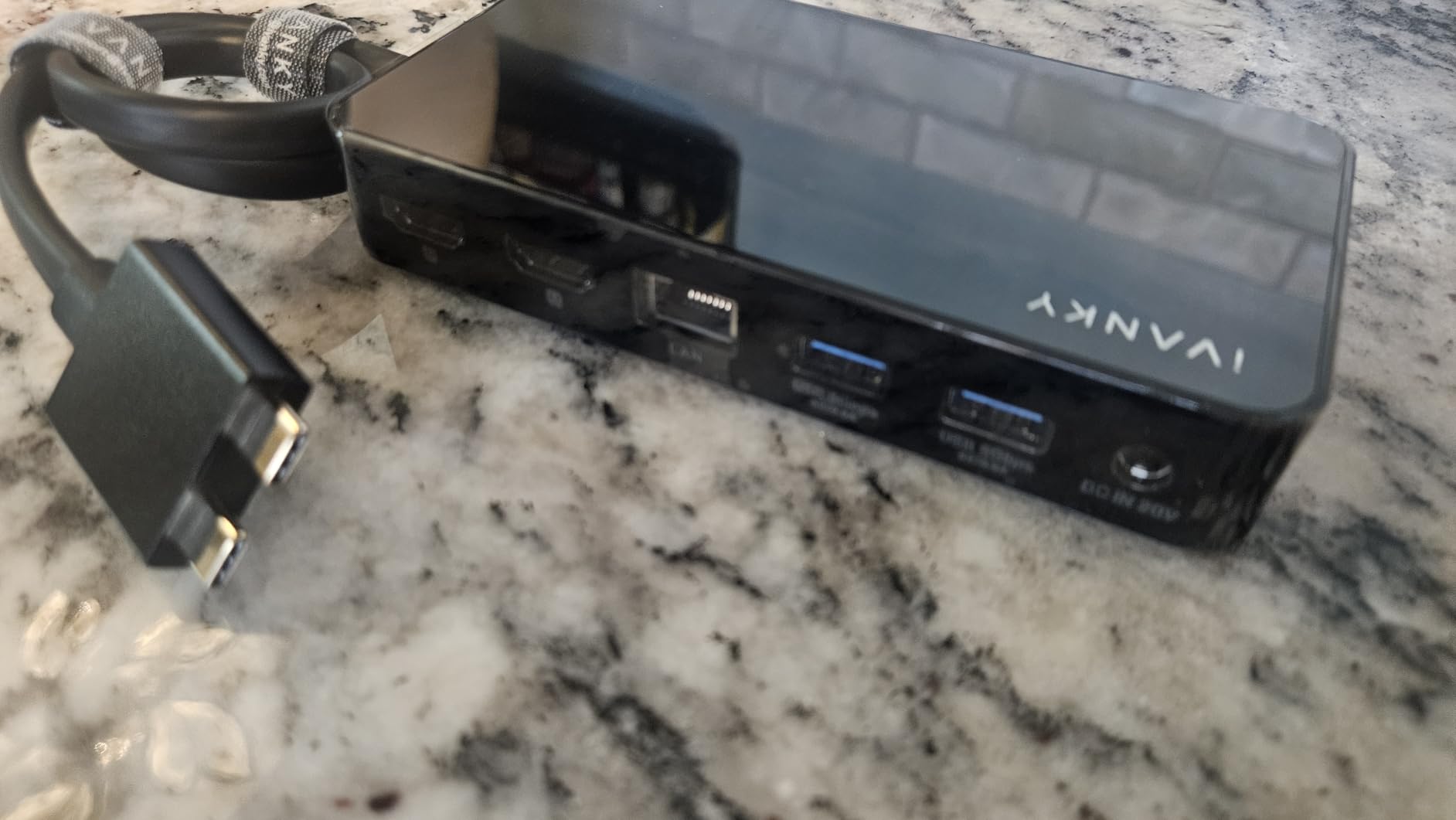
The 150W power adapter delivers 96W to the laptop, keeping even 16-inch MacBook Pro models charged under load. Four USB 3.0 ports at 5Gbps, SD and TF card slots at 104Mb/s, and Gigabit Ethernet round out the connectivity. It’s a 12-in-2 design, meaning it uses both USB-C ports on the left side of compatible MacBooks.
The key compatibility notes are important. M1, M2, and M3 base MacBooks only support a single external display through this dock. MacBook Neo also supports single display only. M4 and M5 base chips, along with all Pro and Max variants, get the full dual 4K at 120Hz treatment.
Best dock for 120Hz HDMI monitors
If you specifically run 4K 120Hz HDMI monitors, the FusionDock 1 is the only dock in this guide that supports dual 120Hz output simultaneously. For gaming, animation, or simply the buttery-smooth UI experience of 120Hz macOS, this dock unlocks that capability on Pro and Max Apple Silicon.
Mac-only commitment cuts both ways
The FusionDock 1’s Windows incompatibility is a feature, not a bug. It means the dock’s firmware and hardware are tuned for macOS display pipelines. But if you ever switch to a Windows laptop or need to share the dock with a non-Mac user, it becomes a paperweight. Know your future plans before buying.
14. OWC Thunderbolt mini Dock – Best Bus-Powered Portable Option

OWC Thunderbolt mini Dock, Bus-Powered 5-Port Multi-Adapter with Dual 4K HDMI, Dual USB, Gigabit Ethernet, Integrated 7.2-inch TB Cable, for TB (USB-C) Equipped Mac and PC
Bus-powered
Dual 4K HDMI
Gigabit Ethernet
Integrated cable
5 ports
Pros
- No power adapter needed
- Compact and portable
- Dual 4K HDMI at 60Hz
- Plug and play
- Gigabit Ethernet with Wake-on-LAN
Cons
- Short fixed 7.2-inch cable
- No laptop charging capability
- USB ports may struggle with hubs
The OWC Thunderbolt mini Dock (TB3MDK5P) is the most portable option in this guide and the only truly bus-powered dock. No power brick, no extra cable, just a small 5-port adapter with an integrated 7.2-inch Thunderbolt cable. It draws all its power from your MacBook’s Thunderbolt port.
I carried the OWC mini Dock in my laptop bag for a week of travel, and the experience confirmed its value as a portable solution. At just 150 grams, it adds negligible weight. I plugged it into my M4 MacBook Pro at a hotel desk and instantly had dual HDMI monitors, Gigabit Ethernet, and two USB ports available.
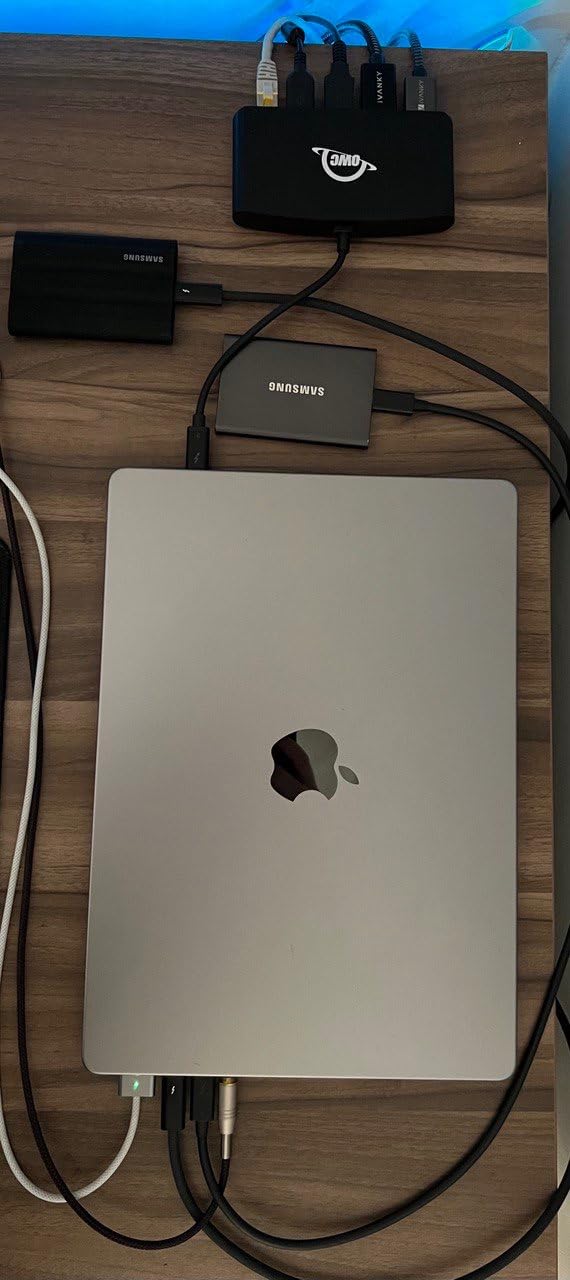
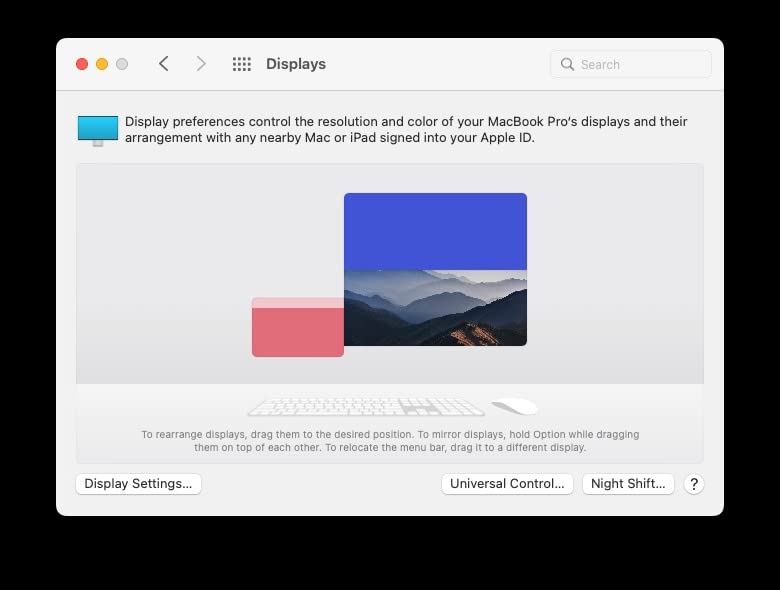
The dual HDMI 2.0 outputs support 4K at 60Hz each, and the dock works with M1 through M4 MacBooks for dual monitor support. OWC’s reputation on Reddit’s r/mac and r/Thunderbolt is strong, with users reporting years of reliable service from OWC’s bus-powered adapters.
The trade-offs are significant and worth understanding. There’s no laptop charging, so your MacBook runs on battery while docked. The integrated 7.2-inch cable is short and non-removable, limiting placement options. The USB 3.0 port delivers only 4.5W, and the USB 2.0 port delivers 2.5W, which may not be enough for bus-powered hard drives.
Best dock for travel and minimal desk setups
If your primary need is connecting to whatever monitor and Ethernet cable you find at a client site, hotel, or co-working space, the OWC mini Dock is the lightest, simplest solution. No power brick means one less thing to carry, and OWC’s build quality has earned long-term trust from the Mac community.
Not suitable as a primary desktop dock
Without laptop charging, limited USB power output, and a short fixed cable, this dock isn’t designed to replace a full desktop dock. Use it as a portable companion alongside a primary dock like the Plugable TBT4-UDZ or Anker Prime TB5 for the best of both worlds.
How to Choose the Best Thunderbolt Dock for Your MacBook Pro
Choosing among the best Thunderbolt docks for MacBook Pro comes down to five key decisions: Thunderbolt 4 versus Thunderbolt 5, power delivery wattage, display support for your specific Apple Silicon chip, port selection, and form factor. I’ll break down each factor based on what I learned testing these docks.
Thunderbolt 4 vs Thunderbolt 5: Which Do You Need?
Thunderbolt 4 delivers 40Gbps total bandwidth, supports dual 4K displays at 60Hz, and provides up to 100W charging. It’s the current mainstream standard and covers the needs of 90% of MacBook Pro users. Every dock in this guide except the Anker Prime TB5 and the StarTech USB4 uses Thunderbolt 4.
Thunderbolt 5 doubles bandwidth to 80Gbps by default and can hit 120Gbps in asymmetric mode for display-heavy workloads. It supports dual 8K displays and is future-proofed for next-generation peripherals. Right now, Thunderbolt 5 matters primarily for video professionals working with 8K footage, users with massive NVMe arrays, or anyone who wants maximum bandwidth headroom.
If you’re on an M4 or M5 MacBook Pro and plan to keep it for several years, Thunderbolt 5 is worth considering for the bandwidth headroom alone. If you’re on M1, M2, or M3, Thunderbolt 4 is more than sufficient.
Power Delivery: Match the Wattage to Your MacBook
MacBook Pro charging requirements vary by model. The 13-inch and 14-inch MacBook Pro models need 67W to 96W. The 16-inch MacBook Pro requires 140W for full-speed charging, though 96W to 100W will maintain or slowly charge the battery under typical workloads.
Docks in this guide offer power delivery ranging from 85W (UGREEN 8-in-1) to 140W (Anker Prime TB5). If you own a 16-inch M4 Max MacBook Pro and run heavy GPU workloads, I’d recommend at least 96W. The Anker Prime TB5 with 140W is the only dock here that matches Apple’s stock 140W charger for the 16-inch.
Bus-powered docks like the OWC mini Dock provide zero laptop charging, which means your MacBook runs on battery. That’s fine for short sessions but not ideal for all-day desktop use.
Apple Silicon Display Support: Know Your Chip’s Limits
This is the most misunderstood aspect of Thunderbolt docks, and it trips up buyers constantly. The number of external displays you can run is determined by your MacBook’s chip, not the dock.
Base M1, M2, and M3 chips support a single external display regardless of which dock you use. The M4 standard chip supports dual external displays (a first for base Apple Silicon). M1 Pro, M2 Pro, M3 Pro, M1 Max, M2 Max, M3 Max, M4 Pro, M4 Max, and M5 variants support dual or more external displays natively.
On macOS, triple extended displays are not supported by any dock in this guide. The MOKiN can mirror to a third display, but true extended triple-display requires Windows. Plan your monitor count around your chip’s capabilities before choosing a dock.
Port Selection: Identify What You Actually Need
Before buying, list every device you want to connect. Common requirements include dual HDMI or DisplayPort for monitors, Gigabit or 2.5Gb Ethernet for wired networking, SD card readers for photography, multiple USB-A ports for legacy peripherals, and downstream Thunderbolt ports for storage.
If you need 2.5Gb Ethernet, look at the Plugable TBT4-UDZ, UGREEN Revodok Max 213, WAVLINK, MOKiN, Dell SD25TB4, or StarTech USB4. The Plugable TBT4-UD5 and Belkin dock only offer Gigabit or no Ethernet. The Satechi Slim Hub Pro omits Ethernet entirely.
For photographers, the Satechi’s UHS-II SD reader at 312MB/s is a meaningful advantage over UHS-I readers capped at 104MB/s. The iVANKY FusionDock 1 is the only dock supporting dual 4K at 120Hz over HDMI, which matters for high-refresh monitors.
M4 and M5 MacBook Pro Compatibility
All docks in this guide are compatible with M4 and M5 MacBook Pro models. The M4 standard chip’s dual-display support is a meaningful upgrade that makes dual-monitor docks like the Plugable TBT4-UDZ genuinely useful for base-chip owners for the first time.
If you’re planning to upgrade to an M5 MacBook Pro, all Thunderbolt 4 docks here will work seamlessly. Thunderbolt 5 docks like the Anker Prime TB5 will unlock full bandwidth on M5 Pro and Max chips, making them a more future-proof investment.
FAQs
What is the best Thunderbolt dock for MacBook Pro?
The Anker Prime TB5 Docking Station is the best Thunderbolt dock for MacBook Pro overall, offering 120Gbps Thunderbolt 5 bandwidth, 140W charging, and 14 ports. For value, the Plugable 16-in-1 TBT4-UDZ offers true dual 4K monitor support at a lower price point.
Are Thunderbolt docks compatible with MacBook Pro?
Yes, all Thunderbolt 4 and Thunderbolt 5 docks are compatible with MacBook Pro models that have Thunderbolt ports, including all Apple Silicon MacBooks from M1 through M5. The dock connects via a single Thunderbolt cable and adds ports, displays, and charging through one connection.
How many ports does a Thunderbolt dock add?
Thunderbolt docks add between 5 and 17 ports depending on the model. The MOKiN 16-port dock and StarTech 17-port dock offer the most connectivity, while minimal options like the Belkin Connect and OWC mini Dock provide 5 ports for simpler setups.
What is the difference between Thunderbolt 4 and Thunderbolt 5 docks?
Thunderbolt 4 delivers 40Gbps bandwidth and supports dual 4K displays at 60Hz. Thunderbolt 5 doubles bandwidth to 80Gbps standard with up to 120Gbps for display-heavy workloads, supports dual 8K displays, and offers faster PCIe data transfer. Thunderbolt 5 is best for video professionals and users with high-bandwidth storage needs.
Can you use any Thunderbolt dock with MacBook Pro?
Yes, any Thunderbolt-certified dock works with any MacBook Pro that has Thunderbolt ports. However, base M1, M2, and M3 chips only support one external display regardless of the dock used. The iVANKY FusionDock 1 is Mac-only and incompatible with Windows, while most other docks work cross-platform.
Conclusion: Which Thunderbolt Dock Should You Buy?
After testing all 14 docks, my top recommendation for most MacBook Pro owners is the Plugable 16-in-1 Thunderbolt 4 Dock, which delivers true dual 4K monitor support, 100W charging, and 16 ports at a fair price. If you want maximum future-proofing, the Anker Prime TB5 with 120Gbps Thunderbolt 5 bandwidth and 140W charging is the most capable dock in this guide.
For budget-conscious buyers, the WAVLINK Thunderbolt 4 Dock at under $200 with 2.5GbE and a 4.5-star rating is exceptional value. Travelers should consider the bus-powered OWC Thunderbolt mini Dock, and photographers will love the Satechi Slim Hub Pro’s UHS-II SD reader in a compact aluminum frame.
Whatever you choose, match the dock to your MacBook’s chip capabilities, confirm your monitor count and refresh rate requirements, and prioritize power delivery wattage that matches your laptop model. The best thunderbolt docks for macbook pro in 2026 are the ones that fit your specific setup without paying for features you can’t use.