
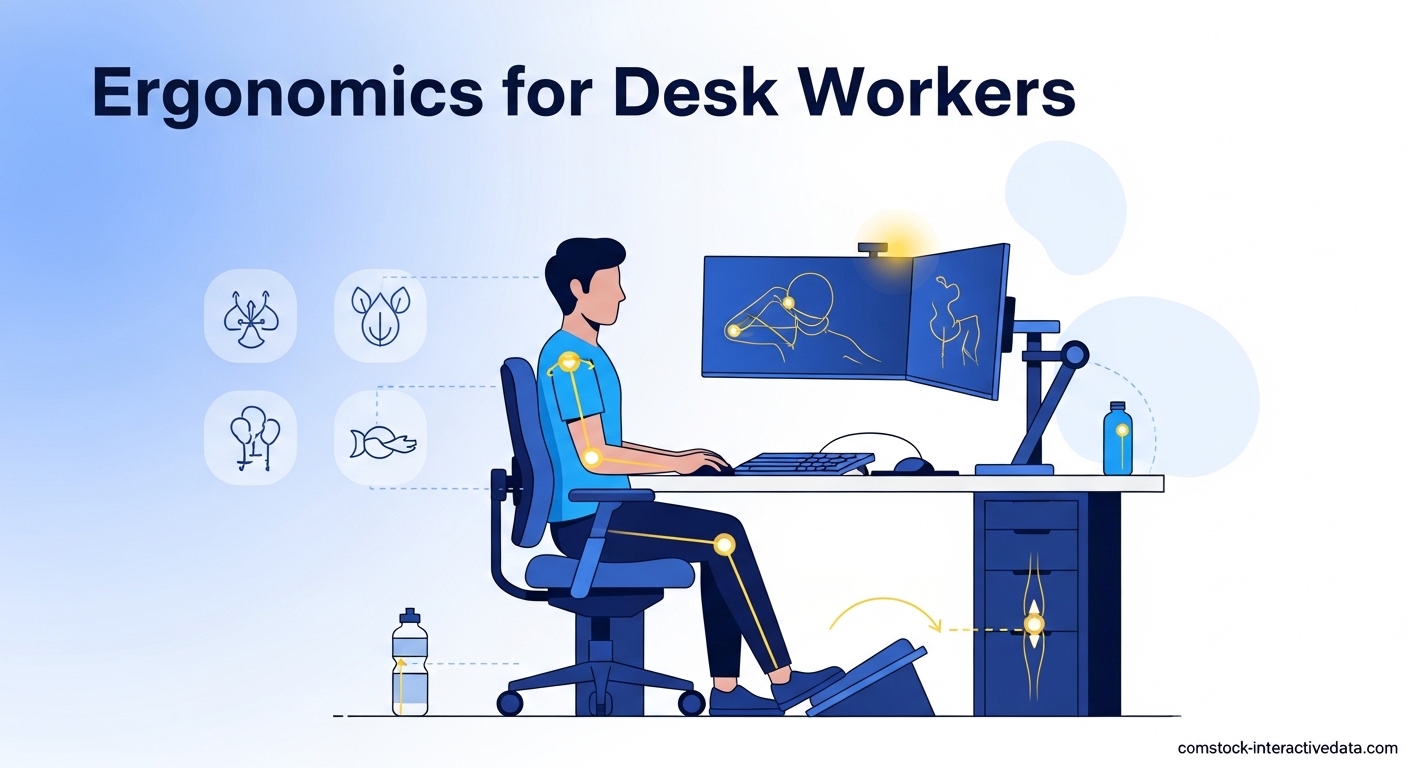
Your body was not built to sit for eight hours straight. Evolution designed humans for walking, hunting, and gathering — not for hunching over spreadsheets and video calls. Yet here we are in 2026, with millions of desk workers experiencing chronic back and neck pain that could have been prevented with simple ergonomic adjustments.
Ergonomics for desk workers is the science of arranging your workstation to fit your body instead of forcing your body to adapt to your workstation. When you get it right, you prevent back and neck pain, reduce the risk of repetitive strain injuries like carpal tunnel and tendonitis, and maintain your energy throughout the workday. When you get it wrong, you set yourself up for years of musculoskeletal pain that only gets worse over time.
Our team has spent months analyzing research from Mayo Clinic, Johns Hopkins, and peer-reviewed studies on workplace ergonomics. This guide combines that medical expertise with practical, actionable advice you can implement today — without buying expensive equipment. Whether you work in an office or from home, these principles will help you create an ergonomic workstation that protects your spine, neck, and wrists.
Table of Contents
How to Find Your Ideal Chair Setup for Back Pain Prevention?
Your chair is the foundation of your ergonomic workstation. Get this wrong, and everything else becomes a compensation for poor sitting posture. Get it right, and you create a stable base that supports your lumbar spine and keeps your pelvis in proper alignment.
The correct chair setup prevents disc pressure that builds up when you slouch or sit without adequate lumbar support. Research published in the Journal of Physical Therapy Science shows that prolonged sitting with poor posture significantly increases the load on your lumbar discs, leading to chronic lower back pain over time.
Finding the Correct Chair Height
Start by adjusting your chair height so your feet rest flat on the floor with your knees bent at approximately 90 degrees. Your thighs should remain parallel to the floor, not angled up or down. This position maintains proper pelvis alignment and prevents pressure on the underside of your thighs.
If you cannot achieve this position with your current chair, you may need to raise or lower your chair. Most office chairs adjust between 16 to 21 inches (40 to 53 centimeters) from the floor to the seat. Sit as close as possible to your desk so your upper arms hang parallel to your spine when relaxed at your sides.
Your lower back should press firmly against the chair’s lumbar support. If your chair lacks adequate lumbar support, roll a towel and place it at the curve of your lower back. This simple adjustment costs nothing and significantly reduces disc pressure.
Using a Footrest When Your Feet Do Not Reach the Floor
If raising your chair to desk height leaves your feet dangling, use a footrest. This is common for shorter desk workers and prevents the circulation problems and lower back strain that come from unsupported legs. A footrest should be adjustable and large enough for both feet to rest flat.
You can improvise with a stack of sturdy books or a box if you do not have a proper footrest. The key is ensuring your thighs stay parallel to the floor while your feet have stable support. Avoid letting your legs hang unsupported or using a footrest that forces your knees higher than your hips.
Armrest Adjustment for Shoulder Support
Your armrests should allow your shoulders to relax while your elbows stay close to your body. Position them so your arms rest lightly on the rests without hunching your shoulders up or slouching down to reach them. Poorly adjusted armrests force your shoulders into a lifted position that creates tension in your neck and upper back.
If your armrests are not adjustable, consider removing them entirely. Fixed armrests that are too high cause more problems than they solve. The goal is gravity compensation — letting your arm weight rest on the supports so your shoulder muscles can relax throughout the day.
How to Position Your Monitor to Prevent Neck Pain?
Monitor positioning directly affects your cervical spine and determines whether you develop forward head posture, a leading cause of tech neck among desk workers. When your screen sits too low, you crane your neck forward and down. When it sits too high, you extend your neck backward. Both positions strain your neck muscles and compress your cervical vertebrae.
Position your monitor at arm’s length distance — approximately 20 to 40 inches (50 to 100 centimeters) from your eyes. The top of your screen should sit at or slightly below eye level. This allows you to view the entire screen with a slight downward gaze of about 15 to 20 degrees, which is the natural resting position for your eyes and neck.
If you wear bifocals, position the monitor 2 to 3 inches (5 to 8 centimeters) lower than standard recommendations. This compensates for the reading portion of your lenses and prevents the awkward head tilting that causes neck strain. Never position your monitor where you need to rotate your neck to view it — this creates asymmetrical strain that leads to chronic pain.
For large or multiple monitors, place your primary screen directly in front of you. Secondary monitors should angle slightly toward you so you do not need to turn your head significantly to view them. Your neck should remain relatively neutral during most of your work.
How to Set Up Your Keyboard and Mouse to Prevent Repetitive Strain Injury?
Your keyboard and mouse placement determines the position of your wrists, elbows, and shoulders throughout the workday. Poor placement causes contact stress on your wrists and creates the awkward arm angles that lead to carpal tunnel syndrome, tendonitis, and other repetitive strain injuries.
Place your keyboard so your elbows stay close to your body at approximately 90 degrees when typing. Your forearms should rest parallel to the floor or angle slightly downward toward the keyboard. Your wrists should remain straight — not bent up, down, or sideways — as you type.
Position your mouse at the same height and distance as your keyboard. Do not reach forward or to the side to use it. Consider using a keyboard tray if your desk height prevents proper positioning. A tray allows you to place your keyboard and mouse at elbow height while keeping your desk surface clear for other work.
If your desk has hard edges, pad them or use a wrist rest to prevent contact stress. Resting your wrists on hard surfaces compresses soft tissues and can contribute to carpal tunnel development. A soft wrist rest provides cushioning but should not prop your wrists up during active typing — save that for short breaks between typing sessions.
How to Determine if Your Desk Height is Correct?
Your desk height must work in harmony with your chair height to create proper ergonomic positioning. When set correctly, your desk allows your arms to rest naturally while keeping your shoulders relaxed. When set incorrectly, you either shrug your shoulders to reach up or slump forward to reach down.
The correct desk height positions your work surface at approximately elbow height. When seated properly in your chair, your elbows should rest just above the desk surface. This allows your forearms to glide comfortably while typing without lifting your shoulders or bending your wrists at extreme angles.
To test your desk height, sit in your ergonomic chair position and relax your arms at your sides. Bend your elbows to 90 degrees. Your fingertips should lightly touch or hover just above your keyboard. If you need to lift your shoulders to reach the keyboard, your desk is too high. If you need to reach down significantly, your desk is too low.
Standard desk height is 29 to 30 inches (74 to 76 centimeters), which suits people approximately 5’10” to 6’0″ tall. If you are significantly shorter or taller, you may need an adjustable desk or a keyboard tray to achieve proper positioning.
How to Set Up a Laptop Ergonomically?
Laptops create an ergonomic dilemma. The screen is too low when the keyboard is at proper height, and the keyboard is too high when the screen is at eye level. This forces you to choose between neck strain and wrist strain — unless you use external peripherals.
To set up a laptop ergonomically, treat the laptop as your monitor and add an external keyboard and mouse. Elevate the laptop screen to eye level using a laptop stand, stack of books, or box. Then connect an external keyboard and mouse positioned at proper elbow height on your desk or a keyboard tray.
This setup gives you the portability of a laptop with the ergonomic positioning of a desktop workstation. Your neck stays neutral as you look at the elevated screen while your wrists and arms maintain proper positioning at the external keyboard. The small investment in external peripherals prevents the significant physical cost of laptop-induced tech neck and wrist pain.
If you must use the laptop keyboard occasionally, limit these sessions to short periods under 30 minutes. For extended work sessions, always use the external peripheral setup to maintain proper ergonomics.
How Often You Should Take Breaks from Sitting?
Even the perfect ergonomic setup cannot overcome the fundamental problem with desk work — your body was not designed to remain in one position for hours. Prolonged sitting causes muscle fatigue, reduces circulation, and increases disc pressure regardless of how well you arrange your workstation.
Research from the University of Utah Health recommends taking breaks from sitting every 30 to 60 minutes. These breaks do not need to be long — standing for two to three minutes, walking to get water, or doing simple stretches resets your posture and reduces the cumulative strain of sedentary work.
Set a timer or use software reminders to prompt movement breaks. During these breaks, stand up, walk around, and perform gentle stretches for your neck, shoulders, and lower back. This movement increases blood flow, resets muscle tension, and gives your intervertebral discs a chance to rehydrate and recover from compression.
Consider a standing desk for dynamic positioning that allows you to alternate between sitting and standing throughout the day. A 2026 study published in PubMed Central found that sit-stand desks reduce lower back discomfort by 32% compared to traditional sitting-only workstations. When using a standing desk, alternate every 30 to 60 minutes between sitting and standing positions.
Frequently Asked Questions
How should I position my monitor to prevent neck pain?
Position your monitor at arm’s length distance (20 to 40 inches or 50 to 100 centimeters) with the top of the screen at or slightly below eye level. This allows a slight downward gaze of 15 to 20 degrees, which is the natural resting position for your neck. Never position your monitor where you must crane your neck forward or tilt it backward to view the screen.
What is the correct chair height for desk work?
Adjust your chair so your feet rest flat on the floor with knees bent at approximately 90 degrees and thighs parallel to the floor. Most office chairs adjust between 16 to 21 inches (40 to 53 centimeters) from floor to seat. Your lower back should press firmly against the chair’s lumbar support.
How often should I take breaks from sitting?
Take breaks from sitting every 30 to 60 minutes. These breaks only need to last 2 to 3 minutes and can include standing, walking, or gentle stretching. Set a timer or use software reminders to prompt movement breaks throughout your workday.
What is forward head posture and how does it cause neck pain?
Forward head posture occurs when your head juts forward past your shoulders instead of resting directly above them. For every inch your head moves forward, it adds approximately 10 pounds of pressure to your neck muscles and cervical spine. This posture compresses neck joints and strains soft tissues, leading to chronic neck pain, headaches, and upper back tension.
How do I set up a laptop ergonomically?
Use your laptop as a monitor only and add external peripherals. Elevate the laptop screen to eye level using a stand or stack of books. Connect an external keyboard and mouse positioned at proper elbow height. This setup maintains neutral neck position while keeping wrists and arms properly aligned.
What are the best exercises for desk workers with back pain?
The best exercises include: 1) Wall stands — stand with your back against a wall, head touching, and hold for 30 seconds to correct forward head posture; 2) Cat-cow stretches on hands and knees to mobilize the spine; 3) Doorway chest stretches to open tight shoulders; 4) Standing hamstring stretches to relieve lower back tension. Perform these during movement breaks every hour.
How do I know if my desk is too high or too low?
Sit properly in your chair with feet flat and arms at your sides. Bend your elbows to 90 degrees. Your fingertips should lightly touch or hover just above your keyboard. If you must lift your shoulders to reach the keyboard, your desk is too high. If you must reach down significantly, your desk is too low. Standard desk height is 29 to 30 inches (74 to 76 centimeters).
Key Takeaways for Preventing Back and Neck Pain at Your Desk
Ergonomics for desk workers is not about buying expensive equipment or achieving perfect posture for hours on end. It is about making smart adjustments that allow your body to maintain its natural neutral positions while you work. Small changes in chair height, monitor position, and break frequency compound into significant pain prevention over time.
Here is your quick-reference checklist for an ergonomic workstation in 2026:
Chair Setup: Feet flat on floor, thighs parallel, knees at 90 degrees, lower back supported with lumbar cushion, armrests at shoulder-relaxing height.
Monitor Position: Arm’s length away (20-40 inches), top of screen at or below eye level, centered to prevent neck rotation.
Keyboard and Mouse: At elbow height, wrists straight, elbows close to body at 90 degrees, mouse positioned beside keyboard.
Desk Height: At elbow level when seated properly, allowing relaxed shoulders while typing.
Movement: Break every 30-60 minutes for 2-3 minutes of standing, walking, or stretching.
Your body sends warning signals when your ergonomics need adjustment. Do not ignore neck stiffness, lower back aches, wrist tingling, or shoulder tension. These are early indicators that your current setup is causing damage. Apply the principles in this guide, listen to your body, and adjust your workstation until you can work comfortably for your entire day without pain.
The investment you make in proper ergonomics today pays dividends for decades. Preventing back and neck pain is far easier than treating it once it becomes chronic. Set up your workstation correctly, take your movement breaks seriously, and give your body the support it needs to thrive in a sedentary job.